
Add and Customize Tabs on Lightning Pages Using the Lightning App Builder
With the Lightning App Builder, you can create, update, delete, and change the order of tabs and tab sets on record, app, and Home pages in Lightning Experience. Configure the tabs that your users see, name them whatever you like, and add components to each tab.
Required Editions
| Lightning App Builder available in: both Salesforce Classic and Lightning Experience |
| Lightning Home and utility bar pages available in: Lightning Experience |
| Lightning app and record pages available in: both the Salesforce mobile app and Lightning Experience |
| Email application pane pages available in: both Salesforce Classic and Lightning Experience |
Available in: Group, Essentials, Professional, Enterprise, Performance, Unlimited, and Developer Editions |
| User Permissions Needed | |
|---|---|
| To create and save Lightning pages in the Lightning App Builder: | Customize Application |
-
Open a Home, app, or record page for Lightning Experience in one of these ways.
- From the Setup menu, select Edit Page.
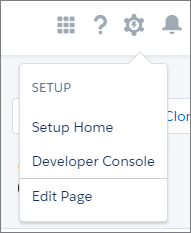
When you select Edit Page for the first time, Salesforce makes a copy of the standard page. This copy is what you edit in the Lightning App Builder. If a customized page exists and is active, selecting Edit Page opens that page to edit.
- Open a page from the Lightning App Builder list page. From Setup, in the Quick Find box, enter App Builder, and then select Lightning App Builder.
- From the Setup menu, select Edit Page.
-
Add a Tabs component to the page.
A default set of tabs is added.
- To add a tab, click Add Tab in the Tabs component properties.
-
Customize a tab by clicking it in the properties pane. You can select a different standard
label, or click Custom and enter the tab name you want.
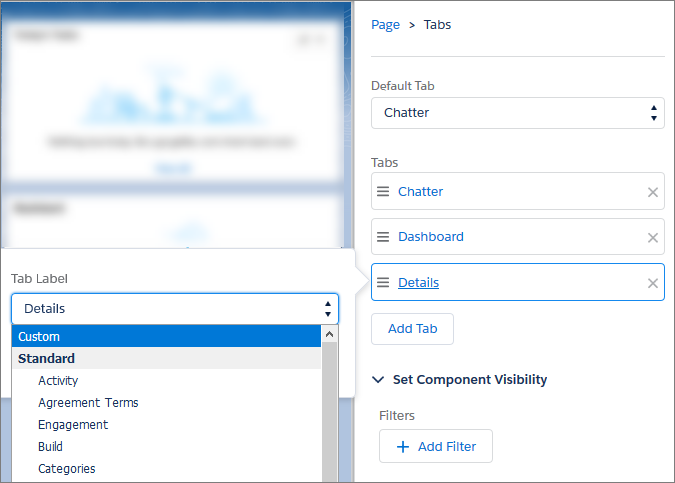
 Note Custom tab labels in the Tabs component—including those custom tab labels installed from packages—aren’t translated. For example, if you create a custom Goals tab in English, then view the page as a user whose language is set to French, the tab still displays as Goals. However, you can use the
{!$Label.customLabelName}expression in a component label or attribute to represent a custom label that you create in Setup using the custom label feature. For more information, see Build Localized Component Labels and Attribute Values on Lightning Pages with Custom Labels. -
If needed, add a visibility rule to show or hide individual tabs.
- Click a tab in the Tabs properties pane. For example, click Related.
- Click Add Filter and specify filter criteria, then click Done.
-
Click Done again to save your changes.
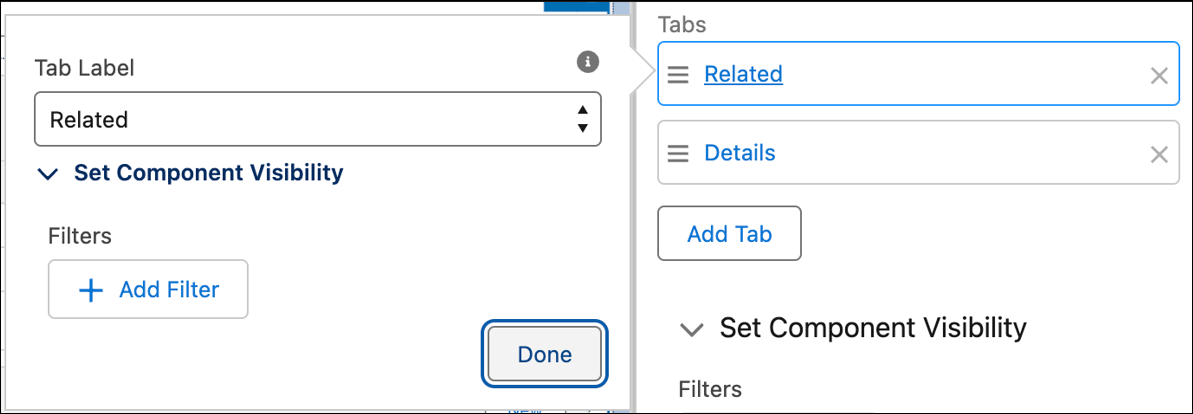 Note If all components of an individual tab are hidden due to visibility rules, then Salesforce hides the tab, too. For example, if all components of the Related tab are hidden, then Salesforce hides the Related tab. If all individual tabs within a Tabs component are hidden due to visibility rules, then Salesforce hides the entire Tabs component on the record page.
-
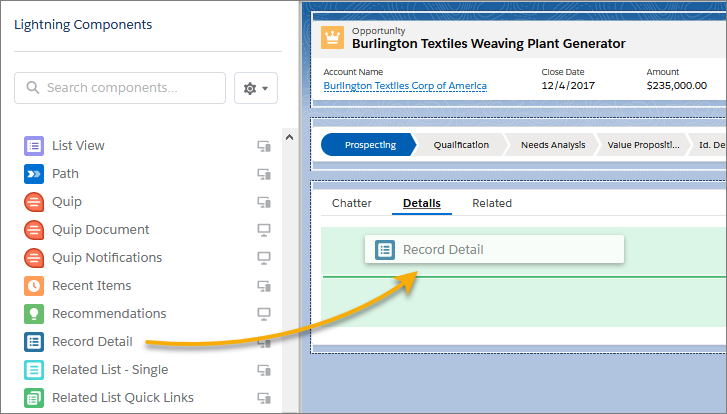
To add your first component to a tab, select the tab on the canvas, and then drop the
component directly below it.
- Reorder tabs in the Tabs properties pane by dragging them into position. You can’t drag and drop individual tabs on the canvas.
Did this article solve your issue?
Let us know so we can improve!
