Log In as Another User
To help troubleshoot user issues, admins can log in to a Salesforce org or Experience Cloud site as the employee user experiencing the problem. Depending on your org settings, the individual user can be prompted to grant login access to an admin.
Required Editions
| Available in: Salesforce Classic and Lightning Experience |
| Available in: Enterprise, Performance, Unlimited, Developer, and Database.com Editions |
| User Permissions Needed | |
|---|---|
| To log in as another user: | Modify All Data |
| To log in as a partner or customer user: | Manage External Users OR Manage External Users (Limited) OR Manage Customer Users (The Manage Customer Users permission is on by default for standard users created before Summer ‘18.) AND Edit on Accounts (This permission isn’t needed if the person logging in has a higher role than the partner or customer user they’re logging in as.) |
| To log in as an experience user: | Manage External Users OR Manage External Users (Limited) AND Edit on Accounts AND Be a member of the site that they want to access. OR Create and Setup Experiences AND View Setup and Configurations |
Log In to a Salesforce Org as Another User
This feature doesn’t support logging in to your service provider with Salesforce as the SAML or OAuth identity provider for single sign-on (SSO). In this scenario, you’re blocked from logging in as another user and you receive an Insufficient Privileges error.
While logging in as another user, you aren’t subject to any login flows, whether they’re associated with the user’s profile or your own.
- From Setup, enter Users in the Quick Find box, then select Users.
-
Click the Login link next to the username. This link is
available only for users who have granted login access to an admin or in orgs where
admins can log in as any user.
 Note You can't grant login access to other admins on behalf of the user that you’re logged in as. The user must grant login access directly.
 - To return to your admin account, select User’s Name | Logout.
Log In to an Experience Cloud Site as Another User
You can log in to an Experience Cloud site as an external user, such as a customer or partner, or as an employee user with a Unified Employee license. Unlike logging into a Salesforce org as another employee user, you log in to the Experience Cloud site from the user’s People record.
Before logging in as a user with the Unified Employee license, make sure to assign the user to all Experience Cloud sites they need access to. For more information, see Unified Employee License Details and Assign the Unified Employee License.
-
From the user’s People record, select Log in to Experience as
User from the Employee User list.
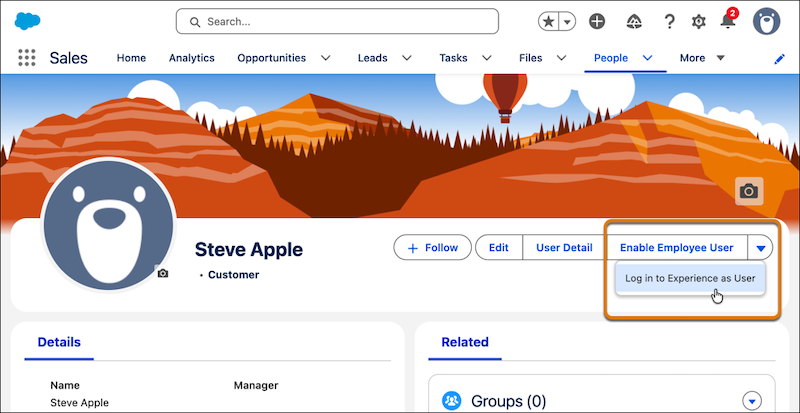
- If prompted, select the Experience Cloud site to log in to. You’re redirected to the selected site and automatically logged in.
