
You are here:
Sharing and Record Access Features
In Salesforce, you can control access to data at many different levels. Set up the access that users have to records they don't own using the various sharing and record access features, all of which achieve a different use case.
Required Editions
| Available in: both Salesforce Classic and Lightning Experience |
Available in: Professional, Enterprise, Performance, Unlimited, Developer, and Database.com Editions Teams are not available in Database.com |

 Who Sees What: Overview
(English only)
Who Sees What: Overview
(English only)
Watch how you can control who sees what data in your organization.
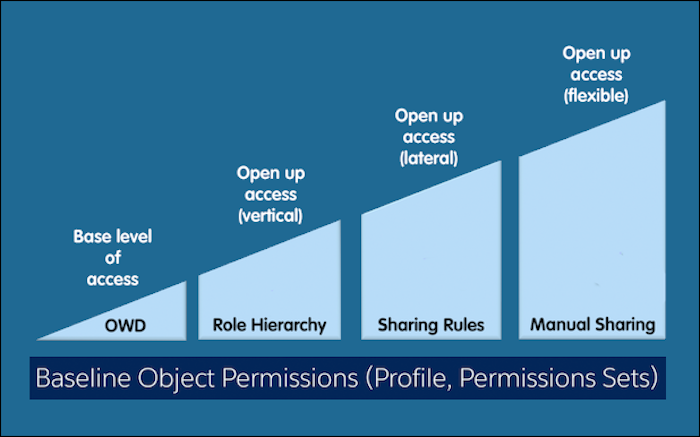
There are several sharing features that you can use to configure record access for your users.
Organization-Wide Defaults
Your organization-wide default sharing settings give you a baseline level of access for each object. Organization-wide defaults specify the default level of access that users have to each others’ records. For example, you can set the organization-wide default for leads to Private if you only want users to view and edit the leads they own. Then, you can create lead sharing rules to extend access of leads to particular users or public groups.
Role Hierarchy
The role hierarchy automatically grants users access to the records owned by or shared with their subordinates in the hierarchy. You can control sharing access using hierarchies for any custom object, but not standard objects.
Sharing Rules
Sharing rules represent the exceptions to your organization-wide default sharing settings. They allow you to extend record access to users regardless of their place in the role hierarchy. If you have organization-wide sharing defaults of Public Read Only or Private, you can define rules that give additional users access to records they don’t own. You can create sharing rules based on record owner or field values in the record and specify the public groups and roles that receive access.
Manual Sharing
Sometimes it’s impossible to define a consistent group of users who need access to a particular set of records. Record owners can use manual sharing to give read and edit permissions to users who don’t have access any other way. Manual sharing isn’t automated like organization-wide sharing settings, role hierarchies, or sharing rules. But it gives record owners the flexibility to share records with users that must see them.
Apex Managed Sharing
If sharing rules and manual sharing don’t provide the required access control, you can use Apex managed sharing. Apex managed sharing allows developers to programmatically share custom objects. When you use Apex managed sharing to share a custom object, only users with the “Modify All Data” permission can add or change the sharing on the custom object's record, and the sharing access is maintained across record owner changes.
Other Methods for Controlling Access to Records
In addition to these main sharing features, there are other ways to allow multiple users access to given records, or to filter records so users don’t have too much access.
- Queues
Queues help you prioritize, distribute, and assign records to teams who share workloads. Queue members and users higher in a role hierarchy can access queues from list views and take ownership of records in a queue.
Queues are available for cases, contact requests, leads, orders, custom objects, service contracts, and knowledge article versions.
- Teams
- For accounts, opportunities, and cases, record owners can use teams to
allow other users access to their records. A team is a group of users
that work together on an account, sales opportunity, or case. Record
owners can build a team for each record that they own. The record owner
adds team members and specifies the level of access each team member has
to the record, so that some team members can have read-only access and
others can have read/write access. The record owner can also specify a
role for each team member, such as “Executive Sponsor.” In account
teams, team members also have access to any contacts, opportunities, and
cases associated with an account. Note A team member can have a higher level of access to a record for other reasons, such as a role or sharing rule. In this case, the team member has the highest access level granted, regardless of the access level specified in the team.
- Territories
- Enterprise Territory Management allows you to define record access and ownership based on geographic territories. Use if your teams’ account coverage is based on territories.
- Map Category Groups to Roles
- Control access to data categories by mapping them to user roles.
- Restriction Rules
- When a restriction rule is applied to a user, the data that they had read access to via your sharing settings is further scoped to only records matching the record criteria that you set. This behavior is similar to how you can filter results in a list view or report, except that it’s permanent.
- Sharing Sets and Share Groups
- If you enabled Digital Experiences, there are sharing features available that are specific to granting access to external users. Use sharing sets to grant site users access to records associated with an account or contact that matches the user’s account or contact. Use share groups to share records owned by high-volume Experience Cloud site users with both authenticated internal and external users.
