You are here:
Reply Mail Management for Email Studio
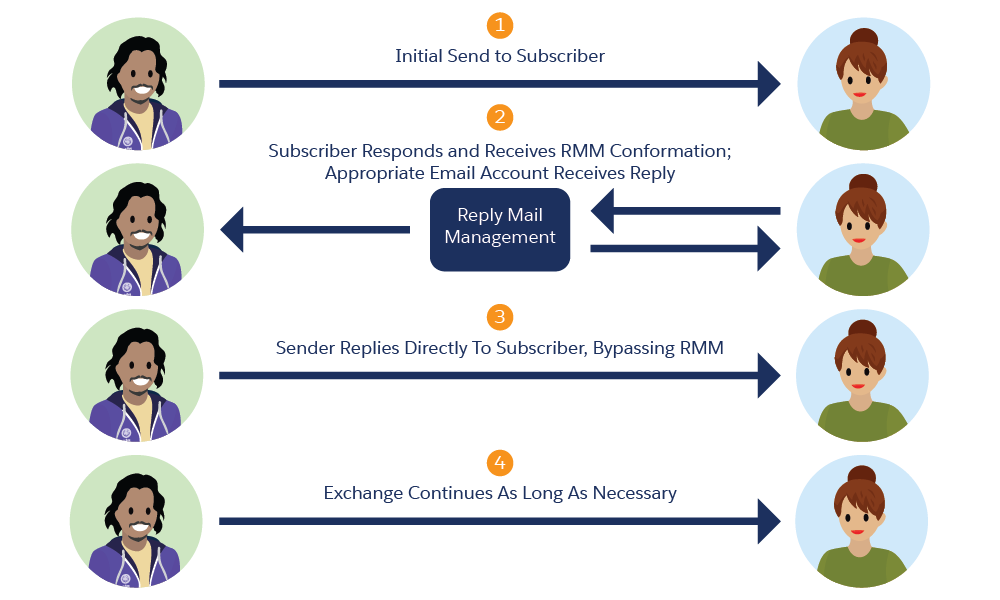
Reply Mail Management (RMM) manages replies to the email jobs you send. RMM processes the reply automatically, if appropriate, and forwards the message if the message requires personal review.
Prerequisites
To accomplish this job, you work in Marketing Cloud Engagement and your domain manager.
Before you can set up RMM, contact your account executive to request a Sender Authentication Package or RMM services. After Salesforce is done provisioning these features, if you chose to delegate the domain to Engagement, these records are already in place.
If you chose the self-hosted option, these records are included in the DNS zone file that we provided to you. For instructions on DNS redirection, review Update DNS File to Manage Replies.

Reply Mail Management
Reply Mail Management automatically manages replies, including replies from auto-responders, and leave or unsubscribe requests received in response to your emails.
Reply Mail Management has a throttle of 10 per hour for replies to the same subscriber and JobID.
Configure your account to use a special Reply-To address in your emails. When a subscriber manually replies to the address or when the subscriber's account automatically replies, the email message goes to the Reply-To address you created.
When the Reply-To address receives an email, RMM applies a series of Match-Action rules. These rules determine whether the email is an out-of-office reply, auto-reply, or unsubscribe request. This feature acts on the message according to how you configured the feature.
RMM also handles these functions:
- Forward an email to different users depending on different circumstances.
- Conditionally auto-reply and control the content of that auto-reply message.
Go to the Admin tab of Marketing Cloud Engagement, and configure RMM on the Reply Mail Management page. Add terms to the ones already listed in this document.
RMM addresses automated replies produced by nearly all email software in use today. However, due to the use of non-standard protocols by a few mail clients, RMM can’t address 100 percent of auto-replies. In most situations, RMM handles more than 90 percent of auto-replies.
Scenario
Northern Trail Outfitters sends out 5,000 emails on a Friday. Without the RMM feature, on Monday morning, the staff must manually manage tasks, such as out-of-office replies, auto-replies, auto-forwards, and unsubscribes. These activities are in addition to mention individual customer responses.
RMM manages a large percentage of the replies immediately and automatically. Customers feel they receive one-on-one attention, a quick response, and actions geared toward their needs and preferences.
Store ABC configures RMM so that replies that aren’t filtered out receive auto-reply customized messages. In this example, personalization strings and AMPscript personalize each email. RMM automatically replaces the AMPscript personalization string %%firstname%% with "John".

Thank you, John, for your reply on April 14. We have received your questions and will reply as soon as possible.
While you are waiting, we’ve added 50 purchase points to your account, so you may want to stop by
Store ABC WXY Avenue Memphis, TN 37501
And don't forget our Internet site at example.com
Thank you!
Henry Roof
Manager, Marketing Department
___________________________________________________________________________________
%%ReplyContent%%
Reply Address Definition
When you configure RMM, specify the Reply-To information used:
- Email Display Name: The reply name appears in the From field of the subscriber email client, such as Microsoft Outlook, when the subscriber replies to your email. Don’t use an email address as the Email Reply Name. To encourage interaction with your subscribers, use an individual's name from your organization, such as a member of your customer service group.
- Reply Subdomain: The subdomain is the portion of your URL that points to your email reply rules. For example, a company with an email address structure of name@example.com creates a subdomain of reply. That company then adds it to the box provided onscreen to create reply.example.com.
- Email Reply Address: The reply address appears in the From name of your subscriber's email client when the subscriber replies to your email. While this information appears in the format of an email message, it isn’t a valid email address on its own. The address directs the reply to RMM for processing. Define this address in the Reply Mail Management feature or via a sender profile. If you use a sender profile to define the email reply address, you can enable the email message to use a multitude of email reply addresses.
- DNS Record Redirect Complete: Complete the domain name system (DNS) record redirect to Marketing Cloud Engagement before activating this feature. Your ISP helps you with this process. To enable your DNS record redirect, contact your account executive.
Reply Rules
When you configure RMM, indicate how you want the reply rules to identify and respond to the replies that subscribers send:
- Delete auto-replies and out-of-office replies. If you select Yes, RMM deletes messages that contain any Out Of Office terms. These terms can appear in the message header, email subject line, email From address, or the first 200 characters of the email body. Reference the table at the end of this list. If you select No, RMM forwards the messages to a forwarding address that you specify.
- Unsubscribe Manual Requests: If you select Yes, RMM unsubscribes the email address from your account if the message contains any of the unsubscribe terms. These terms can appear in the email Subject line or the first 200 characters of the email body. If you select No, RMM forwards the messages to a forwarding address that you specify.
- Terms: If you select Yes for Unsubscribe Manual Requests, select the
unsubscribe terms that cause RMM to unsubscribe the email address. You can also select common
misspellings to allow RMM to unsubscribe email addresses when messages contain misspelled
unsubscribe words. The checkboxes include these terms:
- Unsub
- Unsubscribe
- Remove
- Opt-Out
- Leave
- Common Misspellings
- unsube
- unsu
- unsubscribed
- unsubsribe
- unsubscrabe
- unscribe
- unsubscribe...
- "unsubscribe"
- unsubscribe!
- suscribir
- renove
- removed
- take me off your list
- delete me from your list
- opt out
- optout
- laeve
- leaved
Out of Office Terms
- Undeliverable:
- auto-response
- autoresponse
- automated reply
- auto-submitted
- auto-generated
- auto-replied
- inter-application
- auto-reply
- auto reply
- autoreply
- auto response
- out of office
- out-of-office
- out of office on vacation
- out on vacation
- automated response
- autosvar
- automatisk svar
- Loma
- Lomalla
- Automaattinen vastaus
- automatic reply
- delivery status notification
- email is being transferred
- email will not be read
- for immediate help
- I will respond
- no longer able to receive email
- Notification-only
- Please do not reply
- abwesenheitsnotiz
- absence notice
- out of the office
- automatica
- out on vacation
- out of the office on vacation
- automatique
- automatisk
- automatiskt
- autoresponder
- auto-reposta
- reposta
- automatica
- automaticka
- away from the office
- away from my office
- Vapaalla
- Poissaoloviesti
- automatiresponse
- do not reply to this
- out on holiday
- out for holidays
- I am no longer with
- inactive email account
- inter-application message
- could not be delivered
- new email address
- no longer able to receive email
- We will respond
- will reply to your email
Automated Response Email for Remaining Replies
When you configure RMM in your account, you can specify whether a reply to your message generates an acknowledgment. For example, send an automated response to each email that isn’t identified by one of the reply rules. If you choose to send an automated response, you can select the default response or create a custom response. For example, the default response contains this text:
Thank you for your email. We have received your questions and we will reply as soon as possible.
**************************************************
This is an automated response. Please do not directly reply to this email.
You can also choose to use a triggered send for the reply. Contact your account executive to discuss configuring your reply mail management instance to use triggered sends.
If you configure Reply Mail Management to automatically forward an email message to an email address, that email address becomes the From address for the automatic reply. For example, if the sales@example.com email address receives an email, that message is automatically forwarded to acruz@example.com. The automatic reply to the email sent to sales@example.com appears to send from acruz@example.com
Routing Address for Remaining Replies
When you configure RMM in your account, enter an email address to receive all the messages not identified by one of the reply rules. These messages forward to that routing address even if you send an automated response. Don’t use an email address from the domain delegated to Marketing Cloud Engagement, as this action could cause unpredictable reply behavior.
Using Auto-Forward
Reply mail can automatically forward to these options:
- A user from the multi-connect From list
- A user-defined name and email address
This process updates the To information in the email header but retains the From email header information of the original message. The RMM system delivers the message as if it originated directly from the author of the email.
You can also include these values, with caution:
- Personalization strings:
- _RMM_Headers
- _RMM_ReplyBodyText
- _RMM_ReplyBodyHTML
- _RMM_ReplySubject
- _RMM_JobID
- _RMM_ListID
- _RMM_BatchID
- _RMM_SubscriberID
- _RMM_RecipientEmailAddress
- _RMM_RecipientSubscriberKey
- AMPscript
- A static name
The content of the forwarded message can include these values:
- The body of the reply email
- A started or paused triggered send email; a send-time attribute called _replycontent contains the first 10,000 characters including markup of the body of the reply email.
- An HTML email
Configure auto-forward information in the sender profile.
Configuration
Perform RMM configuration steps in this order. Specify a reply subdomain, request the appropriate DNS changes, and configure your RMM settings to use this feature. Creating a sender profile is optional when working with the AIM package.
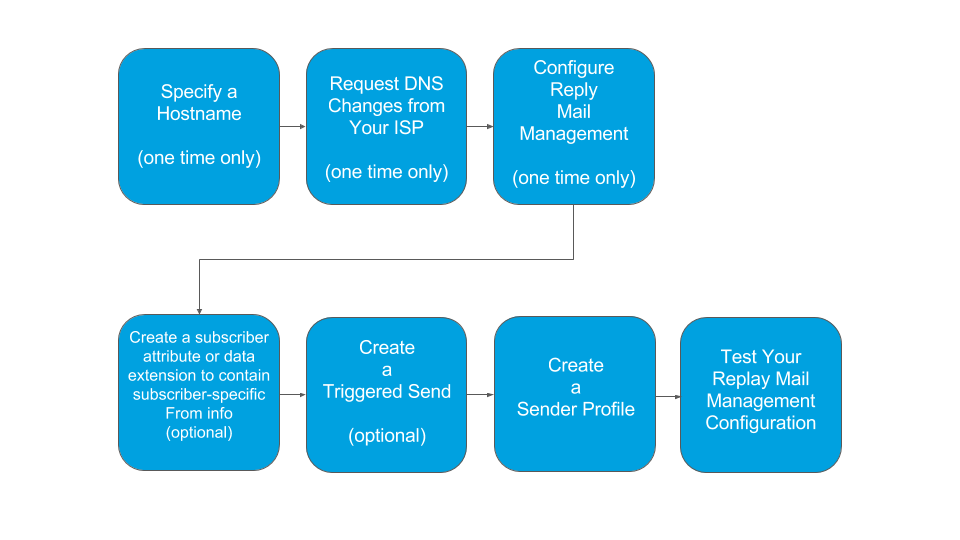
- Perform the Initial Configuration
Configure Reply Mail Management within Marketing Cloud Engagement Setup. - Create a Sender Profile for Use with Reply Mail Management
The sender profile contains the name and address that the message appears to be from in the subscriber’s email client. Use a sender profile with Reply Mail Management (RMM) to manage replies from systems that use nonstandard protocols. This feature sends replies using the From address instead of the account’s Reply-To address. - Test Your Reply Mail Management Configuration
To confirm that Reply Mail Management is configured correctly in Marketing Cloud Engagement, send a test email to a test list and test replies also. - Update DNS File to Manage Replies
If you decided to self-host when you configured SAP, and haven't set up reply mail management, you can configure it at any time. Work with your IT or web admin to add the necessary MX record to your DNS zone file. If you chose to delegate your domain, the MX record is already in place.
