You can apply formulas directly to your field mappings to perform complex manipulations
of your data. The formulas are intuitive and use a similar syntax found in Excel. For more complex
manipulations, you can also use MVEL, a Java-based expression language. You apply formulas during
the mapping stage when creating data streams.
Required Editions
User Permissions Needed
To map source fields to Marketing Cloud Intelligence fields
Admin
Navigate to the Connect & Mix tab.
Expand Data Streams, and then expand Data Streams
List.
Create a data stream or edit an existing one.
At the bottom of the Data Stream page, click Map to Model.
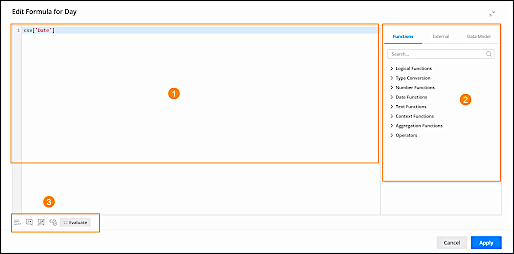
The Formula Editor contains these areas:
Edit Area — Enter the formula. You can type your formula manually or select one from the
available functions or fields.
Functions/Fields — Select a function or field from the list. These types are available:
Functions – A list of available functions that can be implemented
on dimensions, measurements, native values, and variables.
External fields – A list of all fields from the source file that
were uploaded to the data stream.
Data model fields – A list of all fields available in the data
stream type of the chosen data stream, listed with their system native name. These fields can
be used with dimensions or measurements that already have a formula in the mapping. A value
is given after the formula is processed instead of the native CSV value from the original
file. This value enhances ETL performance because it doesn’t require more processing.
Note Only mapped fields can be used as Marketing Cloud Intelligence fields.
The
practical difference between the two types of fields in the mapping stage is:
Csv[…] =pre-formula — Refers to the external fields
and appears in this format. The value is taken as it exists in the source file before any
formula manipulations were performed.
Dat[…] = post-formula — Refers to the Marketing Cloud
Intelligence field and appears in this format. This field takes the value after the formula
is applied. For example, if you map Media Buy Name, you can use dat[media_buy_name] in another field formula without writing or evaluating it
again.
Additional Options – These options are also available:
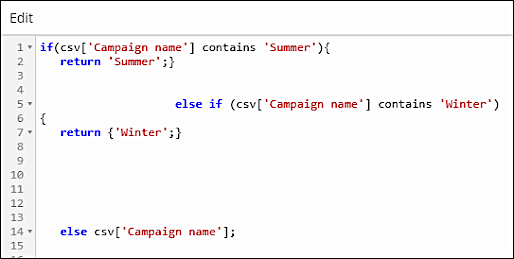
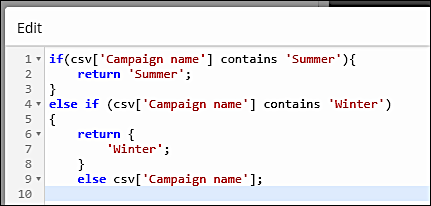
Auto Format Code – Formats your code into the standard structure.
Before Auto Format:
After Auto Format
Comment Out — Allows you to mark a comment in the code for the
formula. This code is processed, even if it has dimensions or measurements.
Ucomment — Allows you to remove the comment from the code.
Validate Syntax — Ensures that your syntax is free of errors.
Evaluate — Runs the code on manually entered values.
Note
Function syntax and the values inserted in the formula are case-sensitive.
VLOOKUP functions aren’t supported.
Did this article solve your issue?
Let us know so we can improve!
Loading
Salesforce Help | Article
Cookie Consent Manager
Cookie Consent Manager
General Information
Required Cookies
Functional Cookies
Advertising Cookies
General Information
We use three kinds of cookies on our websites: required, functional, and advertising. You can choose whether functional and advertising cookies apply. Click on the different cookie categories to find out more about each category and to change the default settings.
Privacy Statement
Required Cookies
Always Active
Required cookies are necessary for basic website functionality. Some examples include: session cookies needed to transmit the website, authentication cookies, and security cookies.
Functional Cookies
Functional cookies enhance functions, performance, and services on the website. Some examples include: cookies used to analyze site traffic, cookies used for market research, and cookies used to display advertising that is not directed to a particular individual.
Advertising Cookies
Advertising cookies track activity across websites in order to understand a viewer’s interests, and direct them specific marketing. Some examples include: cookies used for remarketing, or interest-based advertising.