Create a Data Stream with an API Connector in Marketing Cloud Intelligence
Use an API connector to create an API data stream. You can choose from one of thousands
of API connectors, or you can go to the Marketplace and install connectors.
Required Editions
User Permissions Needed
To create a data stream:
Admin
Navigate to the Connect & Mix tab.
Expand Data Streams, and then expand Data Streams
List.
Click Add New.
In the Search bar, enter the name of the connector you’re connecting to. For example, enter
Facebook Ads.
The settings change according to the API connector, so not all fields are available.
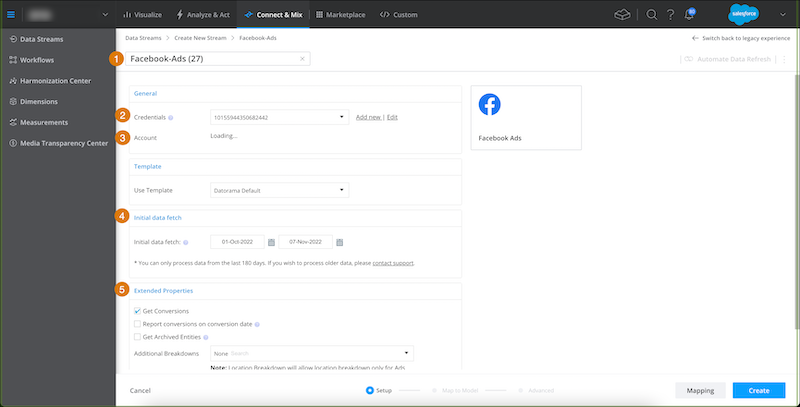
Name the data stream (1).
Within Credentials (2), select the account that you want to pull
data from, or to add your API credentials, click Add new. Usually,
this is a valid username and password. However, some vendors require more information, such
as an API token. Check with each vendor to confirm what their API requirements are.
After you add your credentials, choose the entity that you want to pull data from (3).
This entity can appear under different names in different API connectors, such as Profile,
Publisher, or Account. With some connectors, you can further specify the segment that you
want to pull data from, such as Advertiser, Segment, or Queries.
In Initial Data Fetch, (4), select the initial date range that you
want to retrieve data from. You can only process data from the last 180 days. If you want to
process older data, contact support.
In Extended Properties (5), if available, retrieve additional data
on the source platform. These options change from one connector to another.
To view how the data was mapped, click Mapping. For more information
about mapping, see Mapping.
To apply advanced settings to the data stream, click Advanced. For
more information about advanced settings, see Advanced
Settings.
To create the data stream, click Create. After you create the data
stream, it appears in the Data Streams List, and it can be used
throughout the platform.
Did this article solve your issue?
Let us know so we can improve!
Loading
Salesforce Help | Article
Cookie Consent Manager
Cookie Consent Manager
General Information
Required Cookies
Functional Cookies
Advertising Cookies
General Information
We use three kinds of cookies on our websites: required, functional, and advertising. You can choose whether functional and advertising cookies apply. Click on the different cookie categories to find out more about each category and to change the default settings.
Privacy Statement
Required Cookies
Always Active
Required cookies are necessary for basic website functionality. Some examples include: session cookies needed to transmit the website, authentication cookies, and security cookies.
Functional Cookies
Functional cookies enhance functions, performance, and services on the website. Some examples include: cookies used to analyze site traffic, cookies used for market research, and cookies used to display advertising that is not directed to a particular individual.
Advertising Cookies
Advertising cookies track activity across websites in order to understand a viewer’s interests, and direct them specific marketing. Some examples include: cookies used for remarketing, or interest-based advertising.