You are here:
Add a Filter to a Widget
Narrow what a widget shows by adding a filter, for example, limiting results to a particular campaign.
| REQUIRED USER ROLE | |
|---|---|
| To apply a filter to a widget | Admin and Power User |
- On the Visualize tab, select the widget you want to add a filter to, and then click the edit icon.
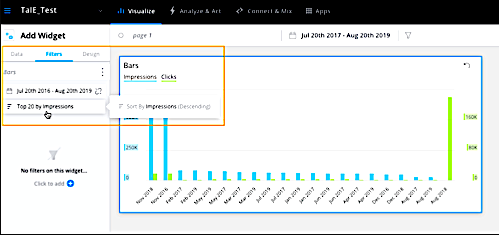
- Click the Filters tab. The top of the page shows the date filter and how the widget results are sorted.
-
Click Add Filter. Search for the field that you want to filter by,
and enter the condition.
You can add as many filters as you want.
- Click Close and then save the page

Example
In the example below, the widget inherits its date filtering from the page and displays the top 20 results, which is the default setting for the Bar Graph widget. By default, this widget is sorted by the first measurement in descending order, but you can modify how it’s sorted by clicking the filter icon.
- Apply a Dimension Filter to a Page
Filter a page to a dimension from a widget. For example, filter the page to show the results of a specific product
Did this article solve your issue?
Let us know so we can improve!
