
You are here:
Share Standalone Marketing Flows
Marketing flows that are related to a campaign inherit the campaign’s sharing settings. If a flow isn’t related to a campaign or the campaign is deleted, the flow is private by default. You can share standalone flows categorically with sharing rules, or share an individual flow manually.
In this topic:
See Also
- Salesforce Help: What Is a Group?
- Salesforce Help: Create and Edit Groups
- Salesforce Help: Sharing Settings
- Salesforce Help: Create Criteria-Based Sharing Rules
- Salesforce Help: Control Manual Sharing for User Records
- Salesforce Help: Manual Sharing Considerations
- Salesforce Help: Grant Access to Records with Manual Sharing in Lightning Experience
Dynamically Share Flows
Organize flows into categories and subcategories. After an admin creates criteria-based sharing rules that control access to campaign flows, users can add categories and subcategories to apply the rules.
What you enter for category and subcategory must match exactly what’s defined in the sharing rule, especially if the sharing rule uses the Equals operator. Alternatively, if the sharing rule operator is Contains, then your flow category only has to include what’s entered for the category in Sharing Settings.
-
Select the flow that you want to share with sharing rules.
- From the Marketing app, open the Flows tab, and then select a flow.
- From the App Launcher, find and select Flows, and then select a flow.
-
On the Details tab, add a category, subcategory, or both.
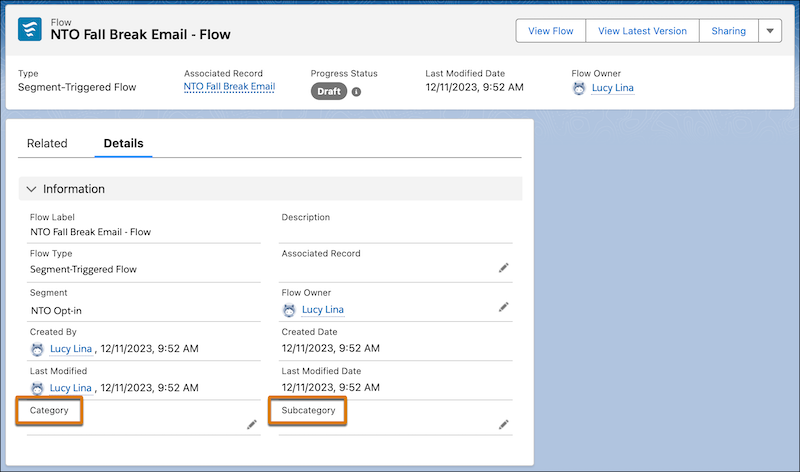
- Save your work.

An admin categorizes flows by team, such as marketing, sales, and operations, and include subcategories related to how that team functions. The marketing team plans to use subcategories like Email, SMS, and Forms.
You're working with a group of email marketers and a group of SMS marketers. Each group needs different access to categories of flows, so you configure these sharing rules.
For email flows:
- Category | equals | Marketing
- Subcategory | equals | Email
- Access Level is Read/Write for Group 1 users.
- Access Level is Read Only for Group 2 users.
For SMS flows:
- Category | equals | Marketing
- Subcategory | equals | SMS
- Access Level is Read Only for Group 1 users.
- Access Level is Read/Write for Group 2 users.
Manually Share Campaign Flows
-
Select the flow that you want to share.
- From the Marketing app, open the Flows tab, and then select a flow.
- From the App Launcher, find and select Flows, and then select a flow.
- On the flow record, click Sharing.
- In the Search field, select who you want to share with.
- Search for and select the user, public group, role, or role and internal subordinates.
- Save your work.
