You are here:
Select Promotion Evaluation and Execution Strategy
With Promotion Evaluation and Execution, marketing managers can define the process of determining which promotions to apply to customer carts. They can control how multiple promotions interact to make sure that rewards align with the company's business goals. Review the configuration options of promotion evaluation and execution and then select the options that work best for your company's promotions.
Required Editions
| Available in: Lightning Experience |
| Available in: Enterprise, Unlimited, and Developer Editions with Real-Time Offer Management |
Parent Groups
When Promotion Evaluation and Execution is enabled, a parent group is automatically created for each Global Promotions Management type rule library. Marketing managers must then associate the required pricing procedure with each group to determine how the evaluation calculations happen.
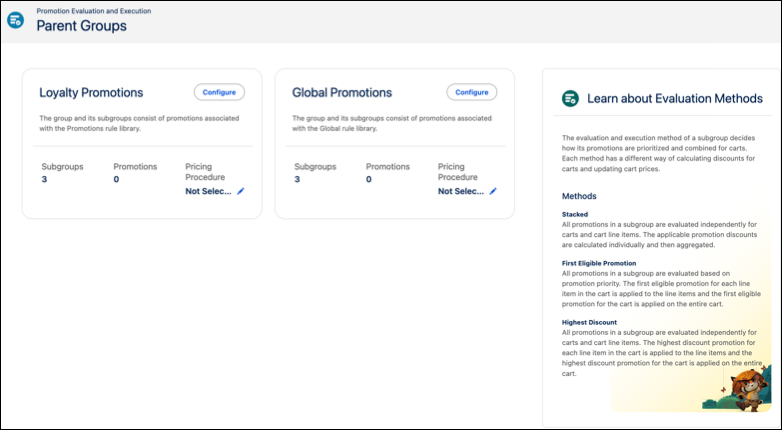
Promotion Evaluation and Execution Groups
Within each parent group, promotions are categorized into three subgroups based on the discount application:
- Cart: Promotions that apply to the entire cart. For example, Get $5 off your total grocery bill when you spend over $150.
- Cross-Line: Promotions that link multiple items. For example, Purchase a pair of formal trousers and receive 50% off on a shirt.
- Line: Promotions that apply to individual items. For example, 20% off any dark chocolate bar.
When marketing managers create a promotion and associate it with a Global Promotions Management type rule library, it is automatically added to the appropriate subgroup. Marketing managers can then choose an evaluation method to be applied to all the promotions within each subgroup.
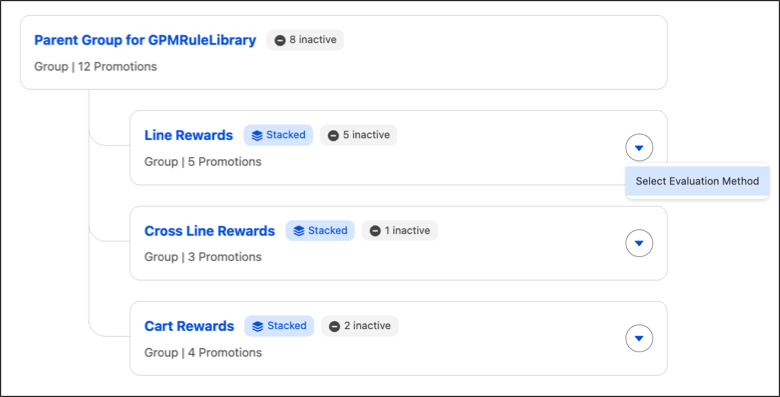

Create and Manage Child Groups
Within a subgroup, marketing managers can create child groups to apply a different evaluation method to a specific set of promotions. For example, mark some promotions as non-stackable by adding them to a child group that uses the First Eligible Promotion evaluation method, so that none of those promotions apply to the same cart line item. Promotions that you don't add to a child group continue to use the evaluation method that's set on the subgroup.
- From the Promotion Console tab of the Real-Time Offer Management console app, click Configure Evaluation and Execution Method.
- For the parent group that contains the subgroup where you want to add a child group, click Configure.
-
Click
 for the subgroup and click Create New Group.
- Enter a name and description for the child group.
-
Select an evaluation method for the child group and save your changes.
Marketing managers can select Stacked, First Eligible Promotion, or Highest Discount for a child group.
-
Move promotions into the child group.
Click for a promotion in the subgroup and click Move. Then,
select the child group that you want to move the promotion to. You can also move a
promotion from one child group to another child group within the same
subgroup.
Marketing managers can also edit, move, and delete an existing child group. Click
for the child group and select one of these actions.
| Action | What It Does |
|---|---|
| Edit | Update the child group's name, description, or evaluation method. |
| Move Up or Move Down | Reorder the child group within its subgroup. |
| Delete | Remove the child group. Before you can delete a child group, you must move all its promotions to a different group. |
Select Evaluation Method
- From the Promotion Console tab of the Real-Time Offer Management console app, click Configure Evaluation and Execution Method.
-
For each parent group, complete these steps:
- Select a pricing procedure.
- Click Configure.
-
Click for a subgroup and click Select Evaluation
Method.
- Select an evaluation method.
- Save your selection.
- Repeat steps c—e for each subgroup.
