
You are here:
Create a Send Email Message in MobileConnect
Use the Send Email template in MobileConnect to invite people to subscribe to your email messages.
Before you create the Send Email message in MobileConnect, create the triggered email send in Email Studio to use with the message.
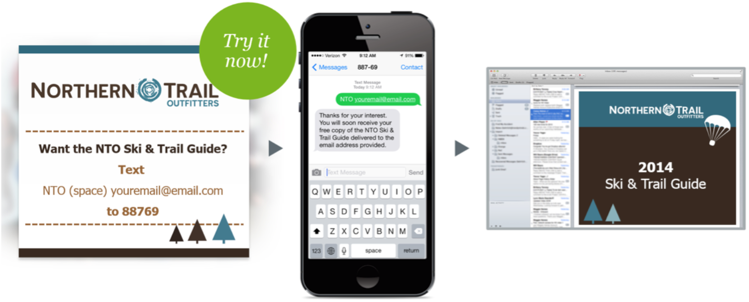
- On the MobileConnect Overview screen, click Create Message.
- Select the Send Email template.
- Enter a name for the message.
- Select a short or long code.
- Select or create the keyword.
- Select the call to action that prompts people to text in.
- Move to the next page, and then select the audience or create a list. Exclude audiences as necessary.
- Move to the next page and enter the outbound, response, and error messages.
- Select a triggered email send.
- Enter the rest of the information and move to the next page.
-
If you selected the Outbound or the SMS Send and External Source option:
- Select the audience or create a list.
- Exclude audiences, as necessary.
- Move to the next page.
- Review the message information.
- Set the dates that the message is active.
- Set the keyword response window, which is the time period that the message interacts with incoming messages.
- Schedule or send the message.
Did this article solve your issue?
Let us know so we can improve!
