
You are here:
Customizing the Affinities Graph
The Affinities graph displays affinities for objects that use a specific catalog object type as their Name value. You can define custom catalog objects to appear in the Affinities graph when viewing a unified customer profile.
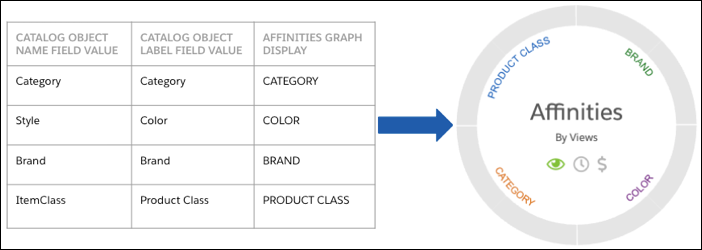
The default object types are Category, Style, Brand, and ItemClass. The Category object type is static and can’t be changed. However, you can use the Style, Brand, or ItemClass object type to display affinities for a catalog object that has one of these values in its Name field, even if the catalog object doesn’t match the object type. For the objects using these values, the Affinities graph uses the value in the object’s Label field to populate the display name in the graph.
As an example, for an apparel-related ecommerce site, you can configure the Affinities graph to show affinities for COLOR (Style), BRAND (Brand), or PRODUCT CLASS (ItemClass).
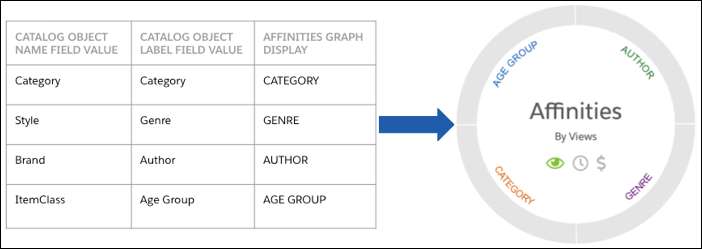
For a site selling books, you can replace the apparel-related labels to show affinities for different catalog objects, like GENRE (Style), AUTHOR (Brand), and AGE GROUP (ItemClass).
When customizing the Affinities graph, keep these considerations in mind.
- When defining a custom catalog object, you can use either an existing custom catalog object or create a new custom catalog object.
- You can’t change a Name value after you save a catalog object. For this reason, if you choose to modify an existing custom catalog object you can modify only the Label value to change the Affinity display. If you choose to create a new custom catalog object, you must delete the existing catalog object that uses the Affinity graph Name value you plan to use for the new object.
