Use the StaticList tag to group products together in a static list. You can upload a
comma-separated values (CSV) file of products to a static list, and then use that list in
Einstein Recipes as an exclusion, inclusion, or booster.
Required Editions
Permissions Needed
To create a static list:
A role with Catalog Create/Edit permissions
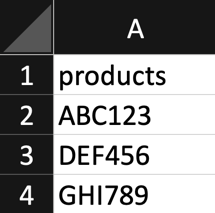
Create a CSV file by entering “products” into cell A1 and, starting at cell A2, the
product IDs for each product to associate (or disassociate) with the StaticList
tag.
From the main navigation, select Settings | Catalog and Profile Objects.
Click the + beside Catalog Object Types.
Enter “StaticList” as the Name and “Product List” as the Label.
Turn on the Enabled option.
Click Save.
Refresh your browser.
In the Catalog section of the main navigation, select Catalog | Product Lists.
Click Upload Product List in the upper right corner.
In the Upload New Product List dialog, enter a tag ID.
If you’re removing the tag from the list of products, select Remove tag from items.
Click Upload Product List.
Click Select files to locate and select your CVS file, or
drag the file within the dotted lines of the dialog.
We use three kinds of cookies on our websites: required, functional, and advertising. You can choose whether functional and advertising cookies apply. Click on the different cookie categories to find out more about each category and to change the default settings.
Privacy Statement
Required Cookies
Always Active
Required cookies are necessary for basic website functionality. Some examples include: session cookies needed to transmit the website, authentication cookies, and security cookies.
Functional Cookies
Functional cookies enhance functions, performance, and services on the website. Some examples include: cookies used to analyze site traffic, cookies used for market research, and cookies used to display advertising that is not directed to a particular individual.
Advertising Cookies
Advertising cookies track activity across websites in order to understand a viewer’s interests, and direct them specific marketing. Some examples include: cookies used for remarketing, or interest-based advertising.