Loading
Marketing Cloud Personalization
Table of Contents
Select Filters

          No results
          No results
          Here are some search tips

          Check the spelling of your keywords.
          Use more general search terms.
          Select fewer filters to broaden your search.

          Search all of Salesforce Help
          Add Mobile Message Targeting Rules

          Add Mobile Message Targeting Rules

          After you create a Mobile In-App Message or Mobile Data campaign, you can add message rules and promote content in Message Rules. Message rules control when a mobile in-app message shows for a visitor. For example, show the message when a visitor takes a specific action. Or only show the message a certain number of times per visit, during a specific time period, or all of the time. Use Promoted Content to promote a specific item or multiple items either by selecting the item or by using Einstein Recipes algorithms or Einstein Decisions AI.

          Required Editions

          Available in: Premium Edition
          Permissions Needed
          To create or edit mobile campaigns: A role with Campaign Create/Edit permissions
          To publish or delete mobile campaigns: A role with Campaign Publish/Delete permissions
          Note
          Note Message rules control when a mobile app user sees a message either based on frequency or after performing an action. For example, you can configure the message to appear only if the user adds an item to the shopping cart. For more information, see Use Mobile Campaign Rules.
          1. Create a Mobile In-App Message or Mobile Data campaign. For more information, see Create a Mobile In-App Message Campaign and Create a Mobile Data Campaign.
          2. Click Message Rules.
          3. To show the message for a specific action or an item action using a Target Pages rule:
            1. Select the rule.
            2. Complete the configuration options.
            3. To add more Target Pages rules, click +New Rule, select the rule, and complete the configuration options.
          4. Each mobile in-app message includes a default Display Frequency rule that shows the message only one time for all time. To change the default Display Frequency rule:
            1. Select Current Visit or Interval from the dropdown.
            2. Complete the configuration options.
            3. To add more Display Frequency rules, click +New Rule, select the rule, and complete the configuration options.
          5. To save your changes, click OK.
          Example
          Example

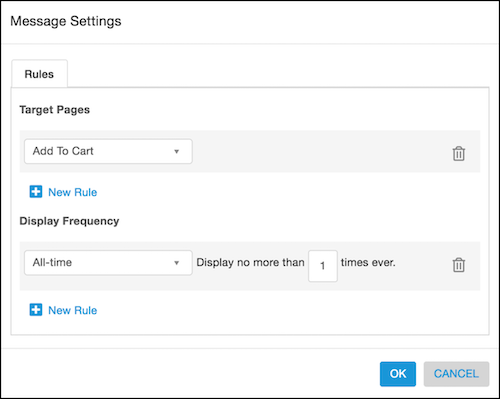
          Target Pages: To show the message when the mobile app user adds an item to the cart, select Add To Cart from the dropdown.

          Message settings for campaign targeting rules

          Display Frequency:

          • To show the message only one time for all time, select All-time from the dropdown and enter 1 in the field for Display no more than __ times ever.
          • To show the message only one time for the visit, select Current Visit from the dropdown and enter 1 in the field for Display no more than __ times per visit.
          • To show the message only one time every three days, select Interval from the dropdown and enter 3 in the field for Display no more than one time every __ days.
           
          Loading
          Salesforce Help | Article