
Loading
Upcoming Mandatory Changes to Public Key Infrastructure (PKI)Read More
Salesforce Enforces New Security Requirements in Summer 2026Read More
Marketing Cloud Next
Table of Contents
Select Filters

          No results
          No results
          Here are some search tips

          Check the spelling of your keywords.
          Use more general search terms.
          Select fewer filters to broaden your search.

          Search all of Salesforce Help
          Create an Expression for a Personalized Merge Field in Marketing Cloud Next

          Create an Expression for a Personalized Merge Field in Marketing Cloud Next

          Get more consistency and control over how data is referenced in your marketing content by saving personalized merge field criteria in an expression. Define filter and sort options across related data objects to select the right attribute for the merge field. Save the expression, including the references to those data objects, in Salesforce CMS. You can reuse the expression in email, SMS, and WhatsApp messages.

          Required Editions

          Available in: Salesforce Enterprise and Unlimited Editions with Marketing Cloud Next Growth or Advanced Edition
          User Permissions Needed
          To create or edit content:

          Marketing Cloud Manager permission set

          AND

          any CMS workspace contributor role

          To publish or unpublish content:

          Marketing Cloud Manager permission set

          AND

          a CMS workspace contributor role of content admin or content manager

          You must have a data graph set up to create an expression. See Set Up Personalization Features for Marketing Cloud.

          1. From the Content tab, open your marketing workspace.
          2. Select Add | Content | Expression.
          3. Give your expression a title for internal use.
          4. Select the data source that contains the resources and attributes that you want to use.
          5. Navigate the resource path to select an attribute.
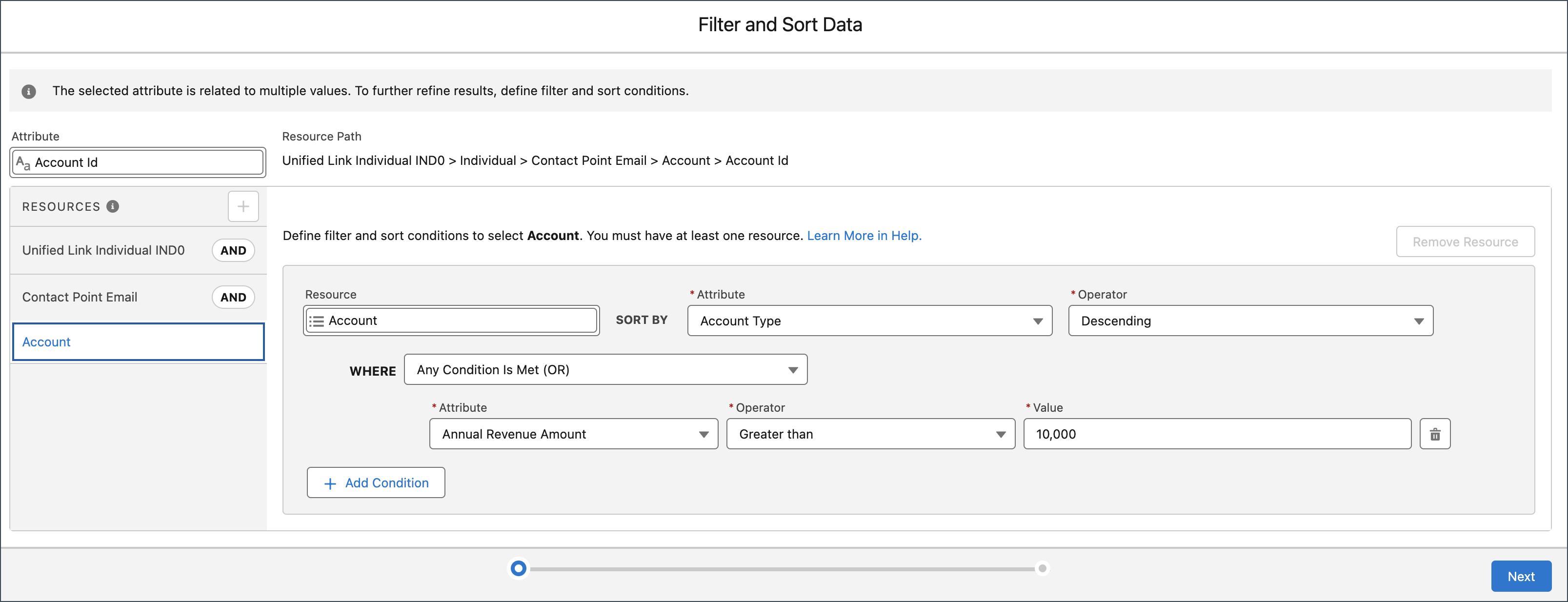
          6. Add filter and sort conditions for the attribute.
          7. To add another resource to narrow your expression results further, click the plus icon next to Resource and define the filter and sort conditions.
          8. Save your work.
          Example
          Example

          This example shows building an expression with filter and sort conditions to find accounts with an annual revenue amount greater than $10,000.

          Example Filter and Sort Data window for creating an expression

          To make your expression available for use in marketing content, you must publish it. To change the expression or to prevent it from being used in content, unpublish it.

           
          Loading
          Salesforce Help | Article
