
You are here:
Linked Personalization Points in Dynamic Content
To control variations in an email or landing page with the same personalization settings, link multiple components to a personalization point. Any changes that you make to the personalization settings apply to all the linked components. You can also personalize more components in an email without going over the limit of 25 personalization points per content item.
Required Editions
| Available in: Salesforce Enterprise and Unlimited Editions with Marketing Cloud Next Growth or Advanced Edition |
How Linking Works
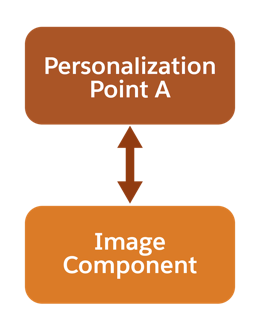
In an email or landing page, each component with dynamic content is associated with a personalization point. Typically, that relationship looks something like this diagram, where one component is associated with one personalization point.
With linking, you associate multiple components with the same personalization point. This diagram shows how Personalization Point A is related to three linked components in an email: an image, a button, and the subject line and preheader. Each component has variations named “X” and “Y.” Variation X on all three components is related to decision X, and variation Y on all three components is related to decision Y.
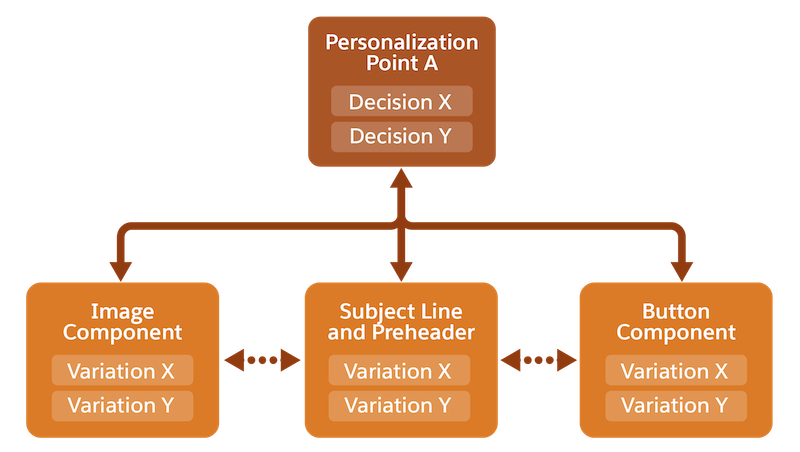
Linking creates a consistent personalization structure within content and ensures that each component shows the appropriate variations for the audience. Any change you make to the personalization settings for one component affects the others. For example:
- If you edit the targeting rule for variation X on the image component, the edits apply to the rule for variation X on the button and the subject line and preheader.
- If you delete variation X on the image component, variation X is deleted from the other linked components.
- If you add a variation named “Z” on the image component, variation Z is added to the other linked components.
However, changes that you make to a variation’s content, style, or non-personalization settings don’t affect any other variations.

You’re a marketer for an outdoor clothing company, and you're planning a summer marketing campaign. Your customers are interested in hiking and trail running, and you want to use dynamic content to create one personalized email for both audiences. You want to give each audience a direct link in the email to their preferred products.
You use linking to create an email with an image and a button component that are controlled by the same personalization settings.
Add an image component. Create a variation named “Hiking,” and set a targeting rule for individuals interested in hiking. Add an image of the hiking pants in the property panel. Create another variation named “Running,” set a targeting rule for the trail running audience, and add an image of the running shorts. A personalization point for the new dynamic component is automatically created with the name “Personalization Point A.”
Below the image, add a button component to take your audience to the appropriate product page. Instead of creating a new variation and targeting rule, you link the personalization point that was created for the image component. Personalization Point A appears at the top of the Recent Personalization Points list with a “Current” badge.
Your button component now has two new variations: Hiking and Running. These variations are controlled by the same targeting rules as the variations of the image component. For the Hiking variation, you add a link to the pants product page, and for the Running variation, you add a link to the shorts.
When your marketing campaign goes live, a photo of the hiking pants appears in the hiker’s email along with a call-to-action button linking to the pants product page. For a trail runner, the image shows the running shorts with a button linking to the shorts product page.
How Unlinking Works
To adjust personalization settings for only one component in a linked relationship, you must unlink the component. When you unlink a component, the personalization point is cloned so that the component maintains all the prior personalization settings, such as targeting rules and priorities. The content and style of the component and its variations are also maintained. You can then customize the component as needed.
These diagrams show what happens when you unlink an email's subject line and preheader from Personalization Point A. The subject line and preheader are now associated with “Copy of Personalization Point A,” and the image and button components remain linked to Personalization Point A and to each other.
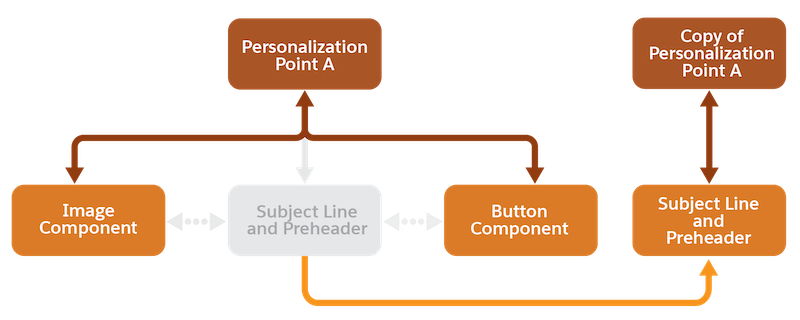
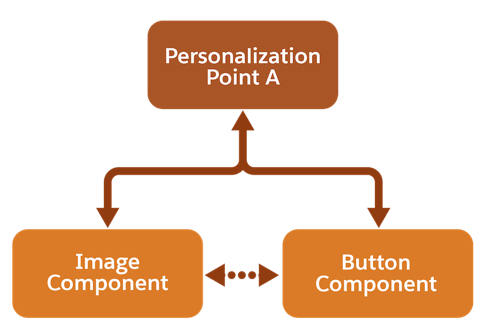
Your outdoor clothing email has gotten more complex. Previously, you linked the subject line and preheader to Personalization Point A in addition to the image and button components. But another marketer on your team suggests creating a variation only of the subject line and preheader to target email recipients who have a low open rate.
Because you don’t need a variation based on open rate for the image or button components, you decide to unlink the subject line and preheader from the relationship.
When you unlink, the personalization point and settings are cloned so you don’t lose your existing targeting rules, priorities, or variations. After unlinking, you can add a new variation to your subject line and preheader without impacting the image or button.
