
You are here:
Add a Repeater to a Marketing Email
Show a series of items such as new or best-selling products, recent order updates, upcoming events or promotions, and more with a repeater component. Connect the repeater to a data source, such as an event or default data graph attribute. Customize the repeater layout, and add merge fields to the nested components to show data from the repeater source.
Required Editions
| Available in: Salesforce Enterprise and Unlimited Editions with Marketing Cloud Next Growth or Advanced Edition, and in Starter and Pro Suite Editions. Your edition determines the options that you have. |
| User Permissions Needed | |
|---|---|
| To create or edit content: | Marketing Cloud Manager permission set AND any CMS workspace contributor role |
| To publish or unpublish content: | Marketing Cloud Manager permission set AND a CMS workspace contributor role of content admin or content manager |
When you work with repeaters, keep these considerations in mind.
- If a repeater source doesn’t have data applicable to an email recipient, the repeater appears empty when that recipient opens the email in their inbox.
- There’s no limit to the number of items shown in a repeater, but too many items can increase the size of your entire email.
- If you change a repeater source after its attributes are used in merge fields, to save the content, you must delete those merge fields. Then, you can add a new repeater source and recreate the merge fields.
-
Create or open content for editing.
- From the Campaigns tab, open a campaign or create one. Then, on the campaign record, next to the email that you want to work with, click Edit.
- From the Content tab, open your preferred marketing workspace. Select Add | Content | Email.
- From a flow, open a Send Email Message element, and edit the related email.
- In the Data Sources tab of the email property panel, make sure that the data you want to include in a repeater is listed as a data source.
- Drag a Repeater to the canvas.
-
On the Settings tab in the component property panel, adjust the properties in the Data
Layout section. Select a Repeater Layout, then adjust the number of items and items per
row.
If you change the repeater layout when it contains content or data, the content, data, and any style settings within the repeater get removed.
-
Also in the Settings tab, select a Repeater Source.
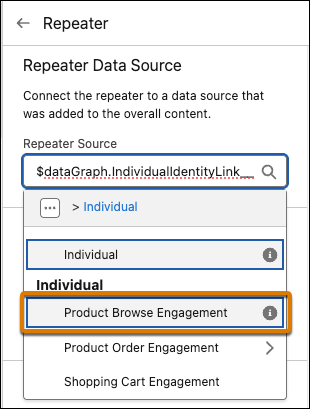
- (Optional) To refine the items that appear in the repeater, click Edit Expression, and then define additional filter and sort conditions.
-
To populate the repeater with data, add a merge field to a component nested in the
repeater. For example, to dynamically show an image, add a merge field to a nested image
component.
- Select an image component in the repeater to open the image property panel.
- For the image source, select Merge Field, and then click Add Merge Field under the Source field.
-
In the Add Merge Field menu, expand the item with the same name as your repeater source.
It's the first item listed in the menu, and it contains attributes from the repeater source.
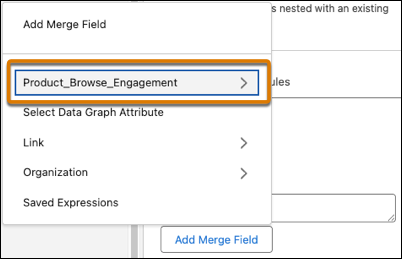
- Select an image attribute, configure the rest of the merge field details, and click Done.
- Continue adding merge fields to components in the repeater, and customize each component’s settings and style as desired.
- Save your changes as you work.

You're a marketer, and you want to promote products to returning customers who have recently engaged with your company’s website and products. In your email, add a repeater to the canvas and configure the data layout to show a total of four cards split in two rows. Select Product Browse Engagement as the Repeater Source from the default data graph.
Because you’re emailing returning customers, filter and sort the data to show the products they engaged with most recently. Click Edit Expression, and sort the Product Browse Engagement results by descending Engagement Date Time. On the canvas, add merge fields to the components in the repeater to dynamically show images, names, and links to each product.
When each customer opens the email, they see a personalized set of the four most recent products that they were interested in.
