
After Your Upgrade
Now that you’ve prepared your tracking spreadsheet and upgraded the B2B Marketing Analytics app, reinstate your customizations.
Required Editions
| Available in: Account Engagement Plus, Advanced, and Premium Editions with Salesforce Enterprise Edition or higher |
| Available for additional cost in legacy Account Engagement Pro or Ultimate Editions with Salesforce Enterprise Edition or higher |
| User Permissions Needed | |
|---|---|
| To upgrade a B2B Marketing Analytics app: | Manage CRM Analytics Templated Apps AND Create B2B Marketing Analytics Apps OR B2B Marketing Analytics permission set |
The upgraded app uses new dataset IDs. To make sure that your custom apps continue to puto pull the correct data from. ll the correct data from Account Engagement, replace the older IDs with the new dataset IDs. First, test the changes in your private or shared app, and then copy the changes to the upgraded app.
- Open Analytics Studio, and select Data Manager.
- For any datasets used in a B2B Marketing Analytics app, click the action menu and select Edit Dataset.
-
In the page URL, find the dataset ID and add it to your tracking document.

- In My Private App or My Shared App, open the custom dashboard you saved.
- Click CTRL+E or CMD+E to open the JSON editor.
-
In the Layouts section, look for the old dataset IDs and replace them with the new
IDs.
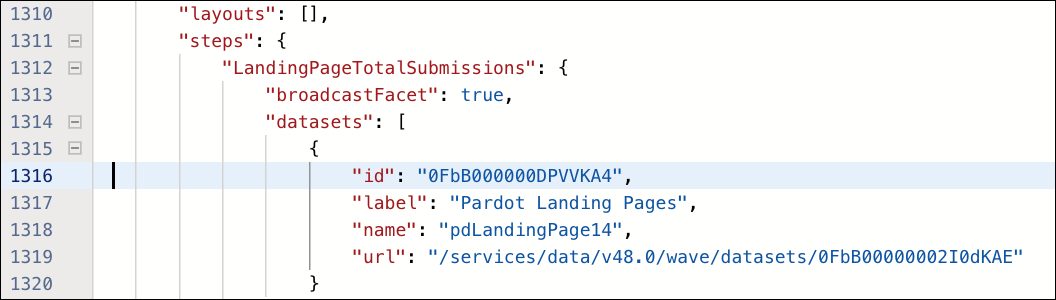
- Test these changes in the private or shared folder, and make sure that data appears as expected.
-
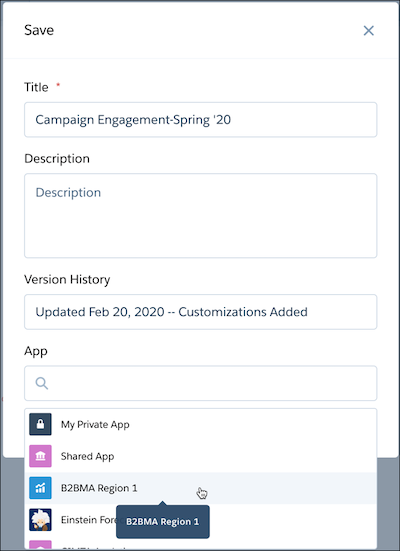
When everything is working properly, save or clone your testing app into your upgraded
B2B Marketing Analytics app.
Did this article solve your issue?
Let us know so we can improve!
