
Considerations for B2B Marketing Analytics
Keep these considerations in mind while you set up and use B2B Marketing Analytics.
Required Editions
| Available in: Account Engagement Plus, Advanced, and Premium Editions with Salesforce Enterprise Edition or higher |
| Available for an extra cost in legacy Account Engagement Pro and Ultimate Editions with Salesforce Enterprise Edition or higher |

Setting Up B2B Marketing Analytics
- The Multi-Touch Attribution Dashboard, Account-Based Dashboard, Einstein Behavior Scoring dashboard, and Prospect and Activity dataset are optional.
- We don’t recommend using B2B Marketing Analytics in sandbox orgs. To test dashboards, create a private app to configure and explore. Then, share the app with colleagues.
- The necessary permission sets provide Editor access for B2B Marketing Analytics apps to every user. To restrict this ability, you can update the sharing settings. To keep data flowing as expected, make sure that the connector or integration user retains Editor access.
- If you assigned all of your available licenses, the CRM Analytics Platform license can share access with additional sales and marketing users.
Updating the App Template
- B2B Marketing Analytics is built on a CRM Analytics app template, which is updated a few times per year. An admin can enable the feature, but users must install and upgrade their apps as needed.
- Each time users upgrade to the latest app, they can overwrite the existing app or create one. When users overwrite an app, they lose custom dashboards and settings. Make a note of which dashboards, datasets, and lenses use any standard Account Engagement elements.
- To migrate customizations, move dashboards, datasets, and saved lenses into My Shared App or My Private App. Next, upgrade the app and edit the existing queries to reference the new dataset IDs. Confirm that important assets and customizations are available in the new app.
- Choose whether to keep older versions of apps for reference or delete them. When a new app is available, the previous version is no longer updated or supported.
Using Multiple Business Units
You can use B2B Marketing Analytics apps with multiple business units, but individual dashboards behave differently.
- Create an app for each business unit that you want to work with by entering the Account Engagement business unit ID when you set up the app. Available data is then limited to that business unit in the Engagement, Pipeline, Marketing Manager, and Einstein Behavior Scoring dashboards.
- Multi-Touch Attribution (MTA) and Account-Based Marketing (ABM) dashboards show all available Account Engagement data, regardless of the app’s associated business unit.
- To filter MTA or ABM dashboards, build a lens from available fields in the datasets.
- Marketing Data Sharing and row-level settings don’t affect the data shown in B2B Marketing Analytics dashboards.
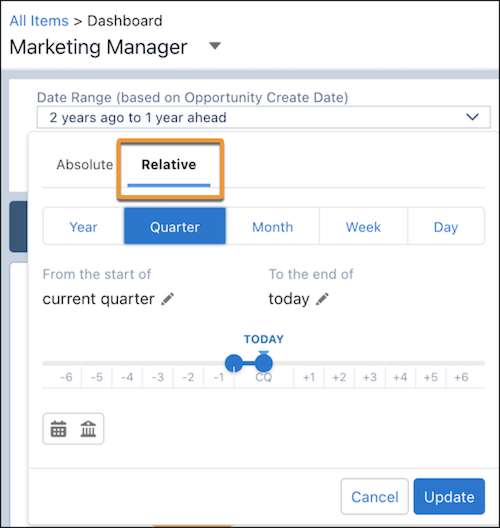
- For best results when filtering a dashboard by date, we recommend that you use the
Relative date mode.
The Data Sync and Connections setting is recommended for most users because it improves performance in CRM Analytics. When Data Sync is on, you must schedule replication to get the latest data. If you have any CRM Analytics apps besides B2B Marketing Analytics, Data Sync can retain other apps’ filters and show inaccurate data in B2B Marketing Analytics.
Using B2B Marketing Analytics
- B2B Marketing Analytics uses the currency setting from your Account Engagement business unit. Regardless of locale settings, currency formats in CRM Analytics apps support only decimals for the decimal separator and commas for the grouping separator.
- The Multi-Touch Attribution dashboard includes a filter for campaign influence models. The filter list contains only models that have campaigns and opportunities associated with them. The list can be empty for newer users.
- In orgs with Engagement History enabled, Analytics Studio contains a read-only Engagement History app. Users can work with lenses to explore the dataset: 90 days of engagement data from connected campaigns and synced assets. This app powers the Engagement History Dashboard Lightning component.
- B2B Marketing Analytics isn’t fully supported on Lightning Experience on iPad Safari. Dashboards don’t always appear completely inside Analytics Studio, so we recommend that you open the app from the Analytics tab in Lightning Experience. Alternatively, try the CRM Analytics mobile app for iOS.
Working with Data
- B2B Marketing Analytics uses Bulk API calls to aggregate data in the datasets. This usage doesn’t count against your Salesforce or Account Engagement API request limits.
- External datasets originate in Account Engagement and can’t be edited in the Data Manager. They’re updated every 24 hours and can’t be synced manually. The external datasets are:
-
- Pardot Campaign
- Pardot Email
- Pardot Email Template
- Pardot Form and Form Handler
- Pardot Landing Page
- Pardot Opportunity
- Pardot Prospect
- Pardot Tags
- Pardot Visitor
- For other datasets, you can schedule sync to avoid overlap and improve performance.
- If you use B2B Marketing Analytics without embedded Engagement History dashboards enabled, you can sync up to 25 million rows of data.
-
For Account Engagement Growth Edition, Engagement History can sync up to 90 days or 50 million rows of data, whichever comes first. For Account Engagement Plus, Advanced, and Premium Editions where B2B Marketing Analytics and the Prospect and Activity dataset are enabled, these features can sync up to 3 years or 35 million rows in total.
- Due to date filters, time zones, and other factors, you can encounter discrepancies between data in Account Engagement and B2B Marketing Analytics data. Find out more in this Knowledge Article: Data Discrepancies in B2B Marketing Analytics.
