
Run a Full Sync
Sync all your prospect records with Salesforce.
Required Editions
| Available in: All Account Engagement Editions |
| User Permissions Needed | |
|---|---|
| To use the Sync All Prospects option: | Account Engagement Administrator role |

Note Business units with fewer than 500,000 prospects can trigger a full sync once every 7
days using the Sync All Prospects option. For larger volumes of data, contact Salesforce
Customer Support to run a full sync.
-
Open the Connectors page.
- In Account Engagement, select Admin and then select Connectors.
- In the Lightning app, select Account Engagement Settings and then Connectors.
-
Next to the Salesforce connector, click the
 icon, and select Sync All Prospects.
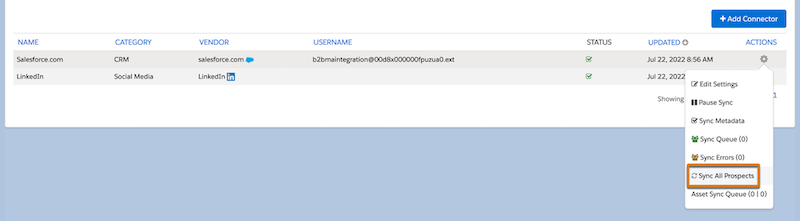
- Review the information in the pop-out box, and select Sync Prospects.
- In the pop-out box, confirm that all prospects are queued to sync, and then click OK.
Review the sync queue and sync errors. A synced prospect isn’t removed from the queue until their record has been synced with Salesforce without issues. Synced prospects with issues are sent to the sync error queue.
Did this article solve your issue?
Let us know so we can improve!
