You are here:
Add a Decision to a Personalization Point
A decision consists of targeting rules. The personalization point uses the decision to determine whether the individual who is engaging with your website or app is eligible to receive personalization content.
Required Editions
| User Permissions Needed | |
|---|---|
| To add personalization decisions to personalization points: | Create and Edit Personalization Points Create and Edit Personalization Decisions |
You can add multiple decisions to a personalization point. The order in which you create each decision initially determines its priority. The first decision created has the highest priority, followed by the next decision created, and so on. However, you can modify a decision’s priority at any time.
- From the App Launcher, search for and select Personalization Points.
-
Open the personalization point where you want to add a
decision.
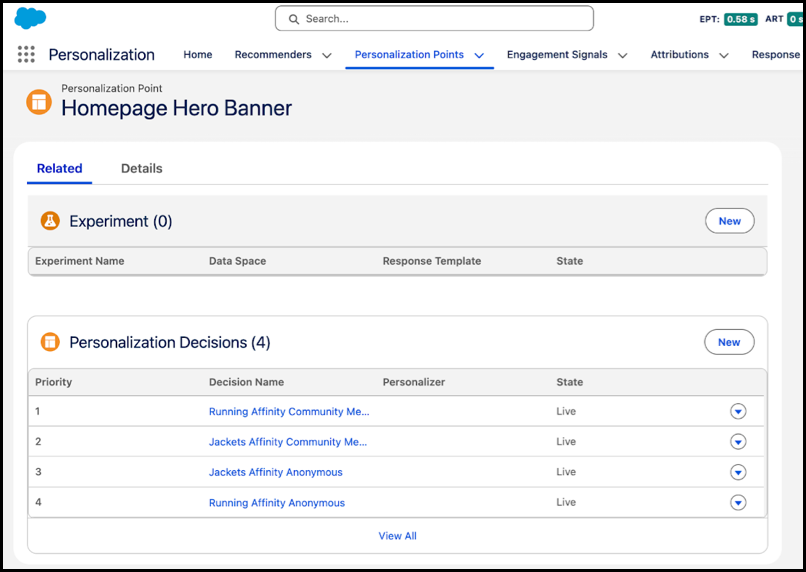
- On the Personalization Decisions tile, click New.
-
Name the decision and add an optional description.
The decision API name is auto-generated.
-
Select the state of the decision.
Live decisions are evaluated; draft decisions aren’t.
- Click Next.
-
Enter display text for any of the personalization attributes that you added to the
related personalization content schema.
To include profile data in the text, add merge fields. For example, you can include your user's first name within an infobar text to greet them personally.
- Click Next.
-
Select when you want the personalized content to appear for visitors. By default, no
targeting rules are applied to a decision.
Option Description Always (No Rules) No targeting rules are applied, and all visitors are eligible to receive the personalized content. All Rules Are Met If all rules are met for a visitor, they’re eligible to receive the personalized content. Any Rule Is Met If any one of the rules is met for a visitor, they’re eligible to receive the personalized content. You can create or modify targeting rules for the decision at any time.
- If you accept the Always (No Rules) option, save your work.
-
If you select the All Rules Are Met or Any Rule Is
Met option, follow the instructions in Create a Targeting Rule.
Did this article solve your issue?
Let us know so we can improve!
