You are here:
Modify a Decision
You can change decision properties or priority for a personalization point.
Required Editions
| User Permissions Needed | |
|---|---|
| To modify decisions: | Create and Edit Personalization Points Create and Edit Personalization Decisions |

- From the App Launcher, search for and select Personalization Points.
- Open a personalization point record, and click the Related tab.
- To modify decision properties:
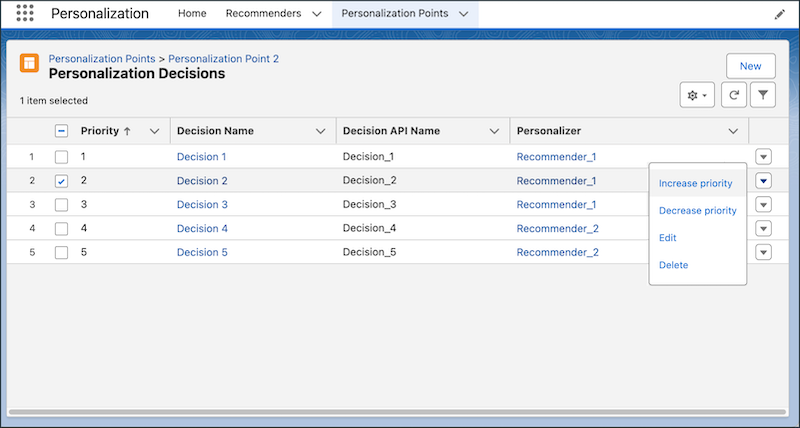
- Click the action menu for a decision and select Edit.
- Make any desired changes to the decision.See Add a Decision to a Personalization Point for details.
- Save your work.
- To change priority, select a priority option in the action menu for the decision that you
want to change. Increase priority moves a decision up one row in the list. Decrease priority moves a decision down one row.
- To filter decisions for this personalization point:
- Make sure that you are viewing all of the decisions for the personalization point by
clicking View All at the bottom of the personalization decisions
table.If you don’t see View All at the bottom of the table, you are already viewing all of the decisions.
- Click the quick filters icon to open the filter options.
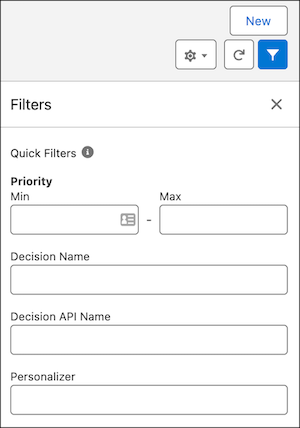
- Make any filter changes and click Apply.
- Make sure that you are viewing all of the decisions for the personalization point by
clicking View All at the bottom of the personalization decisions
table.
Did this article solve your issue?
Let us know so we can improve!
