You are here:
Create a Targeting Rule
A targeting rule determines who's eligible for a personalization decision and which personalized content to return.
Required Editions
| User Permissions Needed | |
|---|---|
| To create a targeting rule: | Create and Edit Personalization Points or Campaigns Create and Edit Personalization Decisions |
When creating a targeting rule, keep these considerations in mind.
- You can use direct attributes, related attributes, segments, calculated insights, Einstein Studio models, or various contextual resource options when creating a targeting rule.
- Before you can use segments, calculated insights, or Einstein Studio model predictions in a targeting rule, first create them and apply or map them to the data graph that you’re using. A rule has access to all attributes, segments, calculated insights, and models that are accessible from the data graph.
- To define more complex rules, you can add up to 50 targeting conditions to a personalization decision.
To create a targeting rule for a personalization decision:
- From the App Launcher, search for and select Personalization Points.
-
Open the personalization point that you want to create a
target rule for.
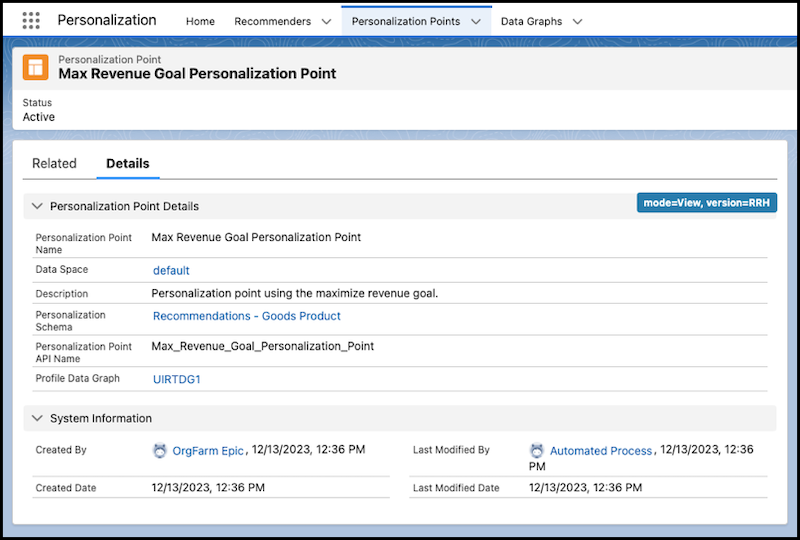
- Click the Related tab.
-
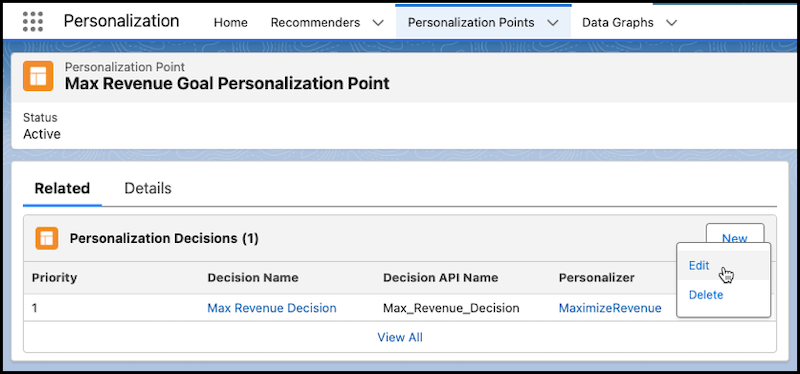
On the Related Tab, for the decision that you want to add a targeting rule to, click
 and select Edit.
- Click Next.
- If you are adding a targeting rule to a personalization point that uses a static banner with a call to action, click Next to skip configuring the Personalization attributes.
-
In the Targeting Rules window, select when you want the targeting rule to take
affect.
Option Description Always (No Conditions) No conditions are imposed. All visitors are eligible to receive the personalized content. All Conditions Are Met If all conditions are met for a visitor, they’re eligible to receive the personalized content. Any Condition Is Met If any one of the conditions is met for a visitor, they’re eligible to receive the personalized content. - Click Add Condition. You can add up to 50 conditions to a personalization decision.
-
Select the resource that you want the condition to use.
Clicking a resource opens a menu extension showing additional options that you can select.
Resource Option Description Direct Attributes Use direct attributes on the root object of the data graph. Related Attributes Use related attributes on the root object of the data graph. Segments Use available segment memberships defined at the root of the data graph. Calculated Insights Use available calculated insights defined at the root of the data graph. Predictive Models Use the available Einstein Studio models that are mapped to a real-time data graph in Einstein Studio. Scheduling Use date range or day and time selections to define when personalized content is available and displayed following a personalization request. Source Specify a URL to use in the decision request. For example, create a targeting rule to return decisions only when an individual visits a specific web page or when a URL ends with a specific path. UTM Parameters Target Urchin Tracking Module (UTM) parameters in a URL. For example, create a targeting rule to return decisions only when an individual accesses a web page that contains a specific UTM value. Visit Context Specify a page type, such as a home, product, or category page with a decision request. For example, create a targeting rule that returns decisions when an individual accesses certain web pages. - Configure the operator, relevant values, or both to define the targeting rule condition.
- Save your work.
Did this article solve your issue?
Let us know so we can improve!
