You are here:
Create Calculated Insights for Targeting
Calculated Insights can streamline your personalization strategy for rules-based recommenders and recommendation filters. For example, add a calculated insight to your item data graph to identify most viewed or most purchased products or to restrict products for certain recommendations.
- In Data Cloud, go to the Calculated Insights tab, and click New.
-
From the Data Space dropdown, select a data space.
You can use only the data spaces that you have access to. Only the objects that are included in the data space are available to create a calculated insight.
- Click Calculated Insight.
- Click Use SQL Authoring and click Next.
-
Enter the calculated insight name.
The Calculated Insight API Name field is auto-filled.
-
Enter the new insight SQL query expression.
The SQL statement character limit is 131,021.
-
When your insight includes currency measures, you must use the
TRY_CONVERT_CURRENCYfunction.
- Use the NOW function to define a relative time window and the SECOND_ADD and SECOND_ADD functions to create more granular time period logic. See Supported SQL Statements for Insights.
-
When your insight includes currency measures, you must use the
-
To check whether your SQL expression is valid, click Check
Syntax.
If it isn’t valid, you can’t continue.
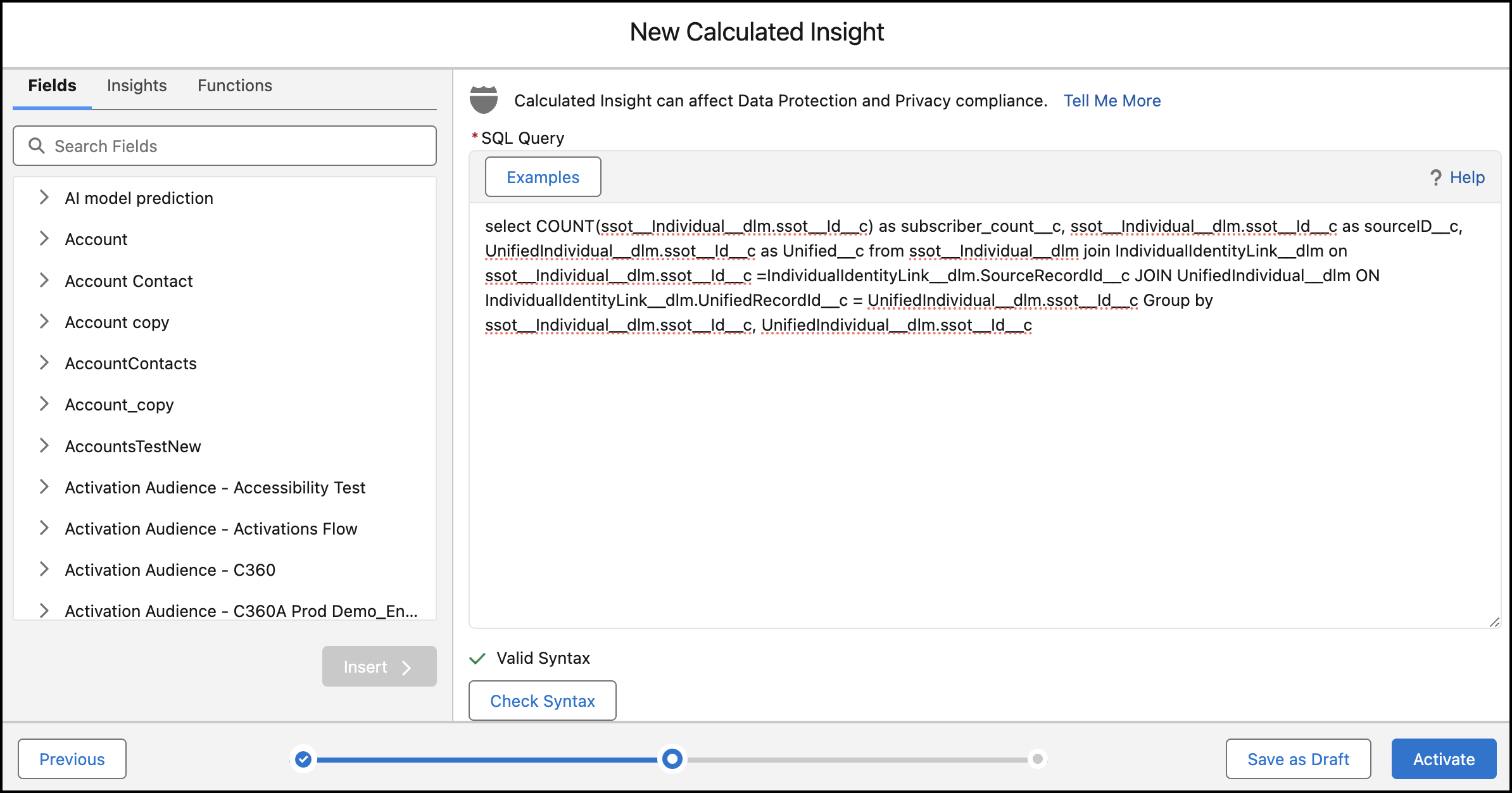
- Click Activate.
- From the Schedule dropdown, select a schedule.
- Select the start date and time of the schedule.
- Click Enable.
Did this article solve your issue?
Let us know so we can improve!
