You are here:
Create Required Data Graphs
Instead of querying your entire database every time you want to serve personalized content, Data 360 and Salesforce Personalization use data graphs, which organize and store only relevant data. For Salesforce Personalization, you can use two data graphs: a real-time profile data graph for person details, and a standard item data graph for product and content information.
You’re in control of what fields appear in the data graph, and you can even add segments, insights, and related objects for additional context. The mappings in your data graph depend on your organization and your business goals.
- From the App Launcher, search for and select Data Graphs.
-
Click New, and click Start from
Scratch.
- Choose a near real-time data graph or a real-time data graph.
- Select or enter a value for each property field.
- Click Next.
-
If you're creating a real-time data graph, set the consumption limits, and click
Next.
Consumption limits can impact cost and performance. See Record Caching and User Session Length in Real-Time Data Graphs.
-
Select fields from the primary DMO to include in the data graph.
The primary key field, related key qualifier field, and applicable foreign key fields are selected by default and added to the data graph for the primary DMO and its related objects.
-
To add related objects, click + or search for a DMO, and select
fields for each related object.
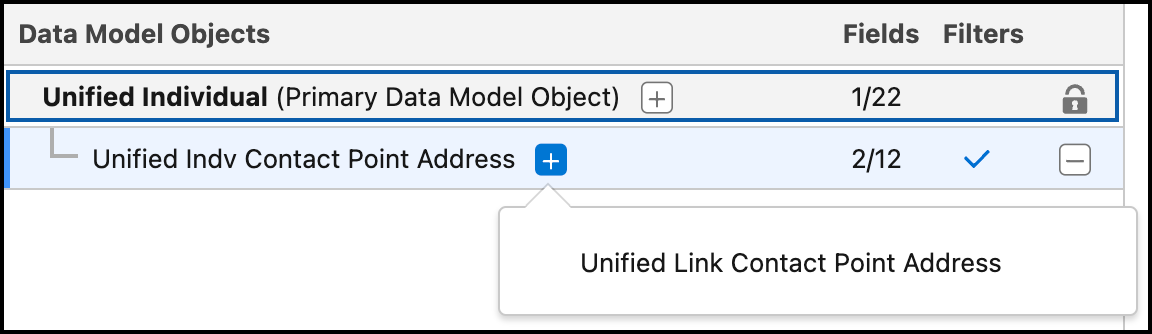
If a DMO has more than one path, choose a path from the list of results. Longer paths add more levels to your data graph.
To apply filter settings, go to the Filters tab. The available filter settings depend on the DMO category.
In real-time data graphs, the relationship join must use the primary key of the parent data model object (DMO). If a relationship requires a non–primary key field from the parent DMO, it isn’t supported for real-time data graph.
- To view the structure of the JSON blob, click Preview.
-
Save your work.
- To save the data graph without making it active, click Save Draft. The data graph is saved in draft status.
- To create the data graph, click Save and Build.
- Select a 30 minute refresh interval for the data graph.
