You are here:
Enable the Global Header for Salesforce Tabs + Visualforce Sites
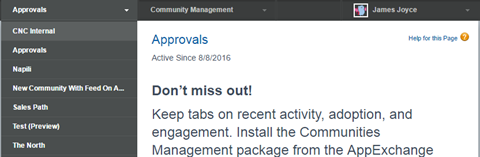
In Salesforce Tabs + Visualforce site and Salesforce Classic, the global header lets you switch between your sites and your Salesforce org.
Required Editions
| Available in: Salesforce Classic |
| Available in: Enterprise, Performance, Unlimited, and Developer Editions |
| User Permissions Needed | |
|---|---|
| To create permission sets: | Manage Profiles and Permission Sets |
| To assign a permission set to a user: | Assign Permission Sets |
Digital Experiences must be enabled in your Salesforce org to use the global header.


The View Global Header permission is disabled by default for all standard profiles. To view the global header, assign the View Global Header permission either by selecting it on standard profiles, creating custom profiles, or by creating a permission set. Create permission sets to easily assign this permission to specific people.
- From Setup, enter Permission Sets in the Quick Find box, then select Permission Sets.
- Click New and create a permission set that includes the System Permission View Global Header.
- Assign the permission set to the appropriate users.
Users with this permission set see the global header at the top of all pages. They can use the menu on the left to switch between their Salesforce Classic internal org and any experience they have access to.
The Your Name menu on the right side contains links to edit contact information and log out. Internal users can also access Salesforce Help and links to Setup and other tools depending on user permissions and enabled features.
In a Salesforce Tabs + Visualforce site, users with either the Manage
Experiences or the Create and Set Up Experiences permission see a gear icon ( ) they can use to switch to Experience Workspaces or Experience Management.