
You are here:
Create Action Link Templates
Create action link templates in Setup so that you can instantiate action link groups with common properties from Connect REST API or Apex. You can package templates and distribute them to other Salesforce orgs.
Required Editions

| Available in: Salesforce Classic (not available in all orgs) and Lightning Experience |
| Available in: all editions except Personal and Starter |
| User Permissions Needed | |
|---|---|
| To create action link group templates: | Customize Application |
| To create action link templates: | Customize Application |
In addition to creating action link templates in Setup, you can also use Metadata API, SOAP API, and REST API to create action link templates.
The Action URL, HTTP Request Body, and HTTP Headers fields support binding variables and context variables. Define binding variables in a template and set their values when you instantiate the action link group. Use context variables in a template and when an action link executes, Salesforce fills in the value and returns it in the request. For information about how to use these variables in a template, see Design Action Link Templates.
- From Setup, enter Action Link Templates in the Quick Find box, then select Action Link Templates.
- Click New.
-
Enter the Name of the template. This name is displayed in
the list of action link group templates.
This is the only action link group template value you can edit after the action link group template has been published.
- Enter the Developer Name. Use the Developer Name to refer to this template from code. It defaults to a version of the Developer Name without spaces. Only letters, numbers, and underscores are allowed.
-
Select the Category, which indicates where to display the
instantiated action link groups on feed elements. Primary displays action link
groups in the body of feed elements. Overflow displays action link groups in the
overflow menu of feed elements.
If an action link group template is Primary, it can contain up to three action link templates. If an action link group template is Overflow, it can contain up to four action link templates.
-
Select the number of Executions Allowed, which indicates
how many times the action link groups instantiated from this template can be
executed. (Action links within a group are mutually exclusive.) If you choose
Unlimited, the action links in the group cannot be of type
ApiorApiAsync. - (Optional) Enter the Hours until Expiration, which is the number of hours from when the action link group is created until it's removed from associated feed elements and can no longer be executed. The maximum value is 8760.
- Click Save.
-
Click New to create an action link template.
The action link template is automatically associated with an action link group template in a master-detail relationship.
-
Select the Action Type.
Api—The action link calls a synchronous API at the action URL. Salesforce sets the status toSuccessfulStatusorFailedStatusbased on the HTTP status code returned by your server.ApiAsync—The action link calls an asynchronous API at the action URL. The action remains in aPendingStatusstate until a third party makes a request to/connect/action-links/actionLinkIdto set the status toSuccessfulStatusorFailedStatuswhen the asynchronous operation is complete.Download—The action link downloads a file from the action URL.Ui—The action link takes the user to a web page at the action URL.
-
Enter an Action URL, which is the URL for the action link.
For a
UIaction link, the URL is a Web page. For aDownloadaction link, the URL is a link to a file to download. For anApiaction link or anApiAsyncaction link, the URL is a REST resource.Links to resources hosted on Salesforce servers can be relative, starting with a/. All other links must be absolute and start withhttps://. This field can contain binding variables in the form{!Bindings.key}, for example,https://www.example.com/{!Bindings.itemId}. Set the binding variable’s value when you instantiate the action link group from the template, as in this Connect REST API example, which sets the value ofitemIdto8675309.POST /connect/action-link-group-definitions { "templateId" : "07gD00000004C9r", "templateBindings" : [ { "key":"itemId", "value": "8675309" } ] }This field can also contain context variables. Use context variables to pass information about the user who executed the action link to your server-side code. For example, this action link passes the user ID of the user who clicked on the action link to take a survey to the server hosting the survey.
actionUrl=https://example.com/doSurvey?surveyId=1234&salesforceUserId={!userId} - Enter the HTTP Method to use to make the HTTP request.
-
(Optional) If the Action Type is
ApiorApiAsync, enter an HTTP Request Body.This field can contain binding variables and context variables. -
(Optional) If the Action Type is
ApiorApiAsync, enter HTTP Headers.This field can contain binding variables and context variables .If an action link instantiated from the template makes a request to a Salesforce resource, the template must have a Content-Type header.
- (Optional) To make this action link the default link in the group (which has special formatting in the UI), select Default Link in Group. There can be only one default link in a group.
- (Optional) To display a confirmation dialog to the user before the action link executes, select Confirmation Required.
- Enter the relative Position of the action link within action link groups instantiated from this template. The first position is 0.
-
Enter the Label Key. This value is the key for a set of UI
labels to display for these statuses: NewStatus, PendingStatus,
SuccessfulStatus, FailedStatus.
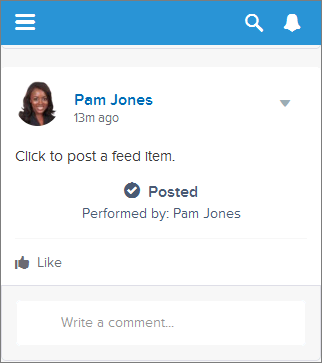
For example, the Post set contains these labels: Post, Post Pending, Posted, Post Failed. This image shows an action link with the Post label key when the value of status is SuccessfulStatus:
-
(Optional) If none of the Label Key values make sense for
the action link, set Label Key to
None and enter a value in the
Label field.
Action links have four statuses: NewStatus, PendingStatus, SuccessStatus, and FailedStatus. These strings are appended to the label for each status:
- label
- label Pending
- label Success
- label Failed
For example, if the value of
labelis “See Example,” the values of the four action link states are: See Example, See Example Pending, See Example Success, and See Example Failed.An action link can use either a LabelKey or Label to generate label names, it can’t use both.
-
Select User Visibility, which indicates who can see the
action link group.
If you select Only creator’s manager can see, the manager is the creator’s manager when the action link group is instantiated. If the creator’s manager changes after the action link group is instantiated, that change is not reflected.
-
(Optional) If you selected Only Custom User Can See or Everyone Except Custom
User Can See, enter a Custom User Alias.
Enter a string and set its value when you instantiate an action link group, just like you would set the value for a binding variable. However don’t use the binding variable syntax in the template, just enter a value. For example, you could enter
ExpenseApprover. This Connect REST API example sets the value ofExpenseApproverto005B0000000Ge16:POST /connect/action-link-group-definitions { "templateId" : "07gD00000004C9r", "templateBindings" : [ { "key":"ExpenseApprover", "value": "005B0000000Ge16" } ] } - To create another action link template for this action link group template, click Save & New.
- If you’re done adding action link templates to this action link group template, click Save.
-
To publish the action link group template, click Back to
List to return to the Action Link Group Template list
view.
Important You must publish a template before you can instantiate an action link group from it in Apex or Connect REST API.
- Click Edit for the action link group template you want to publish.
- Select Published and click Save.
