
You are here:
Design Action Link Templates
Before you create a template, consider which values you want to set in the template and which values you want to set with binding variables when you instantiate action link groups from the template.
Action Link Templates Overview
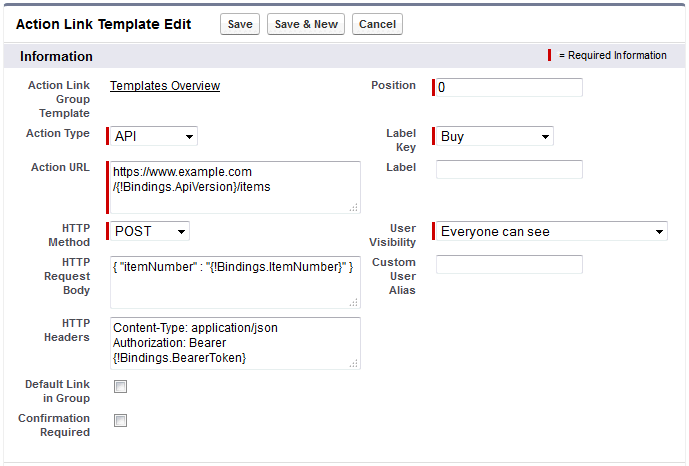
Here’s an action link group template in Setup.
Each action link group should contain at least one action link. This example action link template has three binding variables: the API version number in the Action URL, the Item Number in the HTTP Request Body, and the OAuth token value in the HTTP Header field.
The Connect REST API request to instantiate the action link group and set the values of the binding variables.
POST /connect/action-link-group-definitions

{
   "templateId":"07gD00000004C9r",
   "templateBindings":[
      {
         "key":"ApiVersion",
         "value":"v1.0"
      },
      {
         "key":"ItemNumber",
         "value":"8675309"
      },
      {
         "key":"BearerToken",
         "value":"00DRR0000000N0g!ARoAQMZyQtsP1Gs27EZ8hl7vdpYXH5O5rv1VNprqTeD12xYnvygD3JgPnNR"
      }
   ]
}
This Apex code instantiates the action link group from the template and sets the values of the binding variables.
// Get the action link group template Id.
ActionLinkGroupTemplate template = [SELECT Id FROM ActionLinkGroupTemplate WHERE DeveloperName='Doc_Example'];

// Add binding name-value pairs to a map.
Map<String, String> bindingMap = new Map<String, String>();
bindingMap.put('ApiVersion', '1.0');
bindingMap.put('ItemNumber', '8675309');
bindingMap.put('BearerToken', '00DRR0000000N0g!ARoAQMZyQtsP1Gs27EZ8hl7vdpYXH5O5rv1VNprqTeD12xYnvygD3JgPnNR');

// Create ActionLinkTemplateBindingInput objects from the map elements.
List<ConnectApi.ActionLinkTemplateBindingInput> bindingInputs = new List<ConnectApi.ActionLinkTemplateBindingInput>();
for (String key : bindingMap.keySet()) {
    ConnectApi.ActionLinkTemplateBindingInput bindingInput = new ConnectApi.ActionLinkTemplateBindingInput();
    bindingInput.key = key;
    bindingInput.value = bindingMap.get(key);
    bindingInputs.add(bindingInput);
}

// Set the template Id and template binding values in the action link group definition.
ConnectApi.ActionLinkGroupDefinitionInput actionLinkGroupDefinitionInput = new ConnectApi.ActionLinkGroupDefinitionInput();
actionLinkGroupDefinitionInput.templateId = template.id;
actionLinkGroupDefinitionInput.templateBindings = bindingInputs;

// Instantiate the action link group definition.
ConnectApi.ActionLinkGroupDefinition actionLinkGroupDefinition =
ConnectApi.ActionLinks.createActionLinkGroupDefinition(Network.getNetworkId(), actionLinkGroupDefinitionInput);
Template Design Considerations
Considerations for designing a template:
- Determine the expiration time of the action link group.
- Define binding variables in the template and set their values when you instantiate the group. Don’t store sensitive information in templates. Use binding variables to add sensitive information at run time.
- Determine who can see the action link when it’s associated with a feed element.
- Use context variables in the template to get information about the execution
context of the action link.
When the action link executes, Salesforce fills in the values and sends them in the HTTP request.
Set the Action Link Group Expiration Time
When creating an action link group from a template, the expiration date can be calculated based on a period provided in the template, or the action link group can be set not to expire at all.
To set the hours until expiration in a template, enter a value in the Hours until Expiration field of the action link group template. This value is the number of hours from when the action link group is instantiated until it's removed from associated feed elements and can no longer be executed. The maximum value is 8760, which is 365 days.
To set the action link group expiration date when you instantiate it, set the expirationDate property of either the Action Link Group
Definition request body (Connect REST API) or the ConnectApi.ActionLinkGroupDefinition input class (Apex).
To create an action link group that doesn’t expire, don’t enter a value in the
Hours until Expiration field of the template and don’t enter a value
for the expirationDate property when you instantiate
the action link group.
Here’s how expirationDate and Hours until
Expiration work together when creating an action link group from a
template.
- If you specify
expirationDate, its value is used in the new action link group. - If you don’t specify
expirationDateand you specify Hours until Expiration in the template, the value of Hours until Expiration is used in the new action link group. - If you don’t specify
expirationDateor Hours until Expiration, the action link groups instantiated from the template don’t expire.
Define Binding Variables
Define binding variables in templates and set their values when you instantiate an action link group.

You can define binding variables in the Action URL, HTTP Request Body, and HTTP Headers fields of an action link template. After a template is published, you can edit these fields, you can move binding variables between these fields, and you can delete binding variables. However, you can’t add new binding variables.
Define a binding variable’s key in the template. When you instantiate the action link group, specify the key and its value.
Binding variable keys have the form {!Bindings.key}.
The key supports Unicode characters in the predefined
\w character class: [\p{Alpha}\p{gc=Mn}\p{gc=Me}\p{gc=Mc}\p{Digit}\p{gc=Pc}].
This Action URL field has two binding variables.
https://www.example.com/{!Bindings.ApiVersion}/items/{!Bindings.ItemId}This HTTP Headers field has two binding variables.
Authorization: OAuth {!Bindings.OAuthToken}
Content-Type: {!Bindings.ContentType}
Specify the keys and their values when you instantiate the action link group in Connect REST API.
POST /connect/action-link-group-definitions

{
     "templateId":"07gD00000004C9r",
     "templateBindings" : [
        {
           "key":"ApiVersion",
           "value":"1.0"
        },
        {
           "key":"ItemId",
           "value":"8675309"
        },
        {
           "key":"OAuthToken",
           "value":"00DRR0000000N0g_!..."
        },
        {
           "key":"ContentType",
           "value":"application/json"
        }
     ]
}
Specify the binding variable keys and set their values in Apex.
Map<String, String> bindingMap = new Map<String, String>();
bindingMap.put('ApiVersion', '1.0');
bindingMap.put('ItemId', '8675309');
bindingMap.put('OAuthToken', '00DRR0000000N0g_!...');
bindingMap.put('ContentType', 'application/json');

List<ConnectApi.ActionLinkTemplateBindingInput> bindingInputs =
 new List<ConnectApi.ActionLinkTemplateBindingInput>();

for (String key : bindingMap.keySet()) {
    ConnectApi.ActionLinkTemplateBindingInput bindingInput = new ConnectApi.ActionLinkTemplateBindingInput();
    bindingInput.key = key;
    bindingInput.value = bindingMap.get(key);
    bindingInputs.add(bindingInput);
}

// Define the action link group definition.
ConnectApi.ActionLinkGroupDefinitionInput actionLinkGroupDefinitionInput =
 new ConnectApi.ActionLinkGroupDefinitionInput();
actionLinkGroupDefinitionInput.templateId = '07gD00000004C9r';
actionLinkGroupDefinitionInput.templateBindings = bindingInputs;

// Instantiate the action link group definition.
ConnectApi.ActionLinkGroupDefinition actionLinkGroupDefinition =
ConnectApi.ActionLinks.createActionLinkGroupDefinition(Network.getNetworkId(), actionLinkGroupDefinitionInput);

{!Bindings.MyBinding} twice in the HTTP
Request Body field of one action link template, and again in the HTTP
Headers of another action link template within the same action link group
template, and when you instantiate an action link group from the template, you would need to
provide only one value for that shared variable. Set Who Can See the Action Link
Choose a value from the User Visibility dropdown list to determine who can see the action link after it’s associated with a feed element.
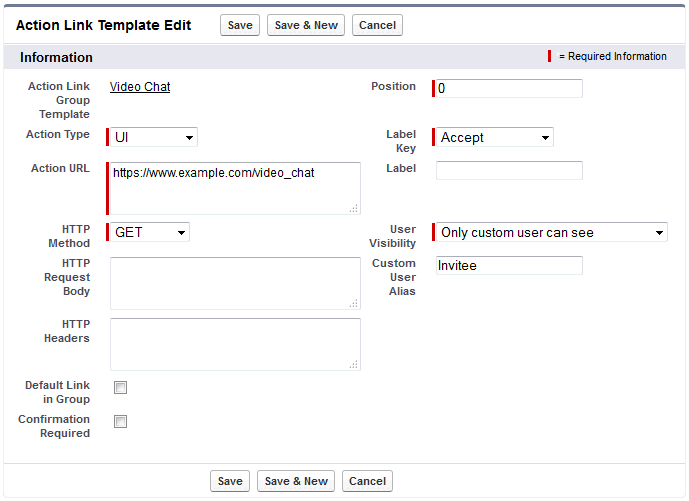
Among the available options are Only Custom User Can See and Everyone Except Custom User Can See. Choose one of these values to allow only a specific user to see the action link or to prevent a specific user from seeing it. Then enter a value in the Custom User Alias field. This value is a binding variable key. In the code that instantiates the action link group, use the key and specify the value as you would for any binding variable.
This template uses the Custom User Alias value Invitee.
When you instantiate the action link group, set the value just like you would set a binding variable.
POST /connect/action-link-group-definitions

{
     "templateId":"07gD00000004C9r",
     "templateBindings" : [
        {
           "key":"Invitee",
           "value":"005D00000017u6x"
        }
     ]
}
If the template uses Only creator’s manager can see, a user that doesn’t have a manager receives an error when instantiating an action link group from the template. In addition, the manager is the manager at the time of instantiation. If the user’s manager changes after instantiation, that change isn’t reflected.
Use Context Variables
Use context variables to pass information about the user who executed the action link and
the context in which it was invoked into the HTTP request made by invoking an action link.
You can use context variables in the actionUrl, headers, and requestBody
properties of the Action Link Definition Input request body or ConnectApi.ActionLinkDefinitionInput object. You can also
use context variables in the Action URL, HTTP Request
Body, and HTTP Headers fields of action link templates.
You can edit these fields, including adding and removing context variables, after a template
is published.
The available context variables are:
| Context Variable | Description |
|---|---|
{!actionLinkId}
|
The ID of the action link the user executed. |
{!actionLinkGroupId}
|
The ID of the action link group containing the action link the user executed. |
{!communityId}
|
The ID of the site in which the user executed the action link. The value for
your internal org is the empty key "000000000000000000". |
{!communityUrl}
|
The URL of the site in which the user executed the action link. The value for
your internal org is empty string "". |
{!orgId}
|
The ID of the org in which the user executed the action link. |
{!userId}
|
The ID of the user that executed the action link. |
For example, suppose you work for a company called Survey Example and you create an app for AppExchange called Survey Example for Salesforce. Company A has Survey Example for Salesforce installed. Let’s imagine that someone from company A goes to surveyexample.com and makes a survey. Your Survey Example code uses Connect REST API to create a feed item in Company A’s Salesforce org with the body text Take a survey, and an action link with the label OK.
This UI action link takes the user from Salesforce
to a web page on surveyexample.com to take a survey.
If you include a {!userId} context variable in either
the HTTP Request Body or the Action URL for that
action link, when a user clicks the action link in the feed, Salesforce sends the ID of the
user who clicked in the HTTP request it makes to your server.
If you include an {!actionLinkId} context variable in
the Survey Example server-side code that creates the action link, Salesforce sends an HTTP
request with the ID of the action link and you can save that to your database.
This example includes the {!userId} context variable
in the Action URL in the action link template.
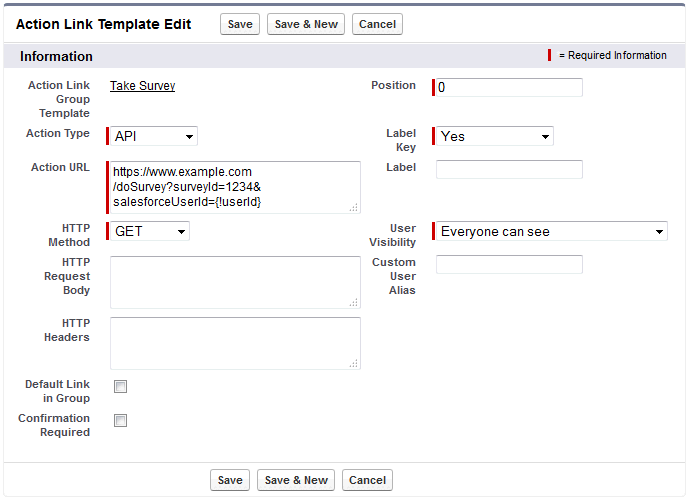
https://www.example.com/{!Bindings.apiVersion}/doSurvey?salesforceUserId={!userId}