Did this article solve your issue?
Let us know so we can improve!
You are here:
Easily track and manage all your failed and paused flow interviews in the Automation Lightning app. The Monitor tab shows all failed and paused flow interviews and why they failed or paused.
| Available in: Lightning Experience |
| View supported editions. |
| User Permissions Needed | |
|---|---|
| To view the Monitor tab in the Automation app | Manage Flow permission set |

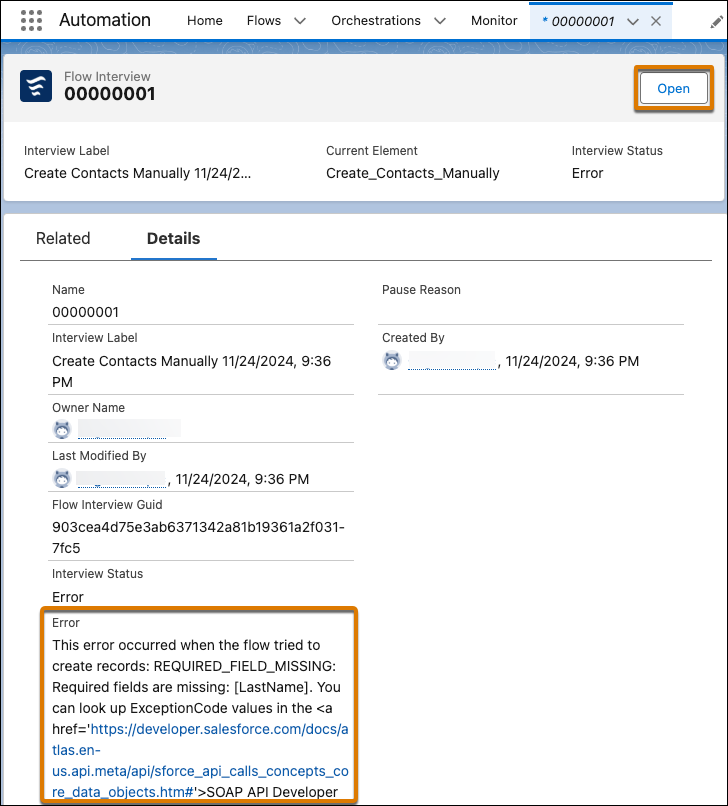
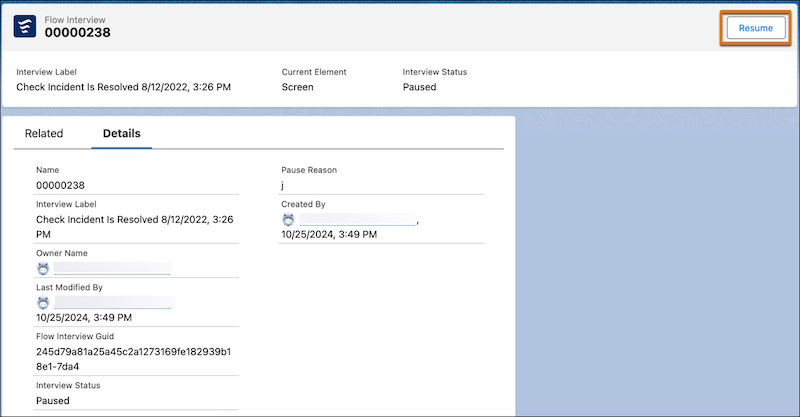
View all failed and paused flow interviews from within the Automation app. From there, you can debug failed flow interviews and resume paused flow interviews.
To access the Automation app, ensure that the process automation setting Enable the Automation Lightning App is selected.
If the All Flow Interviews list view shows no results after customization, check if the Current Flow API Name field is included. This field is dynamic and must be paired with supporting fields. To resolve the issue, remove the Current Flow API Name field, or include at least one of these fields:

We use three kinds of cookies on our websites: required, functional, and advertising. You can choose whether functional and advertising cookies apply. Click on the different cookie categories to find out more about each category and to change the default settings.
Privacy Statement
Required cookies are necessary for basic website functionality. Some examples include: session cookies needed to transmit the website, authentication cookies, and security cookies.
Functional cookies enhance functions, performance, and services on the website. Some examples include: cookies used to analyze site traffic, cookies used for market research, and cookies used to display advertising that is not directed to a particular individual.
Advertising cookies track activity across websites in order to understand a viewer’s interests, and direct them specific marketing. Some examples include: cookies used for remarketing, or interest-based advertising.