You are here:
Flow Builder for Flow Approval Processes
Get to know the Flow Builder requirements and the user interface for Flow Approval Processes.
Required Editions
| View supported editions for Flow Approval Processes. |
Tour the Flow Builder User Interface for Flow Approval Processes
Flow Approval Processes uses the Auto-Layout canvas in Flow Builder.
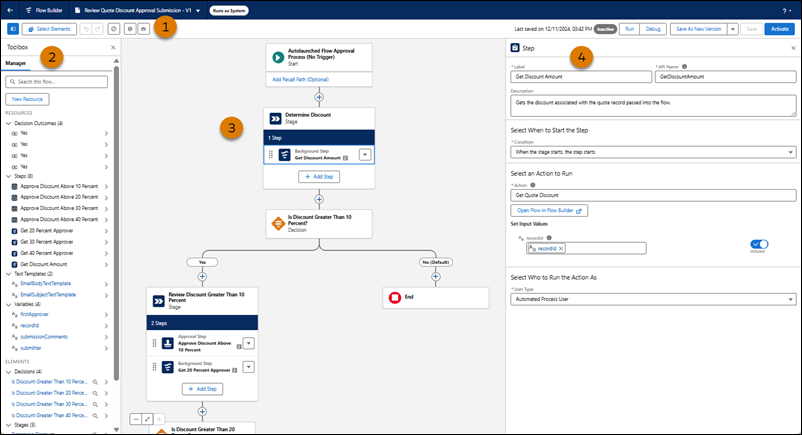
Button Bar (1)—Manage your flow approval process as you build it.
- To run the most recent saved version of the flow approval process that’s open, click
Run.
 Note The Run button is available only for autolaunched flow approval processes.
 - To the left of the buttons, you can see the version’s active or inactive status and when it was last saved.
- To see errors and warning for the flow approval process, click the Show Errors icon
(
 ).
).
Toolbox (2)—Create variables, constants, formulas, or text templates to use in your flow
approval process. Or view a list of all resources and elements that you added. To see the
Toolbox, click the Toggle Toolbox icon ( ) in the Button bar.
Errors and Warnings (not shown)—View errors and warnings for your flow approval process.
The Errors tab shows all errors to resolve before you can activate your flow approval
process. The Warnings tab shows all warnings that relate to the flow approval process. To
see Errors and Warnings, click the Show Error icon () in the Button Bar.
Canvas (3)—Build a flow approval process on the canvas. As you add elements to the canvas and connect them, you see a diagram of your flow approval process.
 . Flow Builder then shows the options and possible elements for this
location.
. Flow Builder then shows the options and possible elements for this
location.Properties (4)—Set attributes for the element that's selected in the canvas. To close the
Properties panel, click  .
.
Keyboard Shortcuts
Use these handy keyboard shortcuts for macOS and Windows to quickly navigate approval orchestrations.
| Action | macOS | Windows |
|---|---|---|
| Zoom in | Cmd+Option+= | Ctrl+Alt+= |
| Zoom out | Cmd+Option+- | Ctrl+Alt+- |
| Zoom to fit | Cmd+Option+1 | Ctrl+Alt+1 |
| Zoom to view | Cmd+Option+0 | Ctrl+Alt+0 |
| View available keyboard shortcuts | Cmd+/ | Ctrl+/ |
