You are here:
Create a Child Flow to Clone a Record
Build a reusable autolaunched flow that accepts a record as input and creates a clone with all field values the running user can edit. A parent flow calls this child flow using a Subflow element and receives the cloned record as output. Complete this task before building the parent flow.
Required Editions
| View supported editions. |
| User Permissions Needed | |
|---|---|
| To open, edit, create, activate or deactivate a flow using all flow types, elements, and features available in Flow Builder, including Einstein and Agentforce for Flow: | Manage Flow |

Note You don't need to be an admin to have the Manage Flow permission.
Ask your admin to add it to your profile or permission set.
Before you begin, review Read-Only Field Restrictions for Flow Record Processing
-
Open the Flows list view.
- From the Automation app, select the Flows tab.
- From the Flows tab in any Lightning app, click the actions menu and select Open Flow.
- From Setup, in the Quick Find box, enter Flows, and then select Flows.
Note that the Automation app and Flows tab options don't require Setup access. -
Create an autolaunched flow.
- From Setup, click New Flow, select Autolaunched Automations, and then select Autolaunched Flow (No Trigger)..
- From the Automation app, click New, selectAutolaunched Automations, and then select Autolaunched Flow (No Trigger).
-
Add an input variable to store the record variable containing the original record.
-
To open the Toolbox, click

- Click New Resource, and then select Variable.
- Enter an API name and description.
- For Data Type, select Record.
- For Object, select the object of the record to clone.
- for Availability Outside the Flow, select Available for input.
For example, to clone a case record, add a caseToClone record variable.Field Value API Name caseToClone Description Stores a case record that contains the field values of the original case record, and is passed into the flow. Data Type Record Object Case Availability Outside the Flow Available for input -
To open the Toolbox, click
-
Add a record variable to store the new record values.
- Click New Resource, and then select Variable.
- Enter an API name and description.
- For Data Type, select Record.
- For Object, select the object of the record to clone.
- For Availability Outside the Flow, select Available for output.
For example, create a variable to store a new case record and return it to the parent flow by adding a newCase record variable that available as output from the flow.Field Value API Name newCase Description Stores the field values of the original case record and is available as output from the flow. Data Type Record Object Case Availability Outside the Flow Available for output -
Add an Assignment element to clear the value of the record’s ID.
-
Click
 , and select Assignment.
- Edit the generated label and description if needed. Flow Builder generates them based on the element's configuration, and the API name populates based on the label.
- For Variable, select the record variable that holds the new record.
- For Operator, select Equals.
- For Value, select the record variable that holds the record to clone.
- Click Add Assignment.
- For Variable, select the primary ID field of record variable that holds the new record.
- For Operator, select Equals.
- For Value, select Blank Value (Empty String).
For example, to set the value of the new record variable to the record passed into the flow and to set its case ID to an empty string, add an Assignment element.Field Value Label Set newCase Values API Name SetNewCaseValues Description Sets the newCase record variable to caseToClone, and then sets newCase’s case ID to an empty string. Variable newCase > Entire Resource Operator Equals Value caseToClone > Entire Resource Variable newCase > Case ID Operator Equals Value Blank Value (Empty String) -
Click
-
Add a Create Records element.
-
Click , and select Create Records.
- Edit the generated label and description if needed. Flow Builder generates them based on the element's configuration, and the API name populates based on the label.
- For Object, select the object of the record to create.
- For How Many Records to Create, select One.
- For Record, select the record variable created in step 4.
For example, add a Create Records element and configure it to create a record using the field values stored in the newCase record variable.Field Value Label Clone Record API Name CloneRecord Description Creates a copy of the record in newCase, and stores the result in the newCase record variable. How to set record field values From a Record Variable How Many Records to Create One Record newCase The Case ID field of newCase now contains the new record’s case ID. -
Click
-
Save the flow.
For example, click Save and then use these values to save the flow.
Field Value Flow Label Clone Record with All Fields API Name Clone_Record_with_All_Fields Description Creates a copy of the record passed into the flow, with all fields. 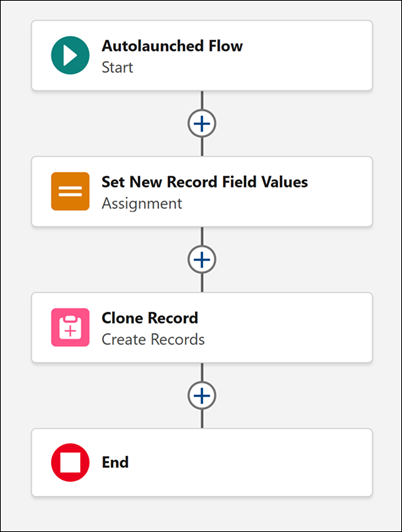
Click Save.
- Activate the flow.
This child flow is now ready to be called by the parent flow using a Subflow element.
Did this article solve your issue?
Let us know so we can improve!
