You are here:
Send a Custom Notification with a Flow
Create a flow that sends a custom notification to users when a specific event occurs. Custom notifications appear in the notification bell and can be delivered to the Salesforce desktop or mobile app.
Required Editions
| View supported editions. |
| User Permissions Needed | |
|---|---|
| To view notification types: | View Setup and Configuration |
| To create and edit notification types: | Customize Application |
| To send custom notifications: | Send Custom Notifications |
| To open, edit, create, activate or deactivate a flow using all flow types, elements, and features available in Flow Builder, including Einstein and Agentforce for Flow: | Manage Flow |

Create a Custom Notification Type
Create a custom notification type that defines the channels for your notification.
- From Setup, in the Quick Find box, enter Notification Builder, and then select Custom Notifications.
- Click New.
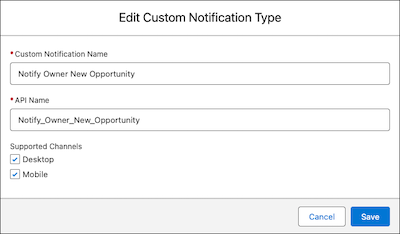
- Add your custom notification name. For example, Notify Owner New Contact.
- The API name auto-fills. For example, Notify_Owner_New_Opportunity.
-
For Supported Channels, select Desktop,
Mobile, or Desktop and
Mobile.
- Desktop sends a notification to the desktop notification tray.
- Mobile sends an in-app and push notification to enabled supported apps.
- Save your notification type.
- If you selected Mobile, enable the supported apps for your notification type.
To learn more about custom notifications, see Manage Your Notifications with Notification Builder.
Create the Flow
Create a flow that sends a custom notification.
-
Open the Flows list view.
- From the Automation app, select the Flows tab.
- From the Flows tab in any Lightning app, click the actions menu and select Open Flow.
- From Setup, in the Quick Find box, enter Flows, and then select Flows.
Note that the Automation app and Flows tab options don't require Setup access. -
Create a flow. For example, create a record-triggered flow.
- From the Automation app, click New | Triggered Automations | Record-Triggered Flow.
- From Setup, click New Flow | Triggered Automations | Record-Triggered Flow.
The flow opens in Flow Builder. If your flow has a Start element panel, the Configure Start panel opens. -
If your flow has a Start element panel, configure the Start element. For example,
configure the Start of a record-triggered flow that triggers when a contact record is
created
- For Object, select the object that triggers the flow. For example, select Contact.
- For Trigger the Flow When, select when the flow runs. For example, A record is created.
- Configure any entry conditions or other settings as needed.
Define Your Recipients
Create a text collection variable to store recipient IDs, then use an assignment element to add IDs to the collection.
-
Create a collection variable to store the recipient IDs.
-
To open the Toolbox, click
 .
.
- Click New Resource, and then select Variable.
- For API Name, enter RecipientIds.
- For Description, enter Stores the IDs of users who receive the custom notification.
- For Data Type, select Text.
- Select the Allow multiple values (collection) checkbox.
- Click Done.
-
To open the Toolbox, click
-
Add an assignment element to add recipient IDs to the collection.
-
Click
 , and select Assignment.
The assignment element panel opens.
, and select Assignment.
The assignment element panel opens. -
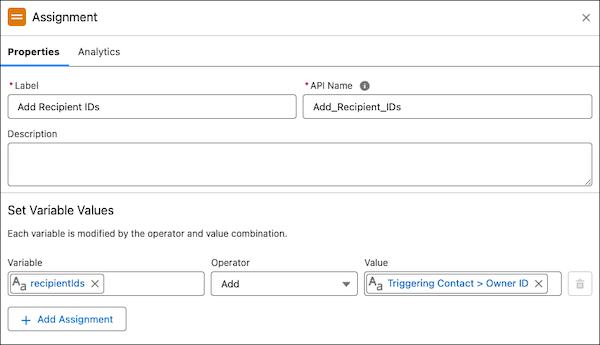
For Label, enter a descriptive name. For example, Add Recipient
IDs.
The API name auto-fills.
- For Description, enter a description of what this element does. For example, Adds recipient IDs to the recipientIds collection variable.
- For Variable, select RecipientIds.
- For Operator, select Add.
-
For Value, select the resource that contains the recipient user ID. For example, to send
the notification to the triggering contact's owner, click Triggering
Contact and then search for and select Owner ID.
You can add multiple assignment rows to add multiple recipient IDs to the collection.
-
Click
Get the Custom Notification Type ID
Use a Get Records element to get the ID of the custom notification type you created.
-
Click , and select Get Records.
The Get Records panel opens.
-
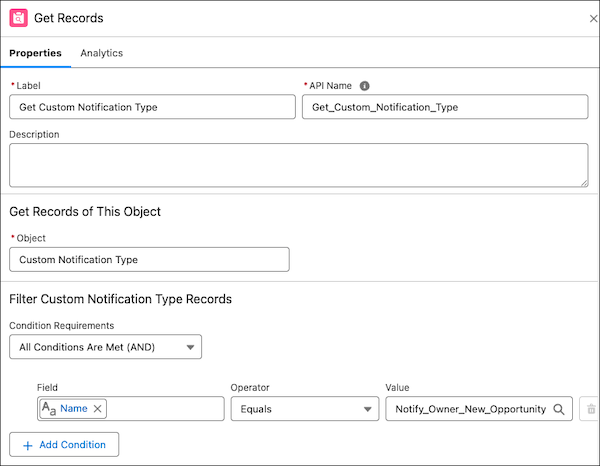
For Label, enter a descriptive name. For example, Get Custom Notification
Type.
The API name auto-fills.
- For Description, enter a description of what this element does. For example, Gets the ID of the custom notification type to use to send the notification.
- For Object, select Custom Notification Type.
- For Condition Requirements, select All Conditions Are Met (AND).
-
Add a condition to filter by the notification type you created.
- For Field, select Name . There are two Name fields. Use the one with the DeveloperName API name. To see the API name of the Name field, hover on the Name field and then hover on the information icon for that field.
- For Operator, select Equals.
- For Value, enter the name of the custom notification type you created. For example, Notify_Owner_New_Opportunity.
- Use default values for the remaining fields.
Configure the Send Custom Notification Action
Create a text template for the notification body. Then configure the Send Custom Notification action with recipients, content, and a target to navigate the user to when they click the notification.
-
Create a text template to store the notification body.
-
To open the Toolbox, click .
- Click New Resource, and then select Text Template.
- For API Name, enter a descriptive name. For example, NotificationBodyTextTemplate.
- For Description, enter a description of what this text template is used for. For example, Content to use for the notification body.
-
For Body, enter the notification body text.
To add merge fields to the text template, click Insert a resource, and then select the relevant resource.For example, Click to view {!$Record.FirstName} {!$Record.LastName}.
- Click the View as Rich Text dropdown and select View as Plain Text.
- Remove any extra characters in your body text.
- Click Done.
-
To open the Toolbox, click
-
Add an action element to your flow.
-
Click , and select Action.
A list of available actions opens.
-
In the search bar, enter Notifications, and then select
Send Custom Notification.
The Send Custom Notification action configuration panel opens.
-
Click
-
For Label, enter a descriptive name for the action. For example, Send Owner a
Notification.
The API name auto-fills.
- For Description, enter a description that explains what notification this action sends. For example, Sends a notification to the new contact's owner.
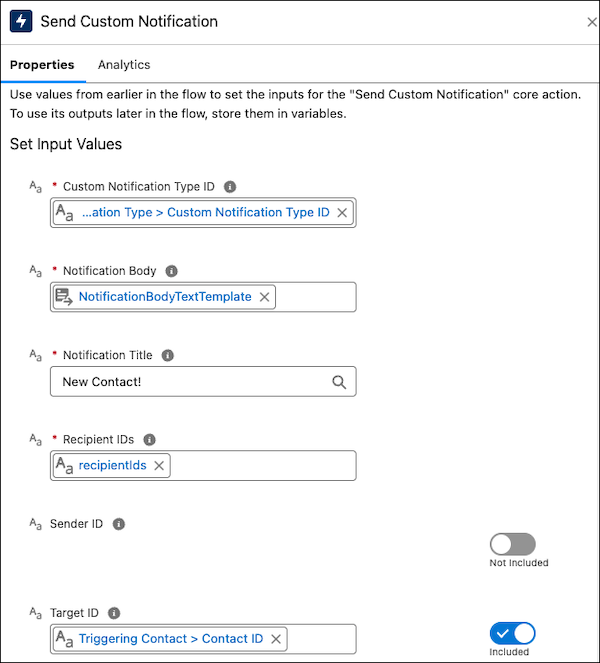
- For Custom Notification Type ID, select the record ID of the record you got in the Get Records element. For example, click Custom Notification Type from Get Custom Notification Type and then click Custom Notification Type ID.
- For Notification Body, enter the body text or select a resource that contains the body. For example, select the NotificationBodyTextTemplate resource.
- For Notification Title, enter the title text or select a resource that contains the title. For example, enter New Contact!.
- For Recipient IDs, select the collection variable where the recipient IDs are stored. For example, RecipientIds.
- For Target ID, select the record ID that users go to when they click the notification. For example, to navigate them to the triggering contact record page, select Triggering Contact and then search for and select Contact ID.
To learn more about the Send Custom Notification action element, see Send Custom Notification Action.
Save, Test, and Activate the Flow
Save the flow and then test it in a sandbox to make sure that it works as expected. Then, activate it to start sending custom notifications.
-
Save the flow.
- Click Save.
-
For Flow Label, enter a descriptive name for the flow. For example, Send New
Contact Owner a Notification
The Flow API name auto-fills.
- For Description, enter a description that explains what the flow does. For example, Sends a custom notification to the contact owner when a new contact is created.
- Click Save.
-
Test the flow to verify that the notification is sent correctly.
- Create a test contact in a sandbox using non-real data and make yourself the owner of the new contact.
- Click Debug to test the flow in the flow debugger.
-
If your flow is a record-triggered flow that's triggered when a record is created,
select Skip start condition requirements.
This setting let's you test the record-triggered flow with an existing record even though the flow is configured to run with a new record.
- Click Run.
- Review the debug log, opening each section to see the details.
- Fix any errors that show in the log.
-
Activate the flow.
- Click Activate.
The flow is now active and sends custom notifications when triggered.
Monitor the notifications to ensure they're being delivered as expected. Remember that your org can run up to 10,000 notification actions per hour, and each notification can have up to 10,000 users as recipients.
