You are here:
Send and Log Your Email Example
This example uses the Send Email action to send and log an email to a contact. Your sales reps might forget to email your customer when an opportunity's stage is updated, so you want to email the customer and log it automatically with a flow.
Required Editions
| View supported editions. |
| User Permissions Needed | |
|---|---|
| To open, edit, create, activate or deactivate a flow using all flow types, elements, and features available in Flow Builder, including Einstein and Agentforce for Flow: | Manage Flow |
| To create or update an opportunity: |
|

Important To send email from Salesforce, the Send
Email action in Salesforce Flow requires domain-level and user-level email verification.
Email delivery fails if either the user's email address or the email-sending domain is
unverified. See Requirements to Send Email from Salesforce.

Note If you're following along in an existing flow, make sure the Send Email action
version is set to 1.0.1.
Create the flow that sends and logs an email to your customer when an opportunity's stage is updated.
-
Open the Flows list view.
- From the Automation app, select the Flows tab.
- From the Flows tab in any Lightning app, click the actions menu and select Open Flow.
- From Setup, in the Quick Find box, enter Flows, and then select Flows.
Note that the Automation app and Flows tab options don't require Setup access. -
Create a record-triggered flow.
- From the Automation app, click New | Triggered | Record-Triggered Flow.
- From Setup, click New Flow | Triggered | Record-Triggered Flow.
-
Configure the Start element.
-
For Object, click Opportunity.
Opportunity is selected because that's the type of record that triggers the flow.
- For Trigger the Flow When, select A record is updated.
-
In the Set Entry Conditions section, for Field, click Stage. For
Operator, click is Changed. For Value, click
True.
A record is updated is selected, and this entry condition is added, because we want the flow triggered each time a opportunity record's stage is updated.
- Use the default values for the other fields.
-
For Object, click Opportunity.
-
Add and configure a Get Records element.
This setup gets the contact that's related to the opportunity record and brings it into the flow.
-
Click
 , and select Get Records.
The Get Records configuration panel opens.
, and select Get Records.
The Get Records configuration panel opens. - For Label, enter Get Opportunity Contact and use the default API name Get_Opportunity_Contact.
- For Object, search for and click Opportunity Contact Role.
- In the Filter Email Template Records section, for Field, click Opportunity ID. For Operator, click Equals. For Value, click Triggering Opportunity, and then click Opportunity ID.
- Use the default values for the other fields.
-
Click
-
After the Get Records element, add and configure an Action element. The action element is
used to send and log the email.
-
Click , and select Action.
A list of available actions opens.
-
In the search bar, enter Send Email, and then click
Send Email.
For more information about the Send Email action, see Flow Core Action: Send Email.
- For Label, enter Send Opportunity Update Email and use the default API name, Send_Opportunity_Update_Email.
- Click Compose Email Content.
- For Subject, enter the text Opportunity Update Notification.
- For Body, enter the email body content as Dear Valued Customer, Your purchase is one step closer to your doorstep! If you have any questions or need further assistance, please do not hesitate to contact us. Best regards, Your Sales Team
-
For the Recipient ID value, click Opportunity Contact Role from Get
Opportunity Contact, click Contact ID.
This step sets the email recipient to the contact related to the opportunity record that triggers the flow when it gets updated.
-
For the Log Email on Send value, click True.
This step allows Salesforce to log the email to the contact you specified for Recipient ID.
-
Click
- Save and name the flow.
- To make sure that the flow works as expected, debug and test it by using different scenarios.
- To start sending emails, activate the flow.
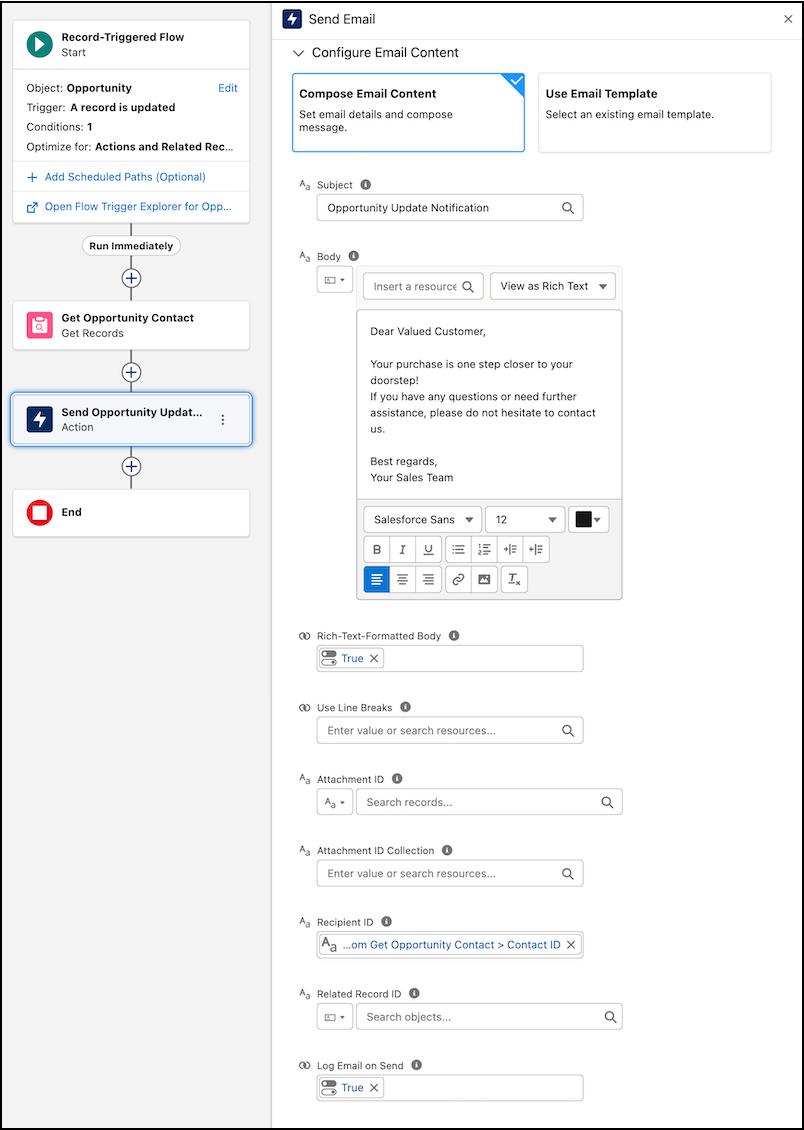
The flow sends an email to the contact of an opportunity record when the stage is updated and logs the email.
Important After migrating flows, always review and reconfigure
the Send Email action to reference the new record IDs in the target Salesforce org. This
step is crucial to avoid broken references and to make sure that email delivery functions
correctly.
Did this article solve your issue?
Let us know so we can improve!
