You are here:
Send an Email with Attachments in a Record-Triggered Flow Example
When your sales team is ready to send out proposal documents to the contacts involved with the opportunity, use this example flow to automatically send an email with the attachments to those contacts. This flow stores the attachment IDs in a collection variable and then passes the collection variable into the Send Email action's attachment ID collection field.
Required Editions
| View supported editions. |
| User Permissions Needed | |
|---|---|
| To view and edit opportunity: |
|
| To upload attachments to an opportunity: |
|
| To add contact roles: |
|
| To open, edit, create, activate or deactivate a flow using all flow types, elements, and features available in Flow Builder, including Einstein and Agentforce for Flow: | Manage Flow |

Important To send email from Salesforce, the Send
Email action in Salesforce Flow requires domain-level and user-level email verification.
Email delivery fails if either the user's email address or the email-sending domain is
unverified. See Requirements to Send Email from Salesforce.
See Also
Upload Attachments to an Opportunity and Add Contact Roles
- From the App Launcher, find and select Opportunities.
- To upload attachments to an opportunity, find the opportunity in the opportunities related list and edit it.
-
Upload your files under Notes and Attachments (1).
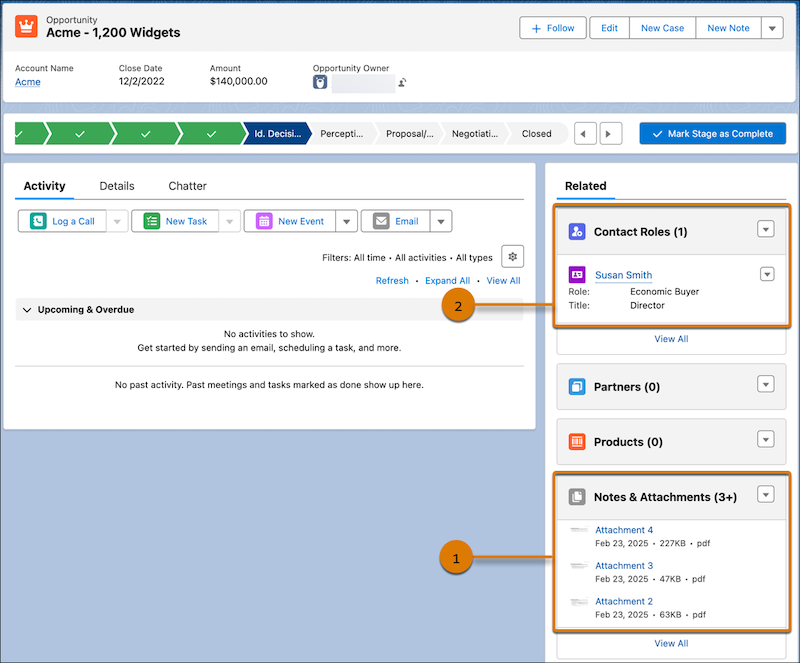
- To send an email to contact roles when this opportunity is updated, add them under Contact Roles (2).
Create a Record-Triggered Flow
-
Open the Flows list view.
- From the Automation app, select the Flows tab.
- From the Flows tab in any Lightning app, click the actions menu and select Open Flow.
- From Setup, in the Quick Find box, enter Flows, and then select Flows.
Note that the Automation app and Flows tab options don't require Setup access. - Create a record-triggered flow.
-
To trigger the flow whenever the opportunity record is updated and the opportunity is at
the Proposal/Price Quote stage, complete these steps:
- Under Select Object, select Opportunity.
- Under Configure Trigger, select A record is updated.
- Under Condition Requirements, select All Conditions Are Met (AND).
- Set the Stage field to equal Proposal/Price Quote.
Get Content Document Links for the Triggering Opportunity
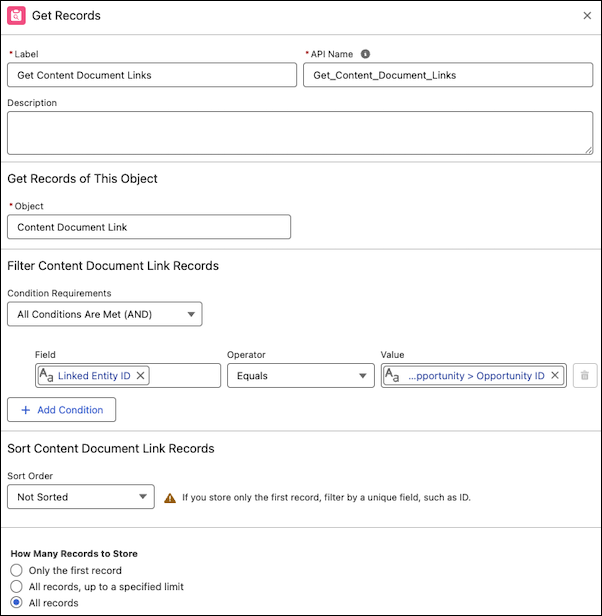
When you upload files to an opportunity, the files are linked to the opportunity record via the ContentDocumentLinks object. Use the Get Records element to get all the content document links associated with the opportunity record that triggers the flow.
- Add a Get Records element to the record-triggered flow.
- For the label, enter Get Content Document Links.
- For the object, select Content Document Link.
-
Under Filter Content Document Link Records:
- Under Condition Requirements, select All Conditions are Met (AND).
- Set the Linked Entity ID field to equal Triggering Opportunity ID | Opportunity ID
- Under How Many Records to Store, select All Records.
-
Under How to Store Record Data, select Automatically store all
fields.
Create a Text Collection Variable to Store Attachment IDs
- To create a new resource, go to the Manager tab in the Flow Builder toolbox, and then click New Resource.
- From the Resource Type dropdown menu, select Variable.
- In the API Name field, enter ContentDocumentIDs.
- From the Data Type dropdown menu, select Text.
- Select Allow multiple values (collection).
- Save your changes.
Iterate over Every Content Document Link and Assign the Attachment ID to a Collection Variable
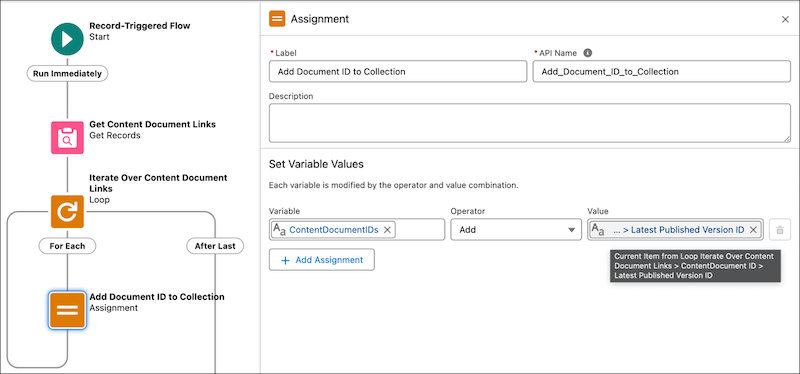
- Add a loop element after the Get Records element.
- For the label, enter Iterate Over Content Document Links.
- Set the Collection Variable to Content Document Link from Get Content Document Links.
- Add an assignment element so it's triggered for each iteration of the loop.
- In the label field, enter Add Document ID to Collection.
-
To set the variable value:
- Under Variable, select ContentDocumentIDs.
- Under Operator, select Add.
-
Under Value, select Current Item from Loop Iterate Over Content Document Links | Content Document ID | Latest Published Version
ID{!Iterate_Over_Content_Document_Links.ContentDocument.LatestPublishedVersionId}
Get the Opportunity ID for the Opportunity Contact Roles Associated with the Triggering Opportunity
- Add a Get Records element after the Iterate Over Content Document Links loop element.
- For the label, enter Get Opportunity Contact Roles.
- For the object, select Opportunity Contact Role.
-
Under Filter Opportunity Contact Role Records:
- Under Condition Requirements, select All Conditions are Met (AND).
- Set the Opportunity ID field to equal Triggering Opportunity ID | Opportunity ID.
- Under How Many Records to Store, select All Records.
- Under How to Store Record Data, select Automatically store all fields.
Create a Text Collection Variable to Store the Email Addresses of the Contact Roles
- To create a new resource, go to the Manager tab in the Flow Builder toolbox, and then click New Resource.
- From the Resource Type dropdown menu, select Variable.
- In the API Name field, enter ContactEmailAddresses.
- From the Data Type dropdown menu, select Text.
- Select Allow multiple values (collection).
- Save your changes.
Iterate over Every Opportunity Contact Role and Assign the Email Address to a Collection Variable
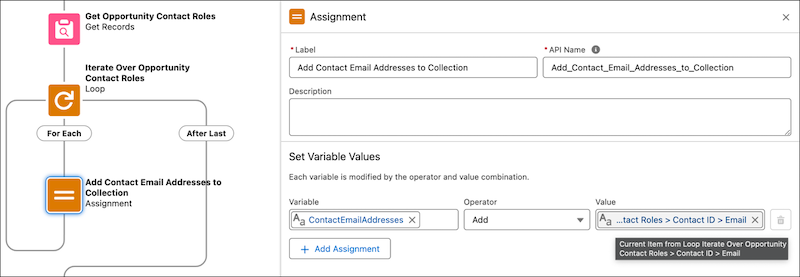
- Add a loop element.
- For the label, enter Iterate Over Opportunity Contact Roles.
- Set the Collection Variable to Opportunity Contact Role from Get Opportunity Contact Roles.
- Add an assignment element so it's triggered for each iteration of the loop.
- For the label, enter Add Contact Email Addresses to Collection.
-
To set the variable value:
- Under Variable, select ContactEmailAddresses.
- Under Operator, select Add.
-
Under Value, go to Current Item from Loop Iterate Over Opportunity Contact Roles > Contact ID >
Email ID{{!Iterate_Over_Opportunity_Contact_Roles.Contact.Email}}
Send Email with Attachments to Opportunity Contacts
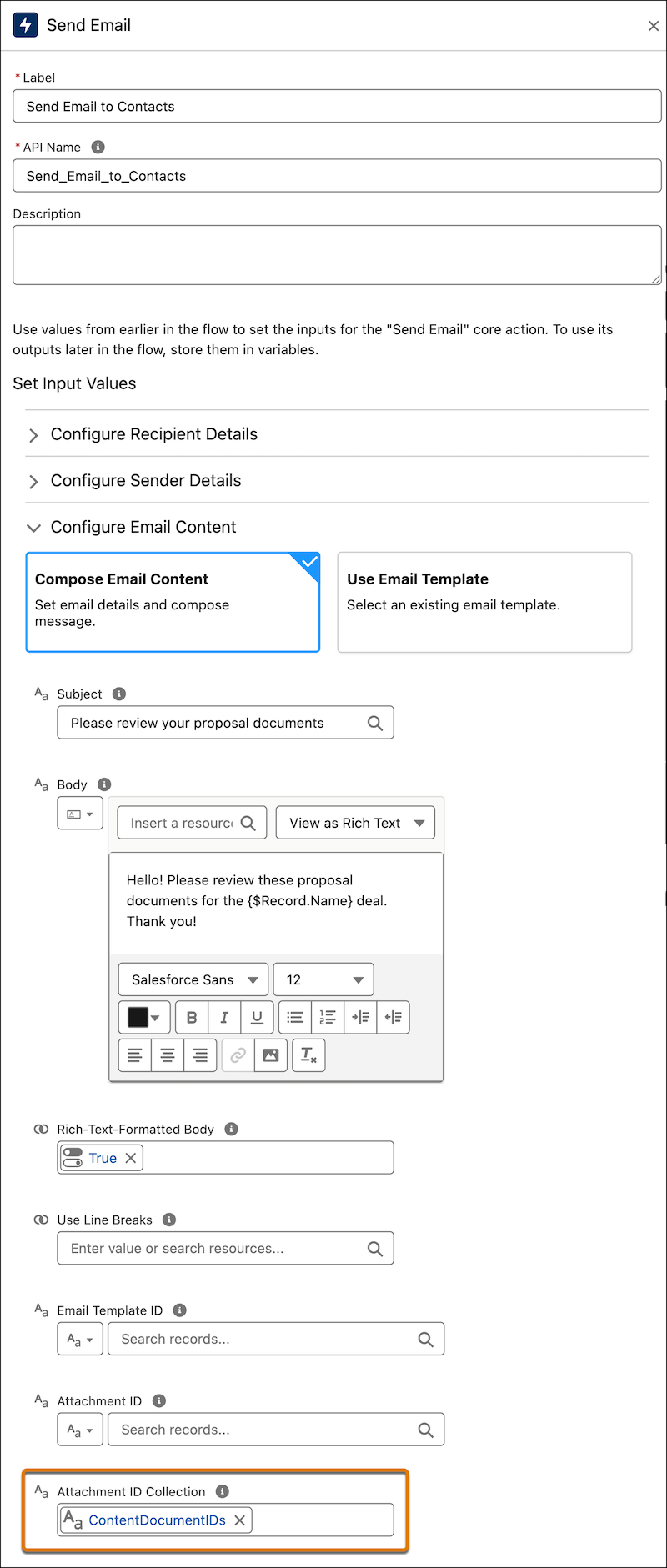
- Add a Send Email action after the Iterate Over Opportunity Contact Roles loop element.
- For the label, enter Send Email to Contacts.
- Under Recipient Addresses, select ContactEmailAddresses.
- For the Subject, enter the text Please review your proposal documents.
- For the Body, enter the rich text Hello! Please review these proposal documents for the {$Record.Name} deal. Thank you!
- Under Rich-Text-Formatted Body, select True.
-
In the Attachment ID Collection field, select
ContentDocumentIDs.
- Save the record-triggered flow.
- Activate the flow.
-
Move the opportunity with the uploaded attachments to the Proposal/Price Quote
stage.
All the contact record roles associated with the opportunity receive an email after the opportunity moves to the Proposal/Price Quote stage.Important After migrating flows, always review and reconfigure the Send Email action to reference the new record IDs in the target Salesforce org. This step is crucial to avoid broken references and to make sure that email delivery functions correctly.
Did this article solve your issue?
Let us know so we can improve!
