You are here:
Update Records and Send Reminders on a Schedule Example
This example creates schedule-triggered flows that automatically update records and send notifications to contacts based on your business schedule. Use flows to replace manual processes, such as spreadsheet tracking, with automated workflows that check record status, send timely reminders, and update data when conditions are met. This method maintains data accuracy and timely customer communication while reducing manual work.
Required Editions
| View supported editions. |
| User Permissions Needed | |
|---|---|
| To open, edit, create, activate or deactivate a flow using all flow types, elements, and features available in Flow Builder, including Einstein and Agentforce for Flow: | Manage Flow |

The flow checks for expired memberships and reminds customers to renew a month before a membership ends. It sends a final reminder a week before expiration. If the customer doesn’t renew by the expiration date, the flow sets the membership status to inactive. Use the more accurate membership data to create reports and guide business decisions.
View this video in a separate tab.
Create a Custom Object
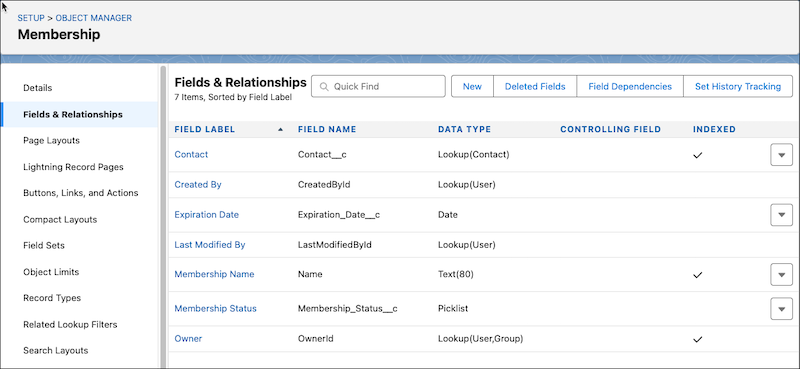
Create a custom object to hold information about a contact’s membership. The membership record fields include the related contact, the status of the membership, and the date the membership was activated.
Learn more about creating custom objects in Create a Custom Object.
-
Open Object Manager
- From Setup, click Object Manager.
- From a record or home page, click
 to open setup, and then select Edit Object.
-
Create a custom object named Membership.
- Click Create, and then click Custom Object.
- For Label, enter Membership and for Plural Label, enter Memberships.
- Before saving the custom object, under Object Creation Options (Available only when custom object is first created), select Launch New Custom Tab Wizard.
-
Click Save.
The Tabs screen opens.
- For Tab Style, click the magnifying glass and then click Form.
-
Use default settings and click Nextuntil you can save the new
object.
The object opens in Object Manager.
- Click Save.
-
Add a lookup field to the Membership object named Contact.
This field creates a relationship between a contact record and a membership record.
- Select Fields & Relationships, and then click New.
- Select Lookup Relationship, and then click Next.
- For Related To, select Contact.
- Click Next.
-
Use the default settings and click Next until you can save the
field.
If Field Name is blank, enter Contact.
-
Click Save & New.
A new field window opens.
-
Add a picklist field to the Membership object named Membership Status.
- Select Picklist and then click Next.
- For Field Label, enter Membership Status, and then click Next.
- For Values, select Enter values, with each value separated by a new line.
- In the text box, enter these values on separate lines: Active and Inactive.
- Use the default settings and clickNext until you can save the field.
-
Click Save & New.
A new field window opens.
-
Add a date field to the Membership object named Expiration Date.
- Select Date and then click Next.
- For Field Label, enter Expiration Date, and then click Next.
- Use the default settings and clickNext until you can save the field.
- Click Save.
Create the Flow
Create the flow that updates membership records and checks for expiring memberships each day. The flow sends renewal reminders at 30 days and at 7 days before expiration.
-
Open the Flows list view.
- From the Automation app, select the Flows tab.
- From the Flows tab in any Lightning app, click the actions menu and select Open Flow.
- From Setup, in the Quick Find box, enter Flows, and then select Flows.
Note that the Automation app and Flows tab options don't require Setup access. -
Create a schedule-triggered flow.
- From the Automation app, click New | Scheduled Automations | Schedule-Triggered Flow.
- From Setup, click New Flow | Scheduled Automations | Schedule-Triggered Flow
The new schedule-triggered flow opens in Flow Builder. -
Configure the Start element.
- For Start Date, select today's date.
-
For Start Time, select 10:00 PM.
We recommend scheduling the flow to run during off-peak hours to minimize the impact on system resources.
-
For Frequency, select Daily.
This sets a schedule for the flow to run every day at 10:00 PM, starting today.
- On the Start element, click Choose Object.
- For Object, select Membership.
-
In the Condition Requirements section, for Field select Activation
Status and for Value, select Active.
This configures the flow to check all active membership records one at a time. Each membership record that meets the criteria receives an email.
-
Add and configure a Decision element.
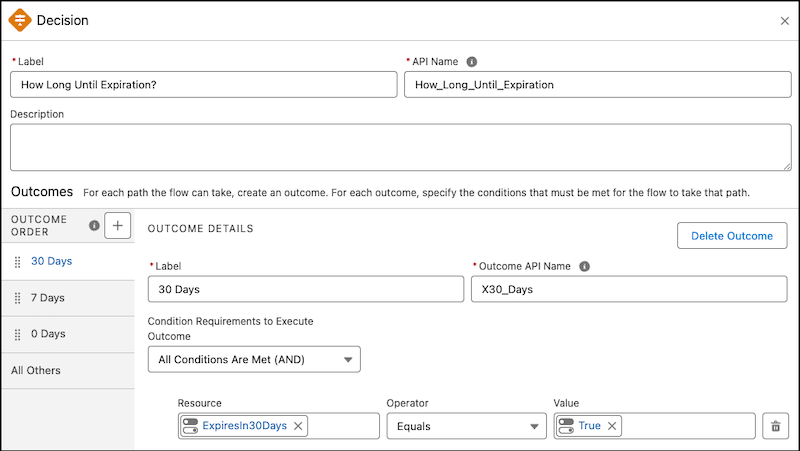
This step determines whether the expiration date is 30 days away, 7 days away, or today. Depending on the date, the flow performs different tasks. Each decision outcome sends records on a different path.
-
Click
 , and select Decision.
- For Select Decision Logic, select Define Manually (Default).
- For Label, enter How Long Until Expiration? and let the API name auto-fill.
- Configure the first decision outcome. In the Outcome Details section, for Outcome Label, enter 30 Days. Let the API name auto-fill.
-
Create a formula that checks if the membership expires in 30 days. Click the
Resource text box and select New Resource. For Resource Type,
select Formula and click Done. For API
Name, enter ExpiresIn30Days, and for Data Type, select
Boolean. For Formula, click Insert a resource | Triggering Membership | Expiration Date and then enter =TODAY()+30. Then click
Done.
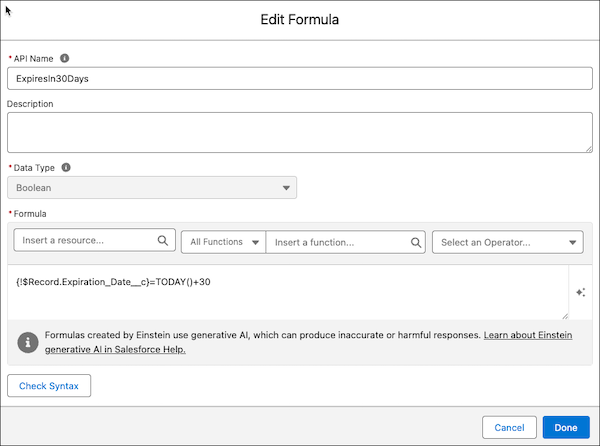 This decision outcome checks if the membership expires in 30 days. Membership records that meet the criteria go down this path. The related contact gets an email saying their membership expires in 30 days. You configure the email and record update later on this path.
 -
Create the second decision outcome. Click
 . In the Outcome Details section, for Label, enter 7
Days. Let the API name auto-fill.
. In the Outcome Details section, for Label, enter 7
Days. Let the API name auto-fill.
-
Create a formula that checks if the membership expires in 7 days. Click the
Resource text box and select New Resource. For Resource Type,
select Formula and click Done. For API
Name, enter ExpiresIn7Days, and for Data Type, select
Boolean. For Formula, click Insert a resource | Triggering Membership | Expiration Date and then enter =TODAY()+7. Then click
Done.
This decision outcome checks if the membership expires in 7 days. Membership records that meet the criteria go down this path. The related contact gets an email saying their membership expires in 7 days. You configure the email and record update later on this path.
-
Configure the third decision outcome. Click . In the Outcome Details section, for Label, enter 0
Days. Let the API name auto-fill.
-
Create a formula that checks if the membership expires the day the flow runs. Click
the Resource text box and select New Resource. For Resource
Type, select Formula and click Done. For
API Name, enter ExpiresToday, and for Data Type, select
Boolean. For Formula, click Insert a resource | Triggering Membership | Expiration Date and then enter =TODAY(). Then click
Done.
This decision outcome checks if the membership expires the day the flow runs. Membership records that meet the criteria go down this path. The membership status is set to Inactive, indicating that the membership has expired without renewal. You configure the record update later on this path.
-
For the outcome labeled Default Outcome, change the label to All
Others.
This path is for records that make it into the flow, but don't meet the criteria of any of the outcomes. The path doesn't take any action with the records.
-
Click
-
Add and configure a Send Email action element on the 30 days path.
This step sends an email to a membership's related contact to let them know that their membership expires in 30 days.
-
Click , and select Action.
A list of available actions opens.
- In the search bar, enter Send Email, and then select Send Email.
- For Label, enter Send 30 Day Reminder Email and use the default API name: Send_30_Day_Reminder_Email.
-
For the Recipient Address List value, select Triggering
Membership, then select the Contact with a
clipboard icon next to it, and then select Email.
This step associates the email recipient with the contact record related to the membership that the flow is currently working on.
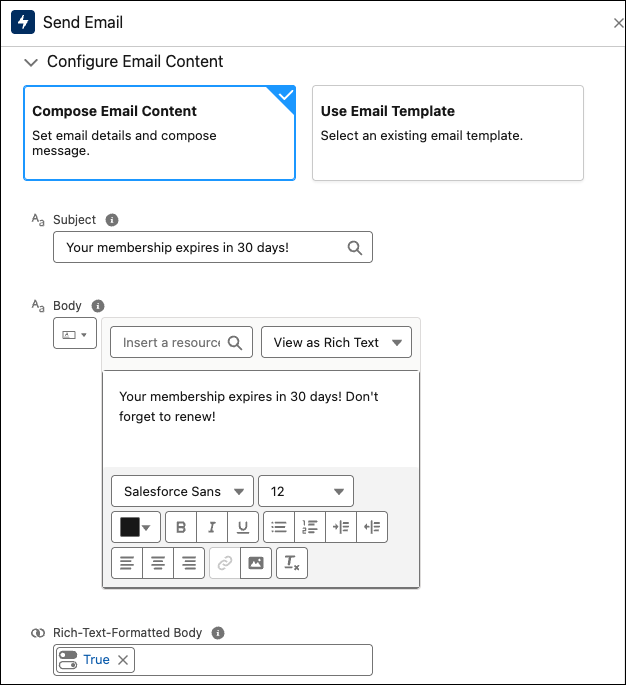
- Select Compose Email Content.
- For Subject, enter Your membership expires in 30 days!.
-
For Body, enter Your membership expires in 30 days! Don't forget to renew
so you can continue enjoying your perks!.
In this example, the email body is simple. For the most effective results, personalize the email with merge fields, such as a first name merge field. Click Insert a resource, then select Triggering Membership | the Contact that has a clipboard next to it | First Name.
- For Rich-Text-Formatted Body, select True.
-
Click
-
Copy the Send Email action from the 30 days path and paste it on the 7 days path, and then
configure it.
This step sends an email to a membership's related contact to let them know their membership expires in 7 days.
- Click the 3 dots on the Send 30 Day Reminder Email element and click Copy Element.
-
On the 7 days path, click , and then select Paste 1 Element.
- Update the pasted Send Email element, replacing 30 with 7 in the Label, API Name, Subject, and Body.
-
Add and configure an Update Records element on the 0 days path.
This step updates the membership's status to Inactive.
-
On the 0 days path, click , and then select Update Records.
- For Label, enter Update to Inactive and let the API name autofill.
-
For How to Find Records to Update and Set Their Values, select Use the
membership $Record global variable.
This step identifies the record to update as the membership record that the flow is currently working on.
- Under the Set Field Values for the Membership Record section, for Field, select Membership Status and for value, select Inactive.
-
On the 0 days path, click
-
Save the flow and give it a descriptive name, such as Update Membership
Records and Send Renewal Reminders on a Schedule.
- Test your flow using sample information.
- Click Activate.
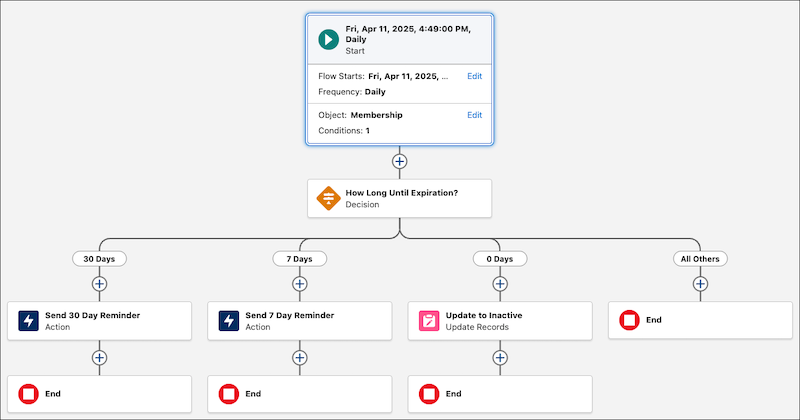
The flow checks all memberships each day, then one by one updates the records that should be updated, and sends reminders to related contacts when needed.
