You are here:
Join Collections in a Flow
Combine source collections from related flow resources into one target collection.
Required Editions
| View supported editions. |
| User Permissions Needed | |
|---|---|
| To open, edit, create, activate or deactivate a flow using all flow types, elements, and features available in Flow Builder, including Einstein and Agentforce for Flow: | Manage Flow |

Before you begin, understand the structure of your source and target data, such as whether the data contains multiple levels of collections within other collections. Mapping fields in a collection requires rules to preserve data integrity. See Flow Element: Transform.
- Add the Transform element to your flow.
- Edit the generated label and description if needed. Flow Builder generates them based on the element's configuration, and the API name populates based on the label.
-
Configure the source and target resources.
-
For Source Data, click the Add Resource button
 and select the flow resource to transform the data.
Select a resource that references a collection to join. The resource can be an object that references a collection.
and select the flow resource to transform the data.
Select a resource that references a collection to join. The resource can be an object that references a collection. - For Source Data, add another resource that references a collection to join.
-
For Target Data, click the Add Resource button and select the data type.
Configure a resource that references a collection to store the combined data from the source collections. The resource can be an object that references a collection.
- If the resource is a collection, select Allow multiple values (collection).
-
For a Record or Apex-Defined data type, select the Apex class or object for the target
data that the Transform element generates.
For example, if you specified that the target data is a collection and that the record data type is the Account object, the Transform element generates an account collection. If you didn’t specify a collection, the target data is a single account.
-
For Source Data, click the Add Resource button
- Map the source collections to the target collection.
-
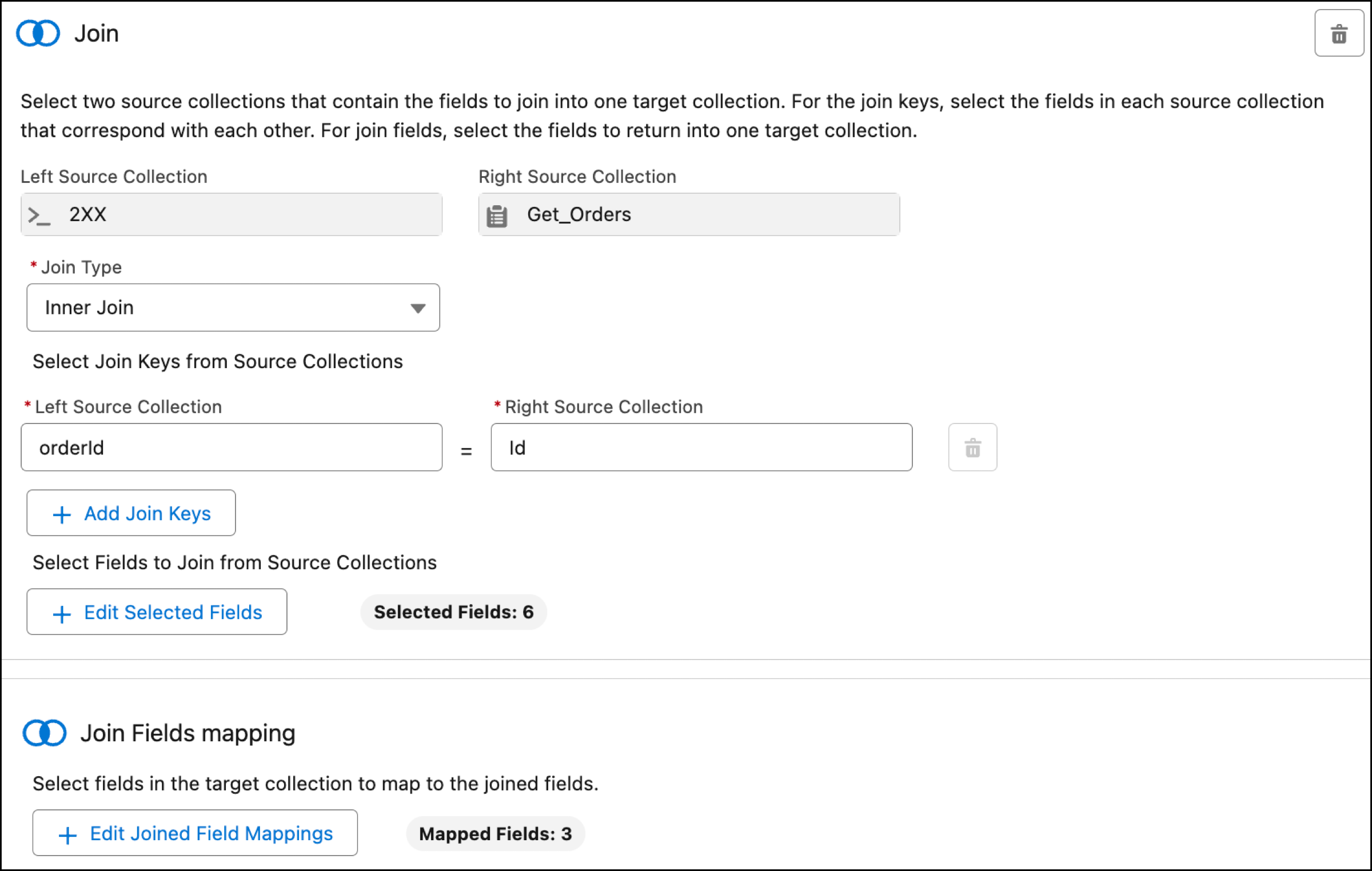
Select join keys in the left and right source collections.
A join key is a field that uniquely identifies an item in a source collection. The join key in the left source collection corresponds with the join key in the right source collection. For example, to combine the orders, select the join keys that identify the same order in both source collections. The orderId field in the left source collection corresponds with the Id field in the right source collection. If more than one join key is required to identify an item in a source collection, add join keys.
-
Select fields to join from left and right source collections.
For example, select the SKU field from the left source collection because the right source collection doesn't contain that information. The combined data from the source collections provide a complete view of the order.
- Click Select Fields.
- Select the fields to combine in the target collection.
- Click Set Fields.
-
Select target fields to store the values from the selected source fields.
- Click Select Joined Field Mappings.
-
For each Target Field, select the field in the target collection to store the value of
the corresponding source field.
For example, the SKU Number field in the target collection stores the value from the SKU source field.
- Click Set Mappings.
- Save your flow.

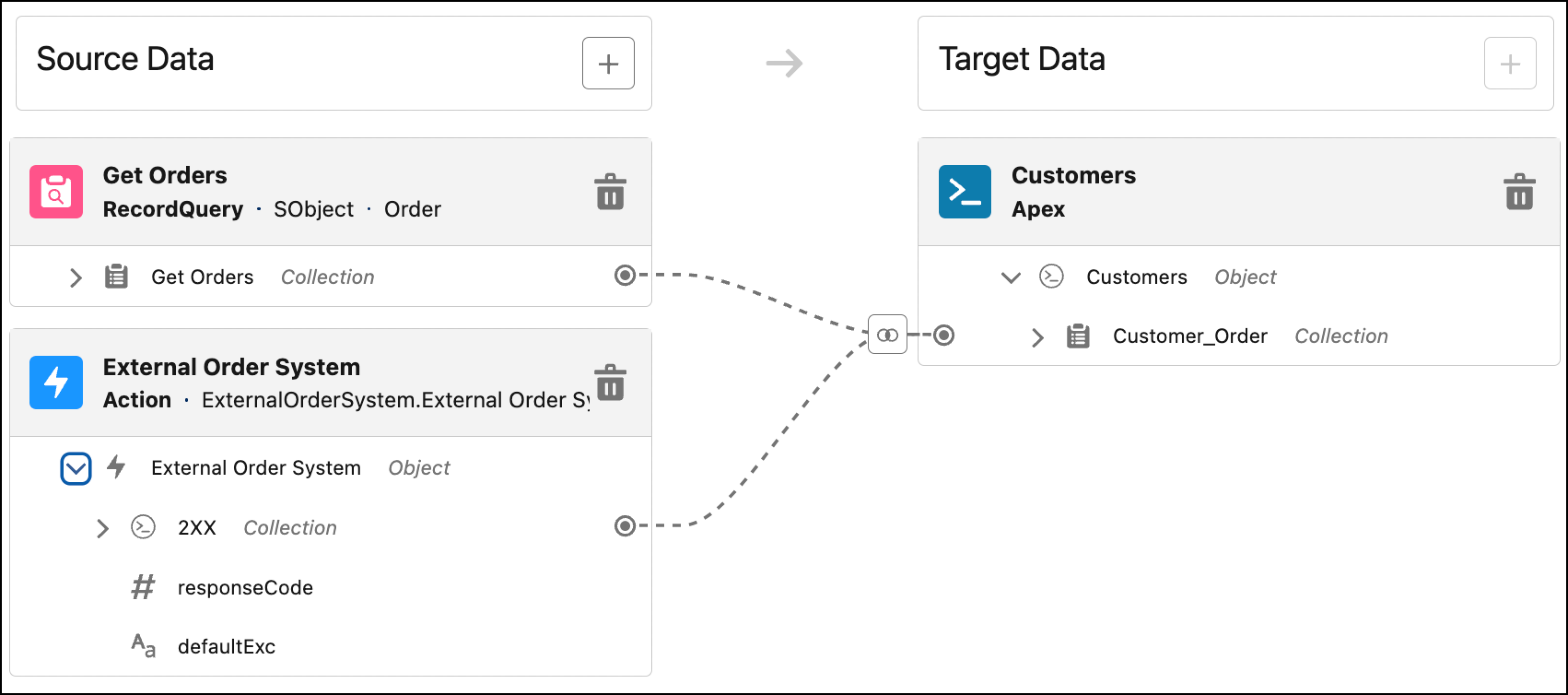

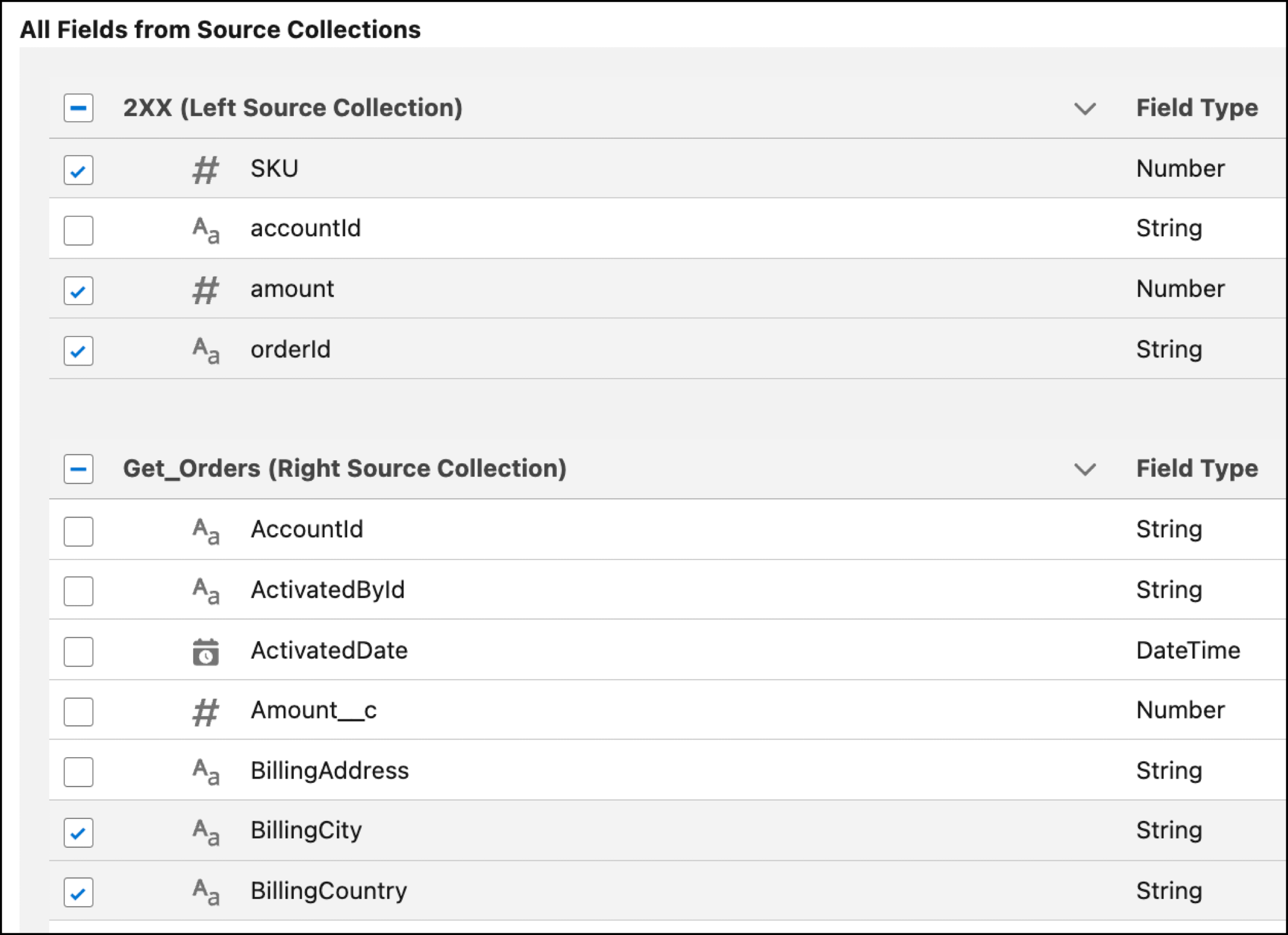
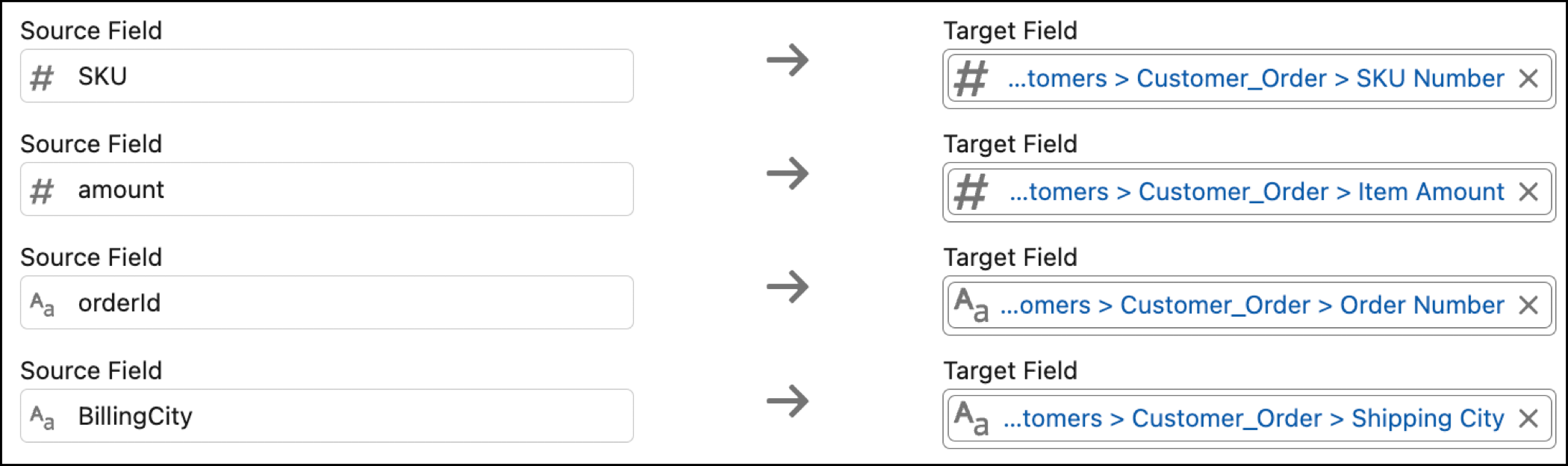

Let’s create a flow that combines order records from an external order system with Salesforce orders to get a combined data structure that’s displayed in a data table in a flow screen. The flow screen shows each order along with the amount and the quantities.
Because the orderId field for the left source collection and the Id field for the right source collection identify the same order, we use those fields as the join keys. The join transformation contains 6 selected fields to join from the source collections. There are 3 mapped fields between the selected source fields and the target fields in the target collection.
Next in the flow, the Screen element contains the Data Table component that displays the combined data in the target output from the Transform element.
