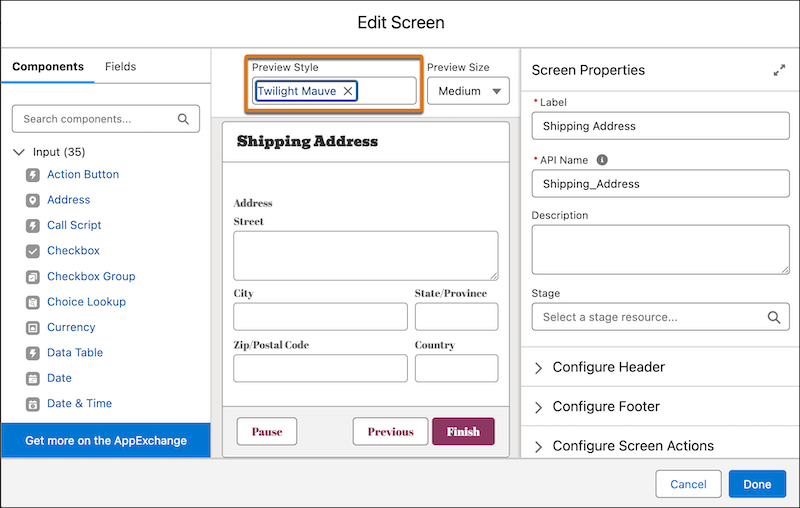
See how your screen flows appear to users when the flows are added to Lightning
Experience and Experience Cloud sites. Ensure that the flows match the look and feel of Lightning
Experience or Experience Cloud sites before you activate the flows. Additionally, preview how your
screen looks on different screen sizes.
To open, edit, create, activate or
deactivate a flow using all flow types, elements, and features available in Flow
Builder, including Einstein and Agentforce for Flow:
Manage Flow
Note You don't need to be an admin to have the Manage Flow permission.
Ask your admin to add it to your profile or permission set.
Preview How the Screen Looks in Lightning Experience and Experience Cloud Sites
Previewing a style only simulates the appearance and doesn't affect the actual run-time
theme or style settings of the screen or its components. The selected style applies to all
screens in the screen flow and isn't saved after you close the flow. You can only apply SLDS1
Lightning themes to your screens. Additionally, you can apply style settings from Aura and
Lightning Web Runtime (LWR) sites to your screens.
Create or edit a screen flow.
Add or edit a screen element.
To see how your screen appears on Lightning pages or Experience Cloud sites, under Preview
Style, select a Lightning theme, or an Experience Cloud site.
Preview Style supports only SLDS1 Lightning themes.
If an Experience Cloud site theme doesn't appear in the Preview Style dropdown, publish
the Experience Cloud site, then reload Flow Builder.
Preview How the Screen Looks in Different Form Factors
See how your screen element appears on different screen sizes by using Preview Size.
The run-time size of your screen or its components isn't affected by changes to the preview size
for a screen in a screen flow. Preview Size only simulates the appearance of your screen on
different screen sizes.
Create or edit a screen flow.
Add or edit a screen element.
Add or edit a screen component.
To preview your screen on devices of different sizes, under Preview Size, select
Large, Medium, or
Small.
Did this article solve your issue?
Let us know so we can improve!
Loading
Salesforce Help | Article
Cookie Consent Manager
Cookie Consent Manager
General Information
Required Cookies
Functional Cookies
Advertising Cookies
General Information
We use three kinds of cookies on our websites: required, functional, and advertising. You can choose whether functional and advertising cookies apply. Click on the different cookie categories to find out more about each category and to change the default settings.
Privacy Statement
Required Cookies
Always Active
Required cookies are necessary for basic website functionality. Some examples include: session cookies needed to transmit the website, authentication cookies, and security cookies.
Functional Cookies
Functional cookies enhance functions, performance, and services on the website. Some examples include: cookies used to analyze site traffic, cookies used for market research, and cookies used to display advertising that is not directed to a particular individual.
Advertising Cookies
Advertising cookies track activity across websites in order to understand a viewer’s interests, and direct them specific marketing. Some examples include: cookies used for remarketing, or interest-based advertising.