You are here:
Create a Button to Launch the Screen Flow
Create an action button on the account object. Reps click the button on an account record page to start the screen flow and register an attendee from that account for a course.
Required Editions
| Available in: both Salesforce Classic and Lightning Experience |
Available in: Contact Manager, Group, Professional, Enterprise, Performance, Unlimited, Developer, and Database.com editions Managed Packages aren’t available in Database.com. |
| User Permissions Needed | |
|---|---|
| To create and edit quick actions: | Customize Application |
This sample quick action button works in conjunction with Automate a Course Management Process Project.
Creating a quick action button makes your screen flow easily accessible to users right where they need it—on the account record page. By adding a button labeled "Register Attendee" to the account page layout, reps can immediately launch the registration flow for contacts associated with that account without navigating away or searching for the flow. This button passes the account's record ID to the flow, which the flow uses to associate any newly created contacts with the correct account. This contextual access improves user adoption because reps can register attendees with just one click from the account they're already viewing, making the automation feel like a natural part of their workflow rather than a separate tool they have to find and launch independently.

- In Setup, click Object Manager.
- Select Account.
- Click Buttons, Links, and Actions.
- Click New Action.
- For Action Type, select Flow.
- For Flow, select Register New Attendee for a Course.
-
For Label, enter Register Attendee.
The API name auto-fills.
- Click Save.
- Click Page Layouts, and select Account Layout.
- Click Mobile & Lightning Actions.
- Drag the Register Attendee action to the Salesforce Mobile and Lightning Experience Actions section.
-
Click Save.
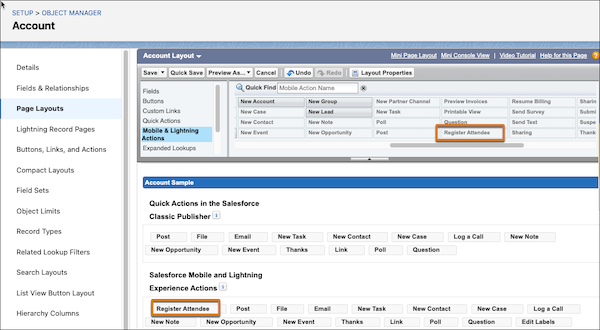
- Open an account record, and confirm that the Register Attendee button is there.
-
Click Register Attendee and test your flow again with sample
data.
Now your reps can register attendees for a course right from an account page.
Previous Step: Test and Activate All Course Management Flows
Want to learn more about flows? Check out Build Flows with Flow Builder in Trailhead.
See Also
- Automate a Course Management Process Project
- Create Your Data Model
- Create a Custom Object to Store Course Information
- Create a Custom Object to Store Course Delivery Information
- Create a Custom Object to Store Course Attendee Information
- Create a Before-Save Flow for Better Data Quality
- Create After-Save Record-Triggered Flows
- Create an After-Save Record-Triggered Flow for Course Attendee
- Create an After-Save Record-Triggered Flow for Changed Course Attendees
- Create a Screen Flow to Register Course Attendees
- Test and Activate All Course Management Flows
