You are here:
Compare Flow Versions to Track Changes
Quickly identify differences between any two flow versions of the same flow directly from Flow Builder or the Automation app. You can catch issues when modifying complex flows, review changes more efficiently, and maintain a clear view of changes. You can compare versions of autolaunched flows, screen flows, scheduled-triggered flows, platform event-triggered flows, and record-triggered flows. To review saves within the same flow version, use Flow Edit History instead.
Required Editions
| View supported editions. |
| User Permissions Needed | |
|---|---|
| To compare flow versions | View Flows OR Manage Flow |
Select Flow Versions to Compare
- To compare flows from the Automation app, click Flows.
-
From the Flows list view, flow's details page, or versions page, click the flow's actions,
and select Compare Versions.
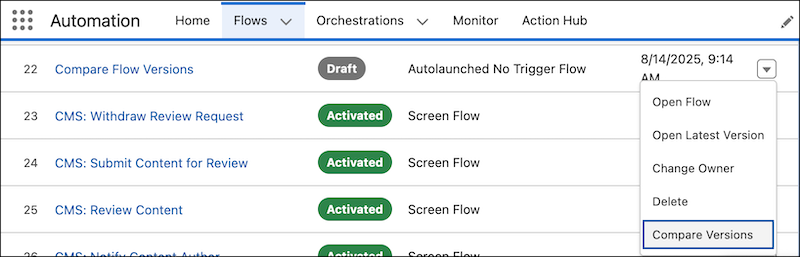 To compare flow versions in Flow Builder, from the list of flow versions in Flow Builder, click Compare Versions.
 Note This option is only available if the flow has two or more versions.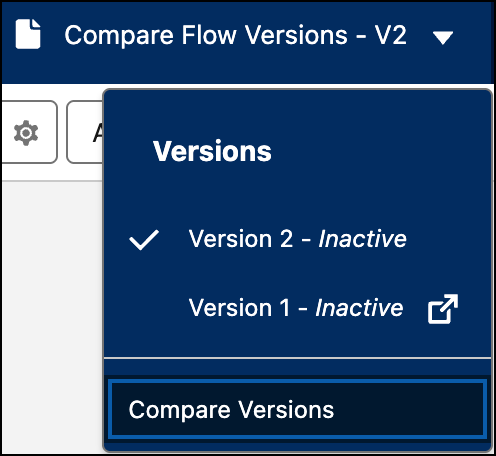
-
Choose the two flow versions you want to compare.
 One flow version is the base flow version, and the other is the target flow version. For example, Version 2 is the base flow version and Version 3 (Latest) is the target flow version. If you compare flow versions from the Flows list view, the default target flow version is the active version. If there's no active version, then the default target flow version is the latest version.
Review Comparison Results
-
View comparison results.
If the two flow versions are identical, no comparison results appear because there aren't any changes to show. The header displays the target flow version's modified date, the user who made the modification, and a summary of all changes. In the table view, each row shows the element label, API name, and the type of change.
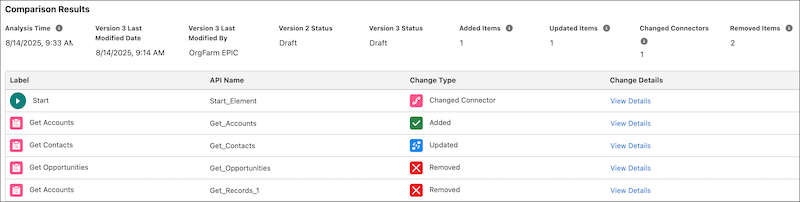 By default, the comparison results show only changed items. To show all items whether or not they're changed, deselect Show Only Changed Items.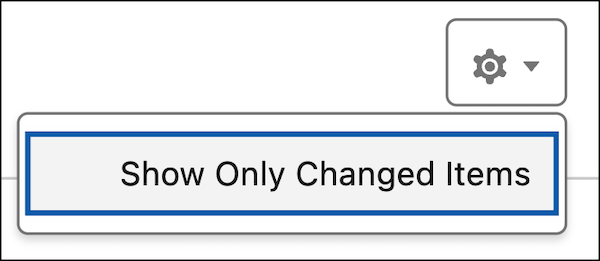
-
Understand the different change types in the results.
The comparison results show flow, element, and resource changes relative to the target flow version.
- Added: The item's API name and type like the Get Records element doesn't exist in the base flow version.
- Removed: The item's API name and type like the Get Records element doesn't exist in the target flow version.
- Updated: The item's properties were changed in the target flow version.
- Connector Changed: The element's connector to the next or previous element was changed in the target flow version. The element isn't changed in the target flow version.
- An element's API name and type uniquely identify it across flow. For example, if the base flow version includes an element type and API name and the target flow version includes a different element type but the same API name, the element with the same API name appears removed from the base flow version and added in the target flow version. Similarly, if an element's API name changes in the target flow version, the element appears removed in the base flow version and added in the target flow version.
- Comparison results show changes to component properties, but not to their order in a screen element. For example, when you move a Display Text component to a different position, the comparison results do not show this. If the only change in the flow is the component order, the comparison results are empty.
-
Click View Details to see more information about changes to an
item.
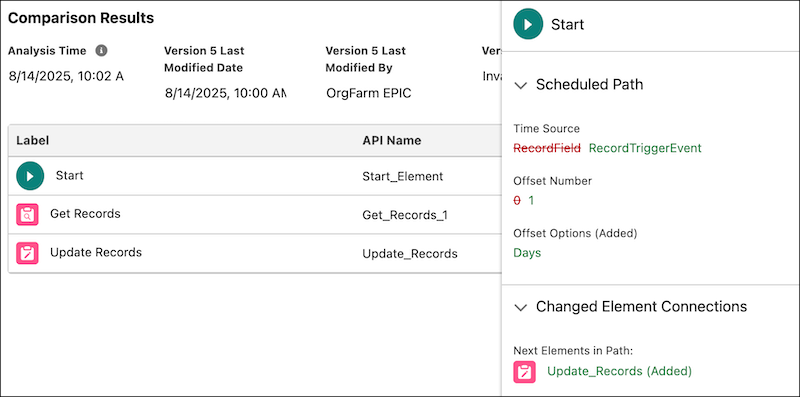
- The details don't include information about related records from the Get Records element or AI for the Decision element.
- The details support changes for:
- These flow properties: Flow API Name, Flow Label, Description, How to Run the Flow, Source Template, Template, Overridable, Original Flow, Trigger Order, and Enable persistent logging for this flow.
- These field data types: String, Number, Date, Date/Time, Time, Boolean, a merge field that references a value, formula expression, and Salesforce record ID. Unsupported data types show as Unviewable Value.
- If the Condition Requirement to Execute Outcome field in an element is changed with Custom Condition Logic Is Met, the change shows the number of the conditions. For example 1 AND 2.
Share Comparison Results
Share direct links to flow comparison results or use them to access specific comparisons. The comparison results URL contains query parameters that identify the specific flow and the two versions being compared.
- flowId: Specifies the unique flow version ID. If this query parameter isn't present, the New Automation window appears.
- compareBaseFlowId: Specifies the ID of the base flow version of the flow.
- compareTargetFlowId: Specifies the ID of the target flow version of the flow.
Use the complete URL format for sharing comparison results.
A complete URL example is:
https://yourDomain.my.salesforce.com/flowBuilder.app?flowId=301YT0000000000000&compareBaseFlowId=301YT0000000000001&compareTargetFlowId=301YT0000000000002.
If a URL doesn't include a base flow version, target flow version, or a version ID is invalid, the comparison page opens but the base flow version is empty. To compare flow versions, select a valid flow version.
