You are here:
Screen Flows Report
See who’s running the screen flows that you build. From the Reports tab, use the Sample Flow Report: Screen Flow to discover flow interview execution counts and screen duration times and to review the status of a flow interview.
Required Editions
| View supported editions. |
| User Permissions Needed | |
|---|---|
| To open, edit, create, activate or deactivate a flow using all flow types, elements, and features available in Flow Builder, including Einstein and Agentforce for Flow: | Manage Flow |
| To view other users’ flow log data: | View All Data |
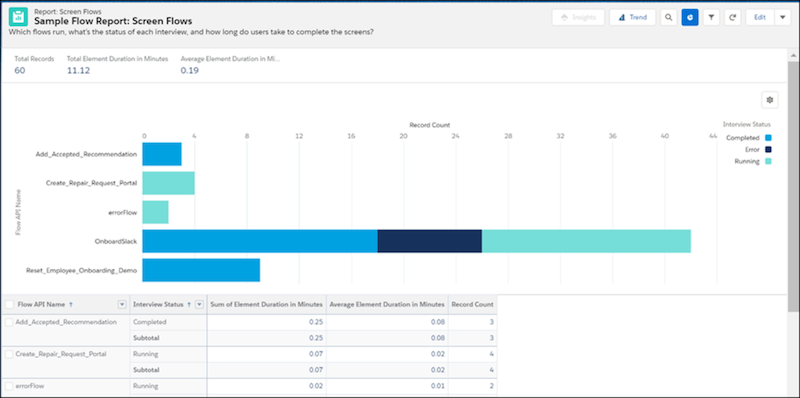
The Sample Flow Report: Screen Flow tracks active flows that are still in progress and completed flows. Use this custom report to discover information about your screen flows. For example, you can see who’s running a screen flow that you created and get a better understanding of its adoption. Also, you can compare how quickly teams complete their tasks with flows versus without them. Metrics like these provide insights into whether the business can benefit from more process automation.
To display the Sample Flow Report: Screen Flow report, Salesforce adds the Screen Flows custom report type and report to orgs that haven’t reached their org limit for the number of custom report types. For more information on custom report types, see Custom Report Types.
Limits and Limitations
Understand the limits and limitations of the Screen Flows custom report.
Limits
- The Flow Interview Log Entries object generates a log record for each screen flow that’s active in the last 31 days.
- The limit for the Flow Interview Log Entries object is 7 million log records a month, for
the previous 31 days.
 Note Orgs rarely reach the monthly limit. If they do, Salesforce stops logging metrics for new flows. However, if a flow interview is happening when the limit is reached, Salesforce tracks metrics for the flow interview. Salesforce automatically deletes all logs that are older than 31 days, even for orgs that haven’t reached the limit.
Limitations
- By default, the Sample Flow Report: Screen Flows report is visible to all users. However, each user can only see information about the flows that they’re the running user for. Only users with the View All Data permission can see other users’ flow log data. The report uses data from the new Flow Interview Logs and Flow Interview Log Entries primary objects. To give users permission to see information about flows run by other users, use sharing settings to grant access to the Flow Interview Logs object. For more information, see Set Share Settings.
- Orgs with a custom report type with the same API name or a report with the same report type name don’t receive the Screen Flows custom report type. If your org doesn’t receive the report, create a custom report type by using the Flow Interview Logs and Flow Interview Log Entries objects. Users can then create custom reports by using the custom report type.
View Screen Flow Usage
Grant access to the Flow Interview Logs object through the sharing settings so that users can view information about flows run by other users.
- From the App Launcher, in the Quick Find box, enter report, and then click Reports.
- Click Public Folders.
-
Find and select Sample Flow Report: Screen Flow.
The report displays flow interviews that ran within a specified date range for the Flow Interview Logs and Flow Interview Log Entries objects. By default, the results are sorted by flow API name and interview status. The results include the total time and the average time that users spent on a flow screen. The results also include the number of flow interview log records generated for a flow within the reporting period.
- To change how the report is sorted or to report on different fields, edit the report. For more information, see Edit or Delete a Custom Report Type.
-
If you don’t see all of your flows, change the date filter to a wider range.
The default date range is the last 7 days, and the maximum range is the last 31 days.
- To restrict view access to the report, move it to a different folder.
