To open, edit, create, activate, or
deactivate a flow using all flow types, elements, and features available in Flow
Builder, including AI:
Manage Flow
After a test scenario runs, review its results to confirm that the flow behaved as
expected, or to find the cause of a failure. To set up and run a scenario first, see
Set Up and Run a Test Scenario.
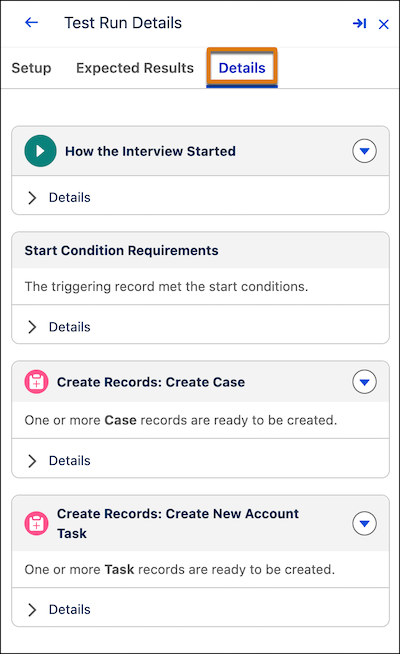
Review the Details tab.
The Details tab shows
the run's execution path and any errors, similar to the Flow Builder debugger. For a
manually evaluated scenario, this is the only results tab.
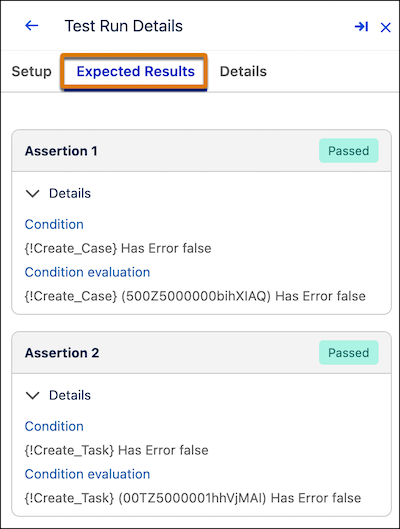
For an automatically evaluated scenario, click the Expected
Results tab.
The Expected Results tab lists every assertion that
you defined for the scenario.
Expand an assertion to review its status, condition, and actual value.
The
condition is the expression that you configured. The actual value is what the assertion
evaluated to when the scenario ran. A scenario passes only when every assertion
passes.
When an assertion fails, compare its condition and actual value to find the
mismatch.
Fix the responsible element in the flow.
Open the test scenario, and click Run Scenario again to
confirm the fix.
We use three kinds of cookies on our websites: required, functional, and advertising. You can choose whether functional and advertising cookies apply. Click on the different cookie categories to find out more about each category and to change the default settings.
Privacy Statement
Required Cookies
Always Active
Required cookies are necessary for basic website functionality. Some examples include: session cookies needed to transmit the website, authentication cookies, and security cookies.
Functional Cookies
Functional cookies enhance functions, performance, and services on the website. Some examples include: cookies used to analyze site traffic, cookies used for market research, and cookies used to display advertising that is not directed to a particular individual.
Advertising Cookies
Advertising cookies track activity across websites in order to understand a viewer’s interests, and direct them specific marketing. Some examples include: cookies used for remarketing, or interest-based advertising.