You are here:
Automatically Test Record-Triggered, Autolaunched, and Data Cloud-Triggered Flows
Before you activate a flow, test it to verify expected results and identify run-time failures. Use automated flow testing for record-triggered, autolaunched, and Data Cloud-triggered flows.
Required Editions
| View supported editions. |
| User Permissions Needed | |
|---|---|
| To open, edit, create, activate or deactivate a flow using all flow types, elements, and features available in Flow Builder, including Einstein and Agentforce for Flow: | Manage Flow |
| To view test run details in Flow Builder: | View All Data |
Automated testing for flows saves you time and improves the flow's reliability. When you debug a flow, you manually configure the debug parameters and inputs each time you start to debug. With a flow test, you configure the test parameters and inputs one time. Each time you run the test, it uses the same configuration to evaluate the flow. Also, you're not stuck with the same test per flow. You can edit the test or create more tests for different scenarios.
We recommend that you create a test for every path that the flow can take. A flow test runs for the active flow version. If a flow version isn't active, the flow test runs for the latest flow version.
Test a Flow
In Flow Builder, you can create, save, and run automated flow tests for record-triggered, autolaunched, and Data Cloud-triggered flows. You can optionally use isolated test data, so tests don't affect org data. Each time you modify the flow, you can run the test.
We recommend that you test all possible paths through the flow so that you can find errors before they affect your users. For example, if users or inputs don't provide all the data that your flow requires, the flow fails. Add fault connectors to provide paths for users or the flow logic to correct the data so that the flow can finish successfully.
-
Open the Flows list view.
- From the Automation app, select the Flows tab.
- From the Flows tab in any Lightning app, click the actions menu and select Open Flow.
- From Setup, in the Quick Find box, enter Flows, and then select Flows.
Note that the Automation app and Flows tab options don't require Setup access. -
Open the flow version that you want to test.
- From the flow list screen in Setup, click
 for the flow that you want to test, select View Details and
Versions, and then click Open.
for the flow that you want to test, select View Details and
Versions, and then click Open. - From the flow list screen in the Automation or any Lightning app, click the flow's
Related tab. For the flow version that you want to test, click
, and then select Open Flow.
- From the flow list screen in Setup, click
- Click View Tests, and then click Create.
-
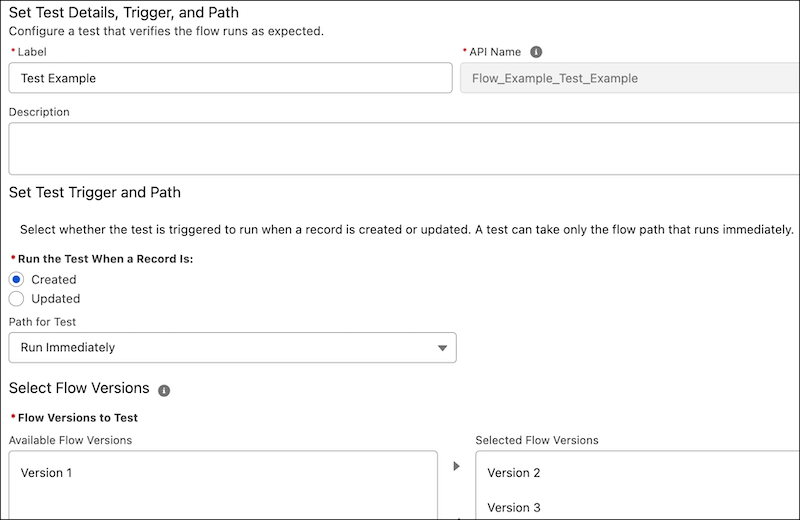
In the Set the Test Details, Trigger, and Path window, configure the test.
- Enter a label, API name, and description for the test.
- For Run the Test When a Record Is, select Created or Updated.
-
For Flow Versions to Test, add the flow versions to the Selected Flow Versions
column.
The flow test runs for the flow version that’s currently open in Flow Builder. The flow test is available for each of the selected flow versions.
-
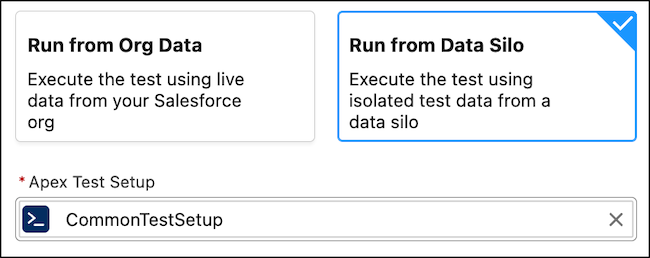
To use isolated test data for record-triggered and autolaunched flows, click
Test Setup, select Run from Data Silo, and
select an existing Apex test class that has a
@testSetupmethod.Before you create the flow test, create and deploy an Apex class with a test setup method that inserts the records you want available during the test. If you don’t see any Apex classes, you don’t have an Apex class with a test setup method. See the Test Flows with Isolated Test Data section. Isolated test data is available for record-triggered and autolaunched flows. - For autolaunched flows, click Set Test Input Values, and set the values for each input variable, such as, record, text, or number.
- For record-triggered and Data Cloud-triggered flows, click Set Initial Triggering Record, and enter the values for the record that initially triggers the test.
- If an updated record triggers the test to run, click Set Updated Trigger Record, and then enter the record values.
- Click Set Assertions, and set conditions and custom failure messages for each assertion.
-
Save your changes, and then click View Tests.
The owner of the flow changes to the last person who edits the test.
-
Select the test that you configured, and then click Run.
Flow Builder runs the test and shows the result in the Result column.
Test Flows with Isolated Test Data
Run flow tests for record-triggered and autolaunched flows using dedicated, reusable test data from an Apex class that includes a test setup method. After the run ends, the test rolls back like an Apex unit test, so your org’s live data stays as it was.
When you use org data for testing, anyone can change that data and your tests can start to fail. Record IDs differ between sandbox and production, so tests that pass in one environment can fail when you deploy to another. Create isolated test data when the test runs, just like Apex Test Setup creates data at run time. Your flow test data stays consistent so you can deploy it across environments.
-
Create an Apex class with the
@isTestannotation and a@testSetupmethod that inserts the records you want available during the flow test.For example, this Apex class creates test accounts. See Using Apex Test Setup Methods.
@isTest
global class CommonTestSetup {
  @testSetup
  global static void setup() {
    List<Account> accts = new List<Account>();
    for (Integer i = 1; i <= 2; i++) {
      accts.add(new Account(Name = 'Test Account ' + i));
    }
    insert accts;
  }
}
You can't test a flow where no matching record exists in the isolated test data. Because an input record must reference a record that already exists in the isoloated test data, you can't test a record-not-found path with this data source. Unlike tests that use org data, you can’t customize the field values of an input record in isolated test data. The record is selected in the isolated test data by its key fields and used as-is. In your Apex
@testSetupmethod, populate all key fields. You select key fields later in these steps. - In Flow Builder, open the flow and click View Tests, then click Create, or edit an existing flow test.
-
Click Test Setup, select Run from Data
Silo, and select the Apex test class you created.
The flow test uses the Apex class as the data source. The test uses isolated test data with rollback so your org data stays unchanged.
-
Select the key fields for each object used in the test.
The isolated object external key fields identify unique records in the isolated test data. Because test record IDs change after every execution, these key fields match input records to the isolated test data at test run time. For example, use the
Phonefield as the key field to identify account records.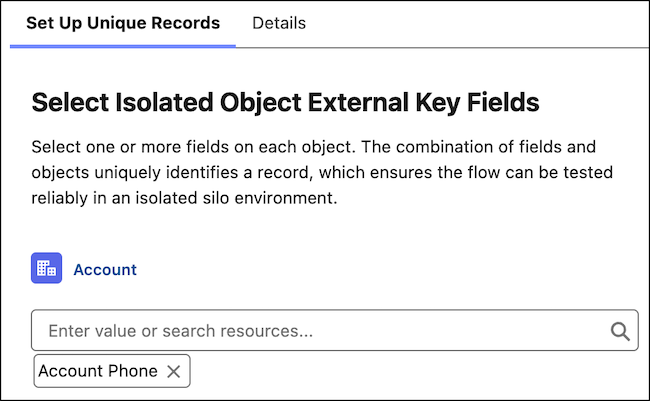
- Set the input variable values in the isolated test data.
-
Set assertions and any other test details, then save and run the flow test.
The flow test runs against the isolated test data in the data silo, not live org data.
Test a Flow for Error Handling
Configure negative assertions in a flow test that intentionally test flow paths where things don't go according to plan, making sure that your flows handle errors gracefully.
Configure negative assertions for Create Records, Update Records, Delete Records, and Action elements in a record-triggered, autolaunched, or Data Cloud-triggered flow.
- Create a flow test.
- When you set assertions, select a resource for Create Records, Update Records, Delete Records, or Action elements.
- For Operator, select Has Error.
- Select a value, and save the flow test.
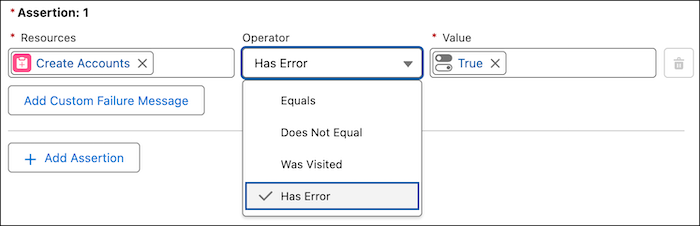

Consider a flow that processes customer data. You can create a test to make sure that the flow handles invalid input, such as a missing required field.
Interpret Flow Test Results
Understand how to interpret the flow test results after the flow test run completes.
We recommend interpreting the results after testing a flow to make sure that the flow operates as intended under various conditions. When you use isolated test data, the test run details show the same assertion and path information. The test ran against isolated test data rather than org data.
-
To view the test run details, click , and select Run Test and View Details.
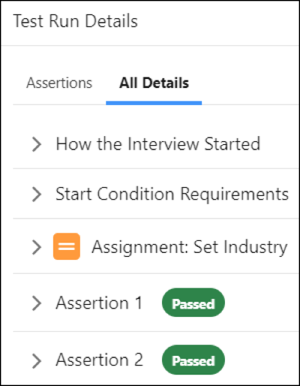
The All Details tab under Test Run Details shows the results for the entire test run. If a flow fails, troubleshoot the flow errors.
-
To check the status of the flow tests, under Test Run Details, select the
Assertions tab, and then expand each assertion.
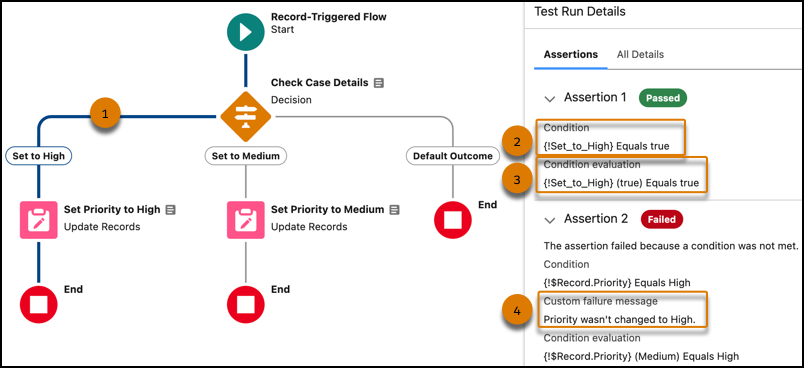 The Flow Builder highlights the path of the test run (1). In the Test Run Details, each assertion tells you what condition it was looking for (2), the values that those conditions were checked against (in parentheses) (3), and the custom error message that you defined for that assertion (4).
 -
Interpret the failed flow test.
-
Check the condition and the condition evaluation of the failed assertion.
In this example, for the Set Priority to High element, the failed assertion looks for the value of the field $Record’s Priority to be set to High.
-
To change the value, click the element, and then click Edit
Element.
In this example, to fix the failed assertion, edit the Set Priority to High element and change the priority for $Record to High.
- Save the flow, and then run the flow test that failed.
-
Check the condition and the condition evaluation of the failed assertion.
This test verifies the flow when an object is updated and the flow takes the path that runs immediately.
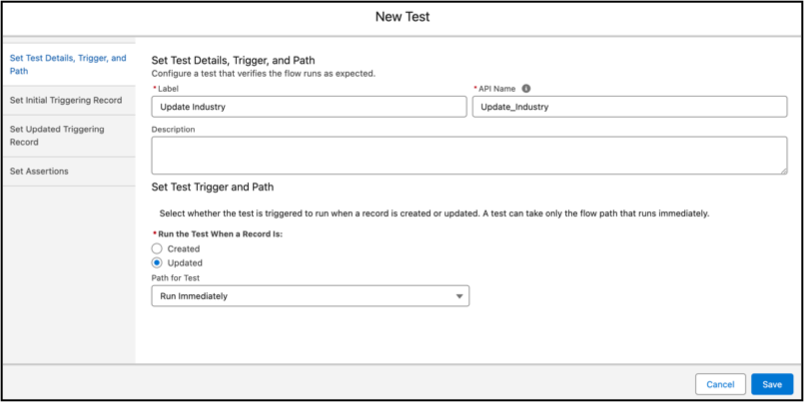
The test includes fields to set the initial and updated values for the triggering record, which is the same record that triggers the flow to run. The test creates a copy of the record to use only for the test. The record isn’t saved to the database.
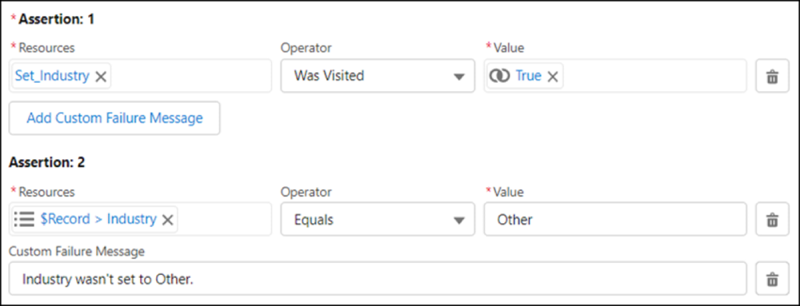
The test evaluates each assertion to verify that the flow runs as expected. A test can evaluate only whether a flow element ran and whether flow resource values are set as expected. The test evaluates the flow based on the existing data in your Salesforce database and customizations, such as rules and restrictions.
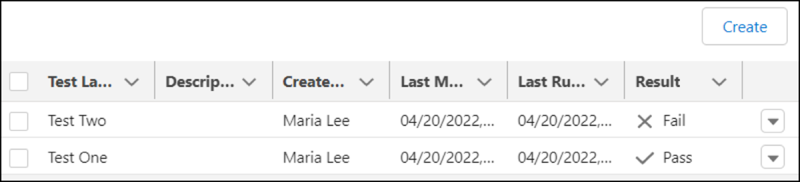
When a flow includes tests, the Tests list view shows all tests for a flow and associated test results.
After a test is run, Test Run Details shows how each assertion was evaluated. If a condition evaluates to false, the assertion and test fail. If all assertions pass, the test passes.
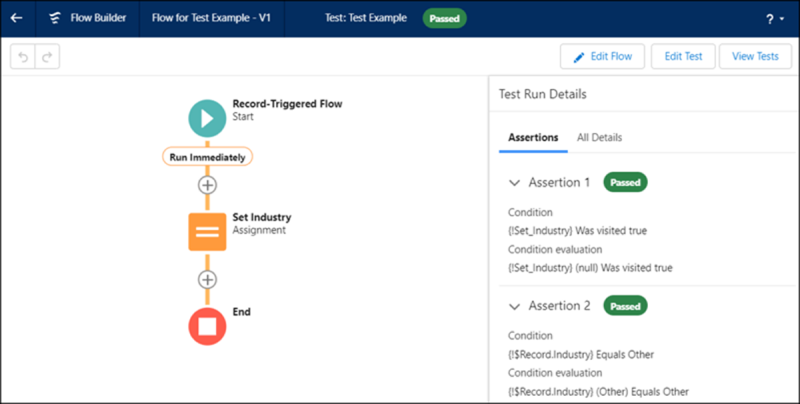
The All Details tab shows the results for the entire test run. Assertions are evaluated at the end of the test run.
When you’re confident that your flow is working as expected, activate the version that you tested and distribute the flow.
Flow Test Limits and Limitations
Understand how many tests you can create per flow and the limitations of a flow test.
Limits
The maximum number of tests per flow is 200.
Limitations
- Flow tests are available for record-triggered, autolaunched, and Data Cloud-triggered flows.
- Isolated test data is available for record-triggered and autolaunched flows.
- Flow tests for autolaunched flows aren’t supported for flows that include callouts or wait elements.
- Flow tests don’t support flows that run when a record is deleted.
- Flow tests don’t support flow paths that run asynchronously.
- Flow tests don't count towards flow test-coverage requirements.
- Formulas aren't supported for setting test data. Use fixed values. For example, if a
flow test that verifies a date field is set to the relative date
Today, you must update the field manually before running the test. For example, if you create and run the test on August 3, 2022, the date is set to the relative dateAugust 3, 2022. If you run the same test tomorrow, the value of the date field is stillAugust 3, 2022.
