
You are here:
Retrieve Query Plans
Use the Query Plan tool to optimize and speed up queries done over large numbers of records. View query plans for SOQL queries, reports, and list views. If custom indexes are available for your organization, use query plans to help you decide when to request a custom index from Salesforce Support.
To enable the Query Plan button in the Query Editor, click , set Enable Query Plan to true, and then click Save.
To get Query Plans for SOQL queries, enter your query and click the Query Plan button in the Query Editor.
The Query Plan window displays all query operations and the cost of each. The Notes pane displays all notes that are available for your highest ranked query plan, which is the query plan that’s currently in use.
To view query plans for reports or list views, complete these steps.
-
Find the ID of your report or list view in its URL.
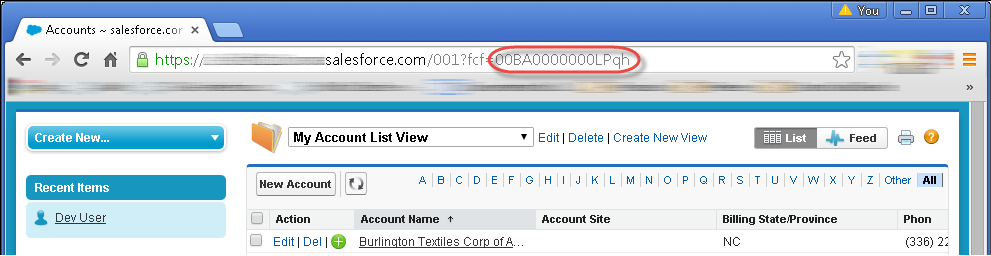
- Enter the report or list view ID in the Query Editor, and then click Query Plan.
- Inspect the query plan for your report or list view.
