
You are here:
Create a Test Run
A test run is a collection of classes that contain test methods. Set up a test run in the Developer Console to execute the test methods in one or more test classes.
- In the Developer Console, click .
-
To limit how many tests can fail before your run stops, click
Settings. Enter a value for Number of
failures allowed, and then click OK.
To allow all tests in your org to run regardless of how many tests fail, set Number of failures allowed to -1 or don’t provide a value. To stop the test run from executing new tests after a specified number of tests fail, set Number of failures allowed to a value from 0 to 1,000,000. A value of 0 causes the test run to stop if any failure occurs. A value of 1 causes the test run to stop on the second failure, and so on. Keep in mind that high values can slow performance. Each 1,000 tests that you add to your Number of failures allowed value adds about 3 seconds to your test run, not including the time that the tests take to execute.
This value applies for all test runs that you execute until you close the Developer Console or set a new value.
-
To opt out of collecting code coverage information during test runs, click
Settings and select Skip Code
Coverage.
You can speed up Apex test runs by opting out of collecting code coverage information when you want faster feedback on pass or fail status rather than coverage data. When you opt out, no data about Apex test coverage is stored.
This value applies for all test runs that you execute until you close the Developer Console or set a new value.
-
Select a class in the Test Classes column.
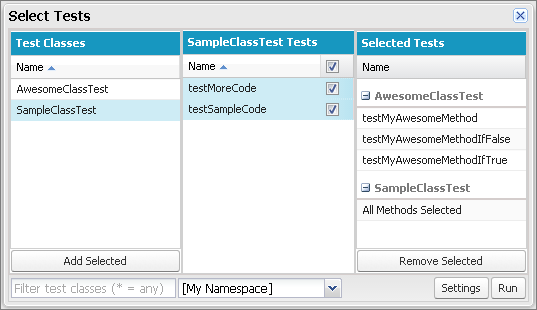
To filter the list of classes, type in the Filter test classes (* = any) box. To select specific test methods, click a test class and then select the tests from the center column. You can hold down the SHIFT or CTRL key to select more than one test class. To select all methods in all classes that you’ve highlighted, click Add Selected.
-
When all the methods you want to run are included in the Selected Tests column,
click Run.
The test run appears in the Tests tab. To stop a test, click . If your test methods call other methods or classes defined as tests in your organization, those methods and classes are also run.
-
From the Tests tab, expand the test run to see the results for each method
invoked by each class in the run.
Test classes don’t require code coverage, so they show 0% coverage in the Overall Code Coverage pane and don’t affect the overall code coverage percentage.
-
Double-click the completed test run to open the results in detail view. This
detail view displays the tested class, the tested method, the duration, result
(skip, pass, or fail), and an optional error message.
If a test failed, the Stack Trace column shows the method and line number at which the test failed. You can’t access logs for synchronous test runs in the Tests tab. However, you can access all test runs’ logs in the Logs tab.
- To see the coverage that a test method provides for each class in the Class Code Coverage pane, select the method.
- To clear the current results, click .
