Dynamic Forms and Mobile Using the Record Detail - Mobile Component
The Dynamic Forms Field Section component and the Field components that go inside were
previously only available on desktop. To support mobile users, the Record Detail - Mobile
component gives your mobile users a way to see the record details on their mobile devices on a
Dynamic Forms-enabled page.
Required Editions
Lightning App Builder available in: Salesforce Classic (not available in all
orgs) and Lightning Experience
Lightning pages and Dynamic Forms available in: Lightning Experience and the
Salesforce mobile app
Available in: GroupEssentials, Professional, Enterprise, Performance,
Unlimited, and Developer Editions
Note If you haven’t yet enabled Dynamic Forms on Mobile, you can still use the Record Detail -
Mobile component. But to give your mobile users the same experience that your desktop users
have, from Salesforce Mobile App Setup, enable Dynamic Forms and Dynamic Highlights
Panel on Mobile. Learn More
When you migrate a record page that supports both desktop and phone to Dynamic Forms, a
Record Detail - Mobile component is added to the page for you.
But when you create a fresh page using a template that supports both desktop and phone, after
adding the fields and field sections, you must add the Record Detail - Mobile component to the
page yourself.
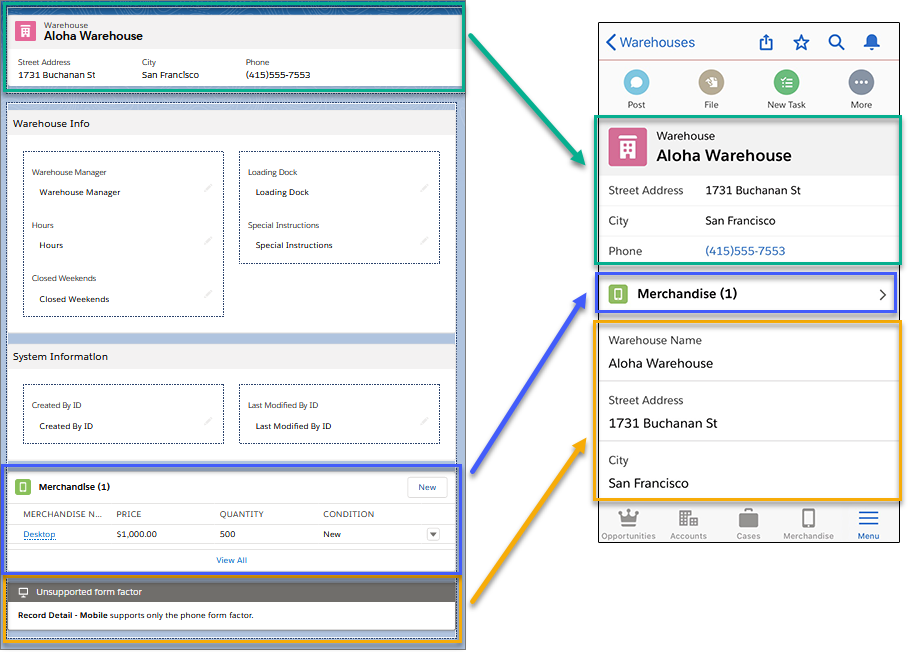
The Record Detail - Mobile component wraps fields from the Record Detail component into a
mobile-only container. So, on pages that support both desktop and phone, your desktop users
see the Field Section components, and your mobile users see the Record Detail - Mobile
component.
Example Here’s what a page that you create in desktop mode in the Lightning App Builder looks
like when viewed on a phone. The Field Section components just below the Highlights Panel on
desktop are dropped on mobile, and the Record Detail - Mobile component takes over to deliver
the sections and fields.
The Record Detail - Mobile component displays with an “Unsupported form
factor” message when viewed on a page in the Lightning App Builder in Desktop preview
mode.
We use three kinds of cookies on our websites: required, functional, and advertising. You can choose whether functional and advertising cookies apply. Click on the different cookie categories to find out more about each category and to change the default settings.
Privacy Statement
Required Cookies
Always Active
Required cookies are necessary for basic website functionality. Some examples include: session cookies needed to transmit the website, authentication cookies, and security cookies.
Functional Cookies
Functional cookies enhance functions, performance, and services on the website. Some examples include: cookies used to analyze site traffic, cookies used for market research, and cookies used to display advertising that is not directed to a particular individual.
Advertising Cookies
Advertising cookies track activity across websites in order to understand a viewer’s interests, and direct them specific marketing. Some examples include: cookies used for remarketing, or interest-based advertising.