You are here:
Get Related Salesforce Records from a Flow (Beta)
Access related records in complex data relationships.. Related records in the Get Records element are available in autolaunched flows.
Required Editions

Note This feature is a pilot or beta service that is subject to the
Beta Services Terms at Agreements - Salesforce.com
or a written Unified Pilot Agreement if executed by Customer, and applicable terms in the
Product Terms Directory. Use of this pilot or beta service
is at the Customer's sole discretion.
For example, you use a single Get Records element to retrieve an account and all of its account team members. Then, use the Loop element to send each team member a message.
- Add the Get Records element to your flow.
- Edit the generated label and description if needed. Flow Builder generates them based on the element's configuration, and the API name populates based on the label.
- For Object, select an object.
- Select Also add related records (beta).
- Click Select Related Records.
-
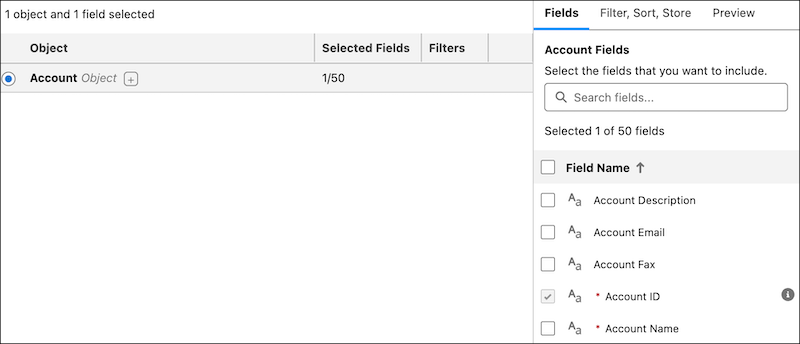
Configure the records to get.
- Select fields on the object or collection to include.
-
Click Filter, Sort, Store, and set filter conditions.
You can also set sort order and how many records to store. Your selections persist throughout the Get Records element.
-
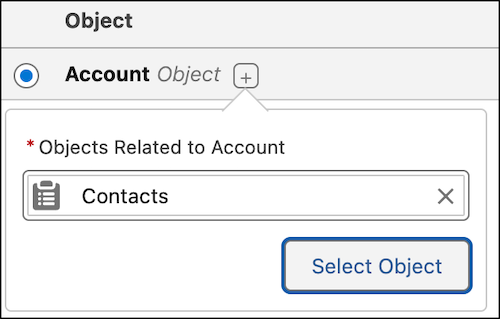
Configure the related records to get.
-
Click
 then search for a related object.
-
Click Select Object.
For example, add child objects like contacts, linking them to the Account object.
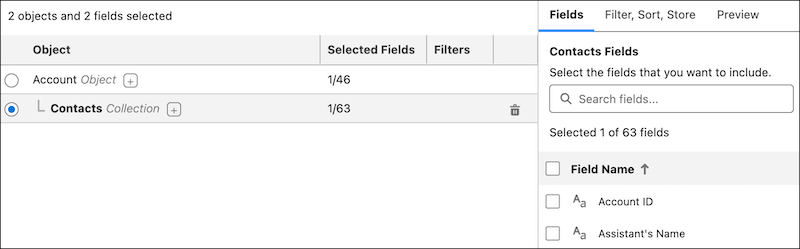
- Select fields on the collection to include.
-
Click Filter, Sort, Store, and set filter conditions.
Even if no filters are configured, the Get Records element retrieves records that are related to the object. For example, if no filters are configured, the Get Records element retrieves the contacts that are related to the account. You can also set sort order and how many records to store.
-
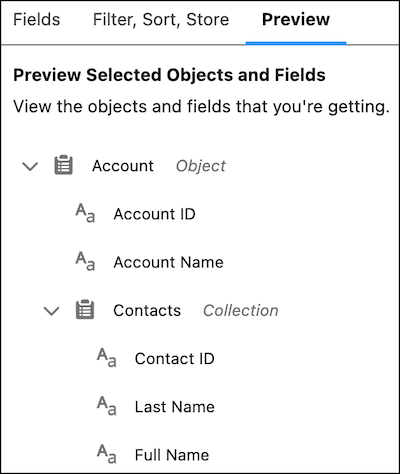
To see the selected objects and fields, click Preview.
When the flow runs, it gets the matching records.
- Save your changes then save the flow.
-
Click
You can view, edit, or delete the objects and fields that you configured. If you delete the related records, the Get Records element keeps the object that you selected. For example, it keeps the Account object selected but removes all its related records.

Did this article solve your issue?
Let us know so we can improve!
