You are here:
Update Salesforce Records from a Flow
To update field values on existing Salesforce records, use either the Update Records element or a Quick Action core action. The right element depends on what the rest of your flow is doing.
Required Editions
| View supported editions. |
On an opportunity record, when a user clicks the “Won” button, a flow updates the opportunity’s stage.
To update fields on one or more existing Salesforce records, your flow:
- Identifies the records to update.
- Identifies the new field values for those records.
- Saves those changes to the Salesforce database. (In other words, until the changes are saved to the database, the changes exist only within the flow.)
How do I choose between flow elements that update records?
The main difference between the elements is how it knows which records to update, how it knows the new field values to apply, and how many records it can update.
Quick Action elements can update only one record at a time, while Update Records elements can update multiple records.
| To identify records to update | To identify new field values for the records | Number of records it updates | |
|---|---|---|---|
| Update Records, where you chose to specify conditions and set fields individually | In the same element, use filter criteria. | In the same element, map each field to be updated with a variable or other resource. All resources are supported, so long as the resource’s data type matches the selected field’s data type. |
At least one. |
| Update Records, where you chose to use the IDs and field values from a record variable or record collection variable | Populate a record variable or record collection variable in another element. | In another element, such as an Assignment element, update the values in the record variable or record collection variable. | If a record variable: one. If a record collection variable: at least one. |
| Quick Action | Populate a single-value variable with the ID in another element. Use this ID for the Related Record ID parameter. | In the same element, map each field to be updated with a variable or other resource. All resources are supported, so long as the resource’s data type matches the selected field’s data type. |
Exactly one. |
If all the following statements are true, use a Quick Action element.
- Update exactly one record
- You’ve already populated a variable with the record’s ID
- The Quick Action’s layout includes all the fields to update
If any of those statements aren’t true, use an Update Records element.
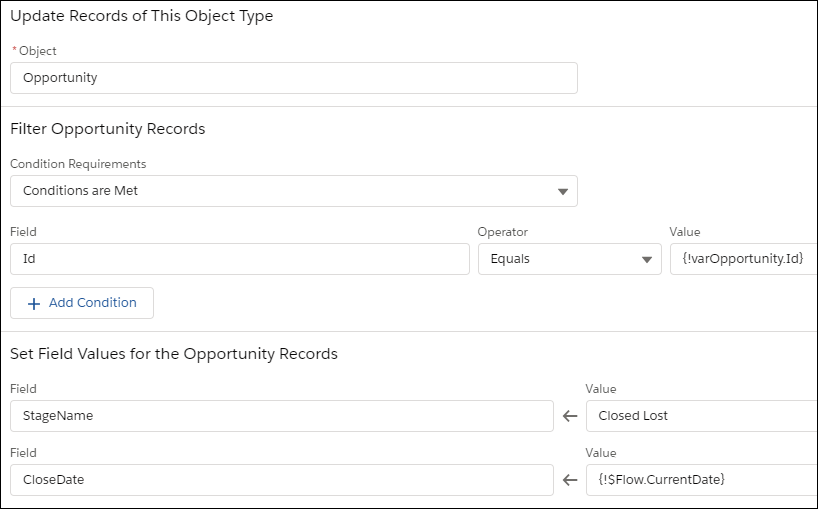
Here’s how you’d update an opportunity’s stage by using each of the update elements.
- Update Records, where you chose to specify conditions and set fields individually
- Update Records, where you chose to use the IDs and field values from a record variable or record collection variable
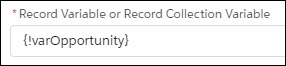
Assumes {!varOpportunity} is already populated with the right fields.
- Quick Action (of type Update)
-
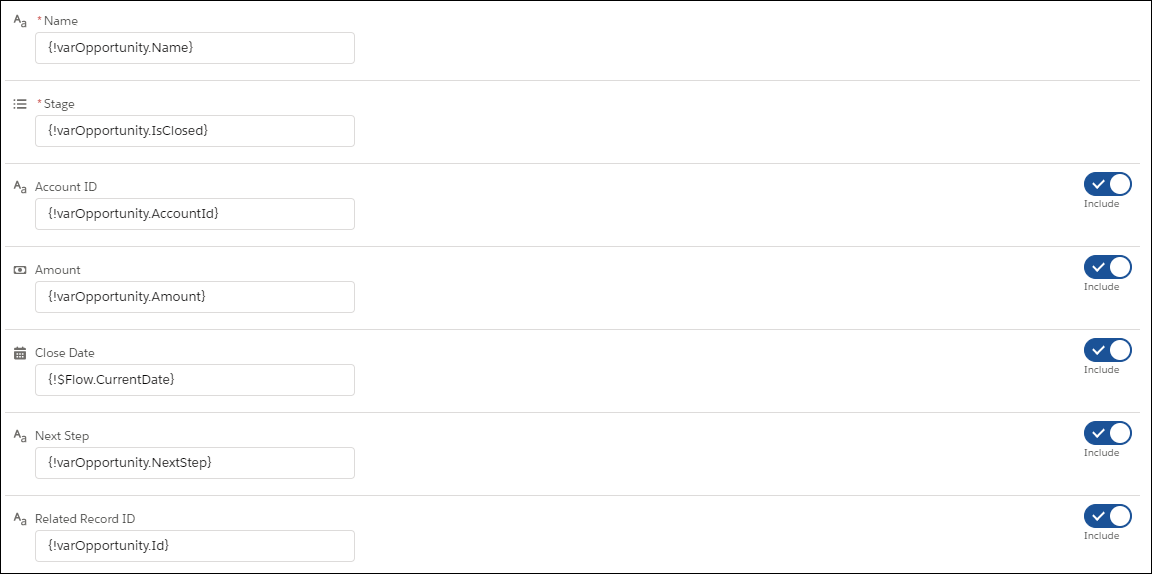
Two fields are required by the associated action layout, so they’re required in this element. Related Record ID identifies which opportunity to update.
This video explains when to use fast field (before-save) updates and when to update actions and related records.
View this video in a separate tab.
