You are here:
Add and Edit Elements in Auto-Layout
Create automations and stay orgnaized using a streamlined canvas experience.
Required Editions
| View supported editions. |

Note Adding and managing elements in a flow requires the Manage Flow permission. You don't need
to be an admin to have Manage Flow. Ask your admin to add it to your profile or permission
set.
What Is Auto-Layout?
Auto-layout mode is a streamlined experience for building flows that keeps your canvas neat and tidy. Unlike free-form building where you drag and drop elements anywhere on the canvas, auto-layout automatically arranges elements in a structured, linear path. This makes it easier to follow the flow logic and maintain a clean, organized canvas. Auto-layout is the default mode for Flow Builder.
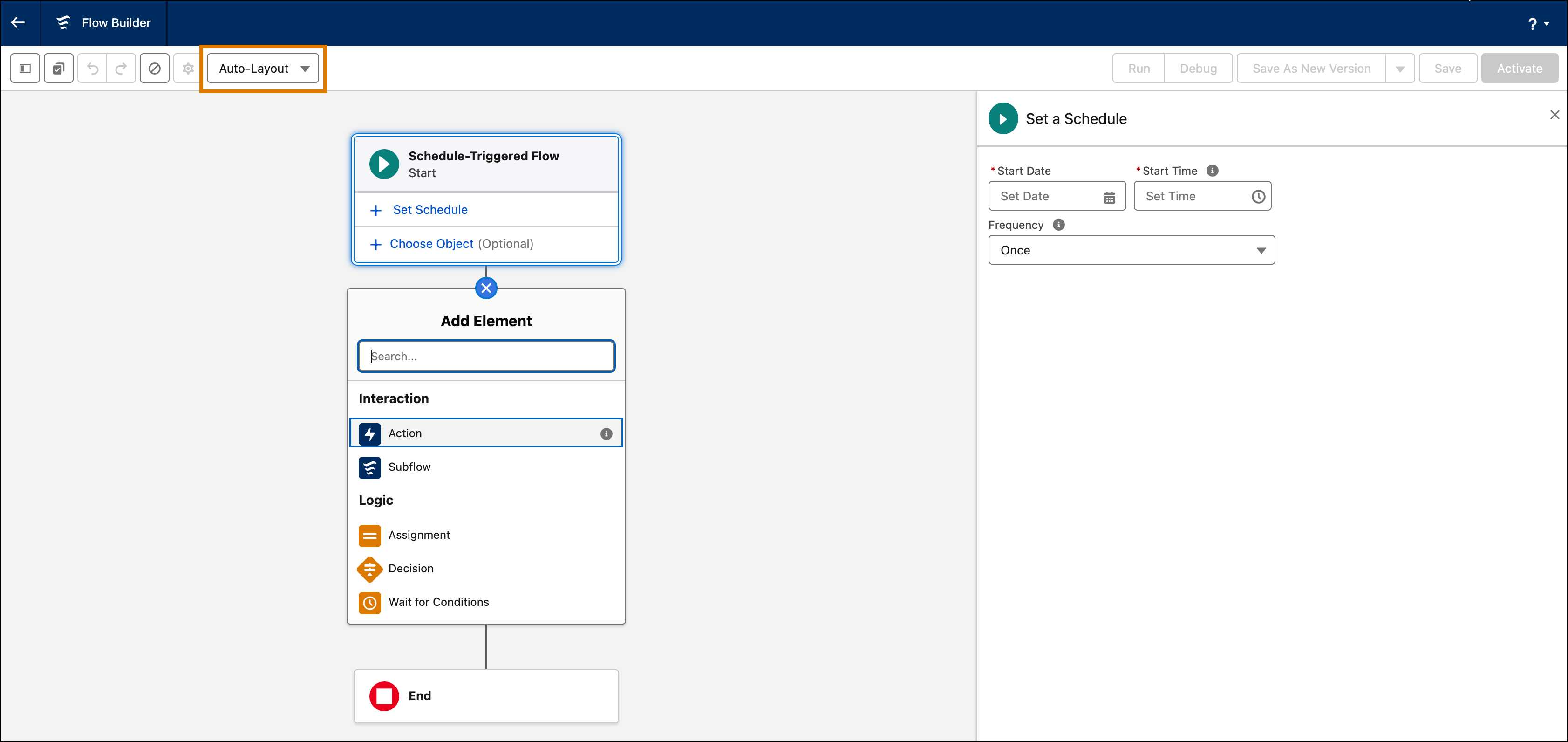
Note In auto-layout mode, your changes are automatically saved to your draft flow. To make
your changes permanent, save your flow before you close its window in Flow Builder.
Auto-layout provides these element management capabilities to help you build flows efficiently:
- Add Elements - Insert new elements into your flow to build your automation logic
- Edit Elements - Modify existing element configurations to refine your flow's behavior
- Copy Elements - Duplicate elements to reuse configurations and save time
- Move Elements - Relocate elements within your flow to reorganize the logic
- Delete Elements - Remove elements that are no longer needed in your flow
- Add Elements in Auto-Layout
Add elements to a flow in auto-layout mode to build your automation. - Edit Elements in Auto-Layout
Modify existing elements in a flow to update their configuration or behavior. - Copy Elements in Auto-Layout
Duplicate elements in your flow to reuse them in other parts of your automation. - Move Elements in Auto-Layout
Relocate elements within your flow to reorganize the flow logic and improve readability. - Delete Elements in Auto-Layout
Remove elements from your flow when they're no longer needed in your automation. - Group Flow Elements in Auto-Layout
Organize related flow elements into named, collapsible sections to make complex flows easier to navigate and maintain.
See Also
Did this article solve your issue?
Let us know so we can improve!
