You are here:
Invoke a MuleSoft RPA Process in a Flow
After you make a MuleSoft RPA process available to flows, you can start and check the status of the process from a flow.
Required Editions
| Available in: Lightning Experience |
| View supported editions. |

You add invocable actions for the startProcess and
getProcessExecutionStatus operations that you selected when
you registered the RPA process as an external service.
- In Flow Builder, create a flow.
-
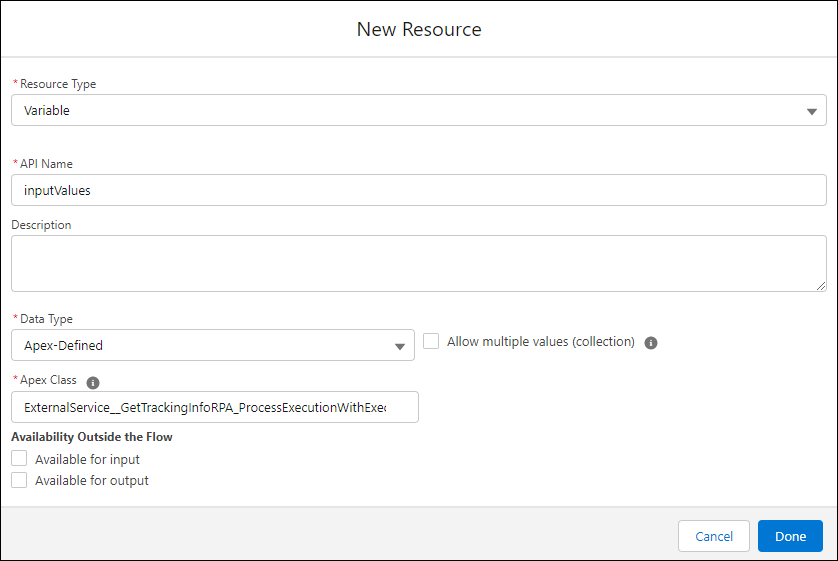
To store the input variables for the RPA process that you want to invoke, create a resource
with these values.
Field Value Resource Type Variable Data Type Apex-Defined Apex Class ExternalService_External_Service_Name_ProcessExecutionWithExecutionId
External_Service_Name is the name that you provided when you registered the MuleSoft RPA API as an external service.
-
Assign values to the input variables.
- On the Flow Builder canvas, add an assignment node.
-
Assign values to the variable that you created in the previous step.
A variable’s input values differ for each RPA process. In this example, the process requires an order number and a tracking number.
Every input requires a value, even if the value is an empty string. If you don’t specify a value for each input, the RPA process invocation generates an error.
Each RPA process invocation requires a unique
Callbacks for MuleSoft RPA processes aren’t supported in flows. Specify theexecutionId. If your flow starts only one RPA process, you can use the$Flow.InterviewGuidglobal variable, which is the flow interview ID.$GlobalConstant.EmptyStringglobal variable as the value of thecallbackUrivariable.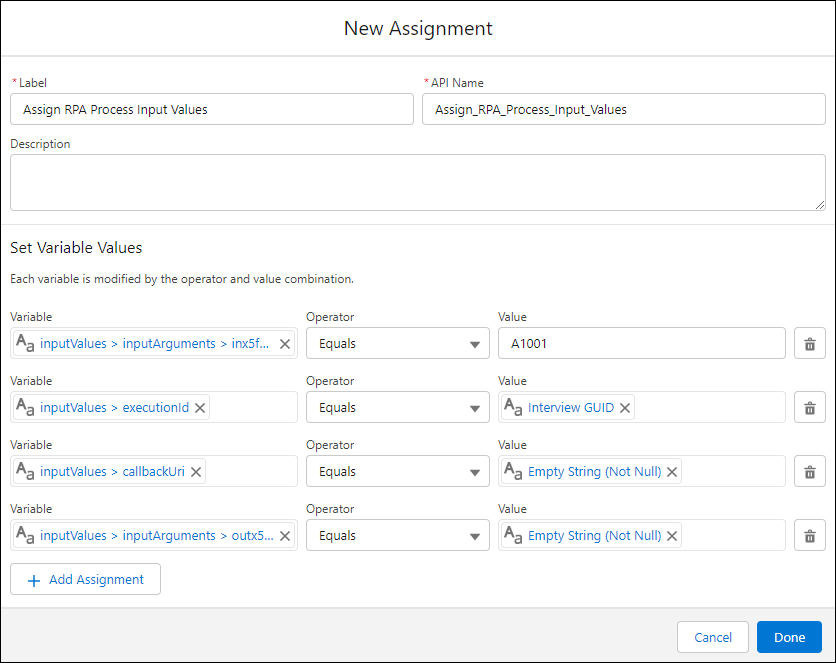
-
Add an action for the
startProcessoperation to the flow.- On the Flow Builder canvas, add an action node.
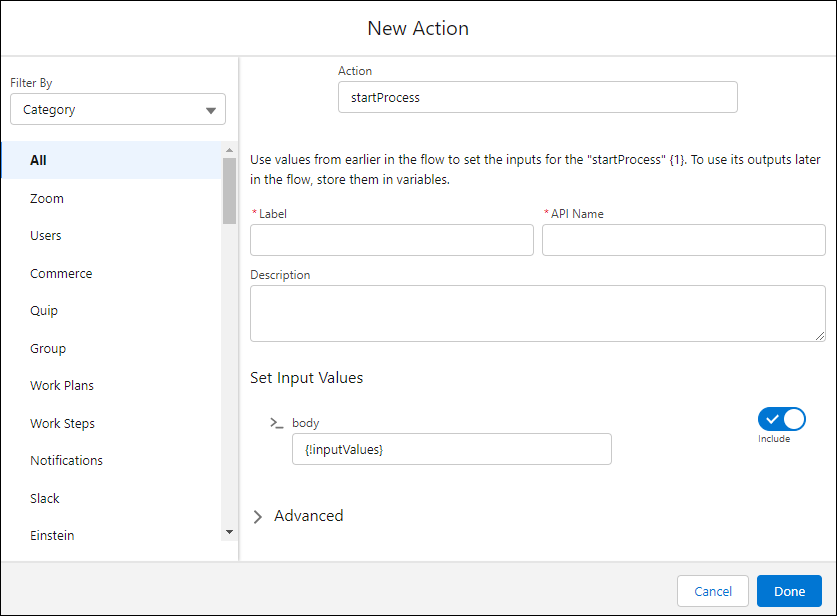
- In the Action field, type startProcess, and select the startProcess action.
-
Configure the action, setting the body to the resource that you created to store the
input values.
- Click Done.
-
Add an action for the
getProcessExecutionStatusoperation to the flow.- On the Flow Builder canvas, add an action node.
-
In the Action field, type
getProcessExecutionStatusoperation, and select the getProcessExecutionStatus action. -
Configure the action, setting the executionId to the value of the
executionIDparameter that you specified for starting the MuleSoft RPA process.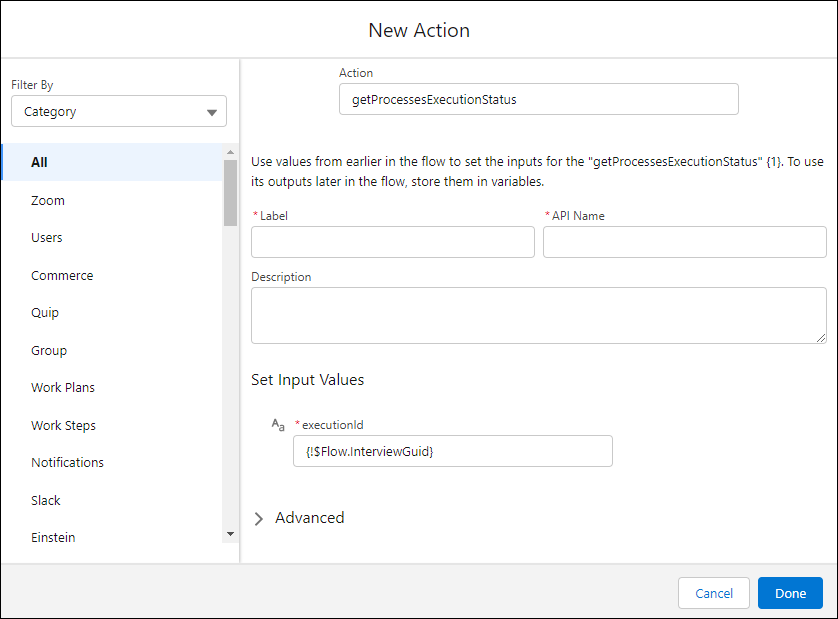
- Click Done.
-
Save and run your flow.
The output of the
startProcessaction indicates whether the process started successfully.The output of the
getProcessExecutionStatusaction indicates the status of the RPA process.

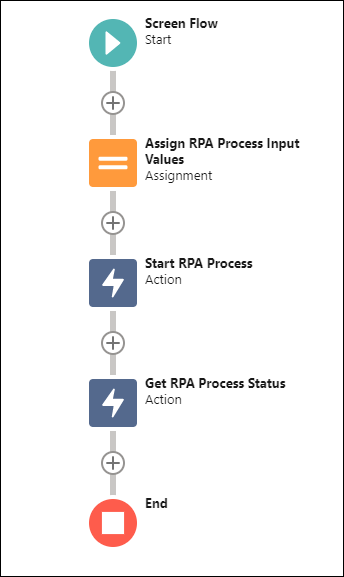
This simple screen flow invokes a MuleSoft RPA process called Get Tracking Info. It includes an Assignment node for input variables and actions that start and check the status of the process.