You are here:
Sum or Count Items in Collections with the Transform Element
Aggregate data from a source collection to calculate the sum or count of items in that collection, and assign the result to a target data field.
Required Editions
| View supported editions. |
| User Permissions Needed | |
|---|---|
| To open, edit, create, activate or deactivate a flow using all flow types, elements, and features available in Flow Builder, including Einstein and Agentforce for Flow: | Manage Flow |

Before you begin, understand the structure of your source and target data, such as whether the data contains multiple levels of collections within other collections. Mapping fields in a collection requires rules to preserve data integrity. See Flow Element: Transform.
Count the number of items in a source collection, or add the field values on each item in the source collection to calculate their sum.
-
Add the Transform element to your flow.
- Edit the generated label and description if needed. Flow Builder generates them based on the element's configuration, and the API name populates based on the label.
-
For Source Data, click the Add Resource button
 and select the flow resource to transform the
data.
Select a resource that references a collection to aggregate.
and select the flow resource to transform the
data.
Select a resource that references a collection to aggregate. -
For Target Data, click the Add Resource button and select the data type.
- If the target data is a collection, select Allow multiple values (collection).
-
For a Record or Apex-Defined data type, select the Apex class or object for the
target data that the Transform element generates.
For example, if you specified that the target data is a collection and that the record data type is the Account object, the Transform element generates an account collection. If you didn’t specify a collection, the target data is a single account.
-
Map the source collection to the target data field that’s a Number data type.
-
Hover over a source collection and click the Map button
 .
.
-
Next to a target data field that’s a Number data type, click the Map button .
If a target field doesn’t have the Map button, you can’t map to it. When mapping fields in a collection,
the source and target fields must be at the same hierarchical level in their
respective resources. See Flow Element:
Transform.
-
Hover over a source collection and click the Map button
- For Aggregate Type, select Count or Sum.
-
For Field to Transform, select the source data field on each item in the source
collection to calculate the transformed value.
This field is available only for the sum aggregate type.
- Save your flow.

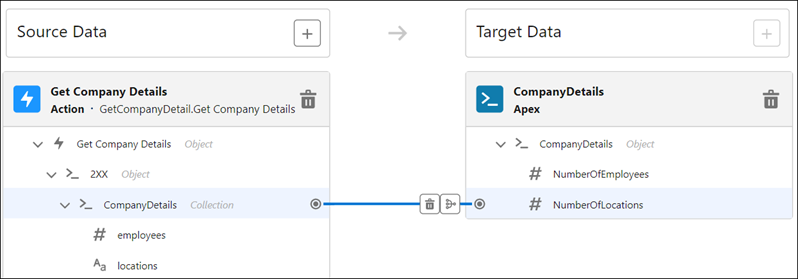
Let’s say you create a flow that retrieves data about company locations from an external system. The external data includes company locations and the number of employees per location. In the flow, you map the CompanyDetails source collection to the NumberOfLocations target data field that stores the transformed value.
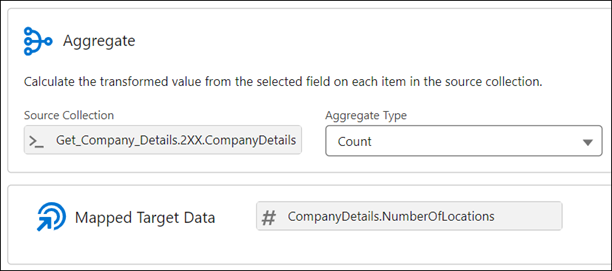
You configure the Transform element to count the number of company locations.
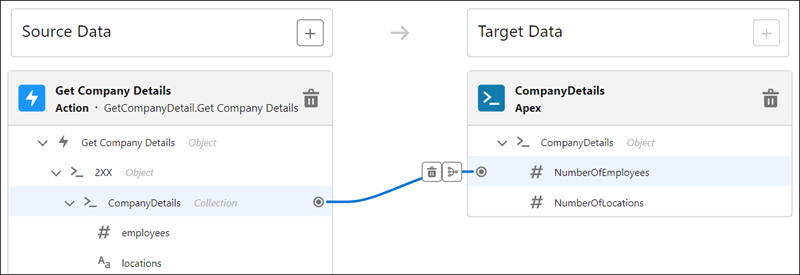
Next, you map the CompanyDetails source collection to the NumberOfEmployees target data field that stores the transformed value.
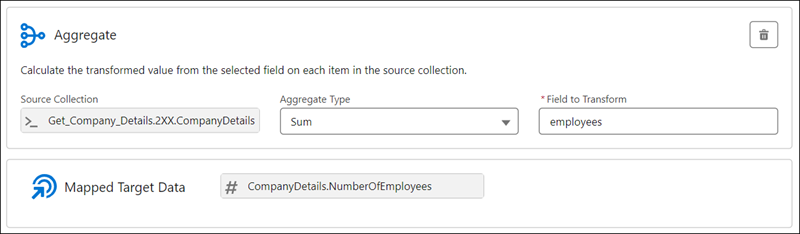
You configure the Transform element to calculate the sum of employees for all locations.