You are here:
Save a Draft of Your Flow as You Build
You can interact with your flow while an element is open and access the toolbar while editing that element. And you don't need to finish configuring an element before saving your flow.
Required Editions
| View supported editions. |
| User Permissions Needed | |
|---|---|
| To open, edit, create, activate or deactivate a flow using all flow types, elements, and features available in Flow Builder, including Einstein and Agentforce for Flow: | Manage Flow |

These steps show you how you can save an in-progress flow with errors and see the warnings the draft generates.
The property window for most elements is now a panel on the Flow Builder canvas. A panel-based property editor isn't available for Screen and Action elements.
Panel-based property editors don't work in free-form. You can't save a draft in free-form.
-
Open the Flows list view.
- From the Automation app, select the Flows tab.
- From the Flows tab in any Lightning app, click the actions menu and select Open Flow.
- From Setup, in the Quick Find box, enter Flows, and then select Flows.
Note that the Automation app and Flows tab options don't require Setup access. -
Create the type of flow that you want to use.
- From the Automation app, click New, then click the category, and then the flow type. For example, to create a record-triggered flow, click Triggered | Record-Triggered Flow.
- From Setup, click New Flow, then click the category, and then the flow type. For example, to create a screen flow, click Screens | Screen Flow..
- Add any element except a Screen or Action to the canvas.
- Configure the element in the property editor. To intentionally create an error, leave some of the configuration values unspecified.
-
To retain your changes and return to the canvas, click

-
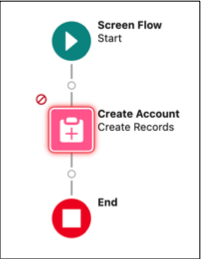
Review the draft of your flow on the canvas. Note the error icon.
-
To see warnings about errors in the draft, save the flow.
Your flow is saved, despite having errors. The warning icon (
 ) indicates that there are warnings for the flow.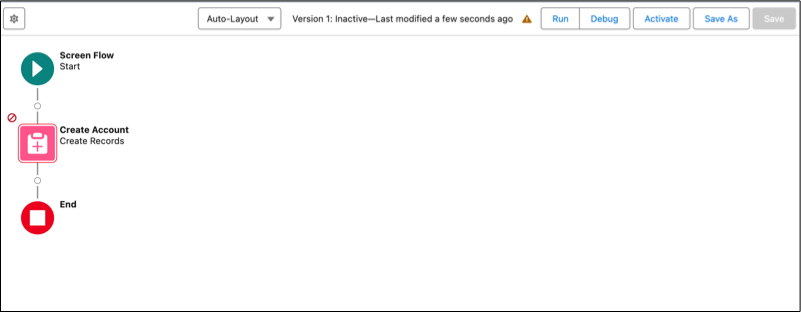
-
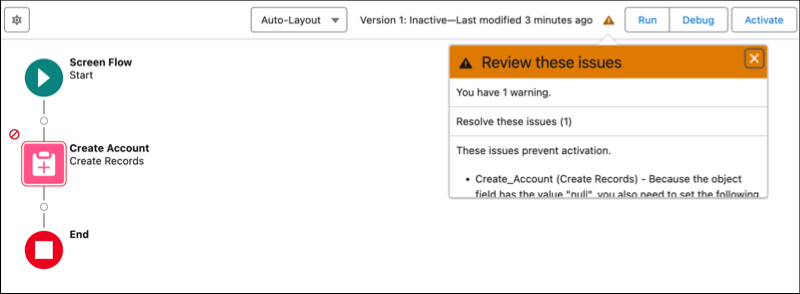
To view the details of the warnings about errors in the draft flow, click
- Continue configuring your flow until there are no errors.
